Feedback page
The Feedback form enables a small Feedback icon on the SearchView menu which allows users to send feedback to specified recipients.
Feedback form
To enable the Feedback form, left-click the Edit button and then the Feedback page enabled checkbox.
The feedback form can be customized according to the settings provided below. Changes to the Feedback form will show up in the preview to the right.
Send feedback
To send a message to a Recipient:
(To save a comment with a specific term or term record, please use the Add comment function.)
-
Click on the mail symbol .
-
Select the name of the addressee from the dropdown in the To field.
-
Your name and email address should already be filled in (if registered by the administrator).
Otherwise, fill in these together with the subject and your message.
You can also attach a file with additional information if this function enabled.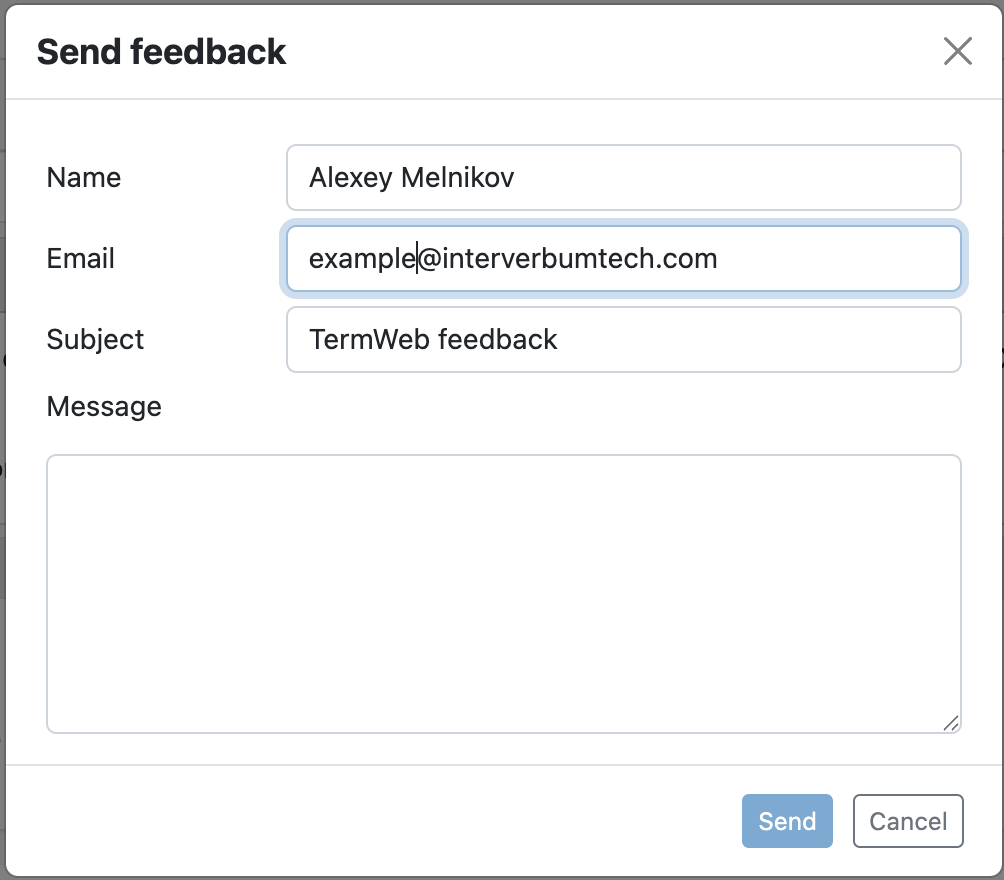
-
Click Send. Confirmation that the message has been sent appears in the result pane.