API Templates
API Templates API Templates are a collection of Dictionaries or Sections that assigned for use in the XTM, Trados Studio and memoQ integrations. The template defines which Dictionaries or Sections to use for lookup, as well as specific settings for what fields and stemming to use.
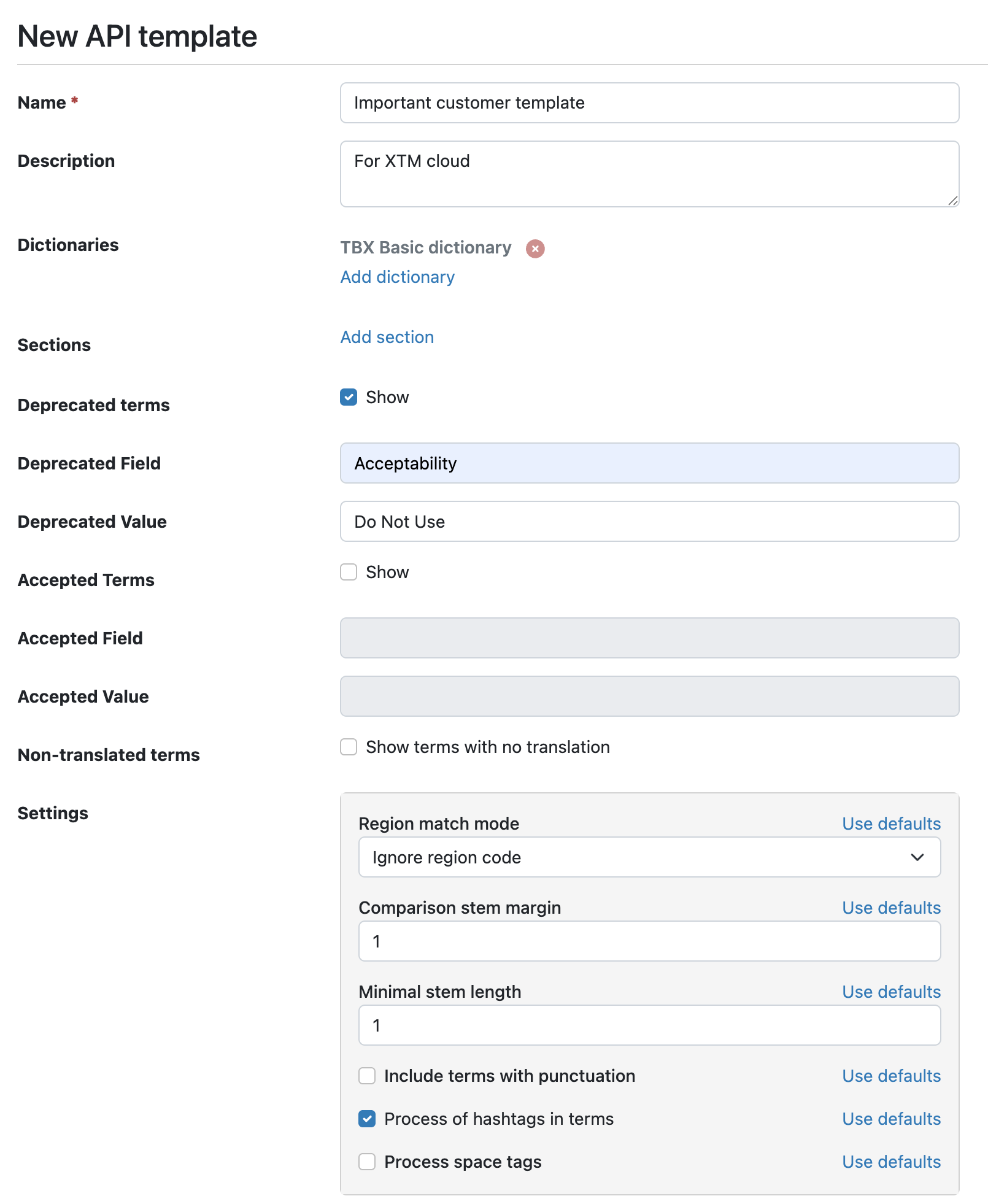
In a template the following settings can be configured:
-
A list of dictionaries where to search in. This option selects all sections of this dictionary and makes section selection of the same dictionary redundant.
-
A list of sections where to search in (if you don’t need to give access to all parts of dictionary).
You can find out more details how to configure XTM for use with TermWeb here: Setup integration in XTM and Term decoration inside XTM
API Synchronisation settings
API Sync settings are used for configuring access rights for the TermWebIntegrator application between TermWeb 5 and Trados Studio and Multiterm versions 2024/2022/2021. This provides a local Multiterm file that can be used in translation projects with Trados Studio software.
License Requirements
XML-RPC API needs to be set to enabled on the License page. This is viewable via the Administration menu System > License for users with the System Administrator role. If you are unable to access this page and unsure if you have this license enabled, please contact TermWeb Support.
Access requirements prior to configuring API Synchronisation settings
Non-administrator users accessing TermWeb via the TermWebIntegrator are required to have access to the View Concept permission at least one Dictionary via Permission Schemes as well as belong to a User group with Allow API access enabled.
Users with either the Administrator or System Administrator user role will bypass all access permissions and restrictions set by API synchronisation settings.
API sync settings list
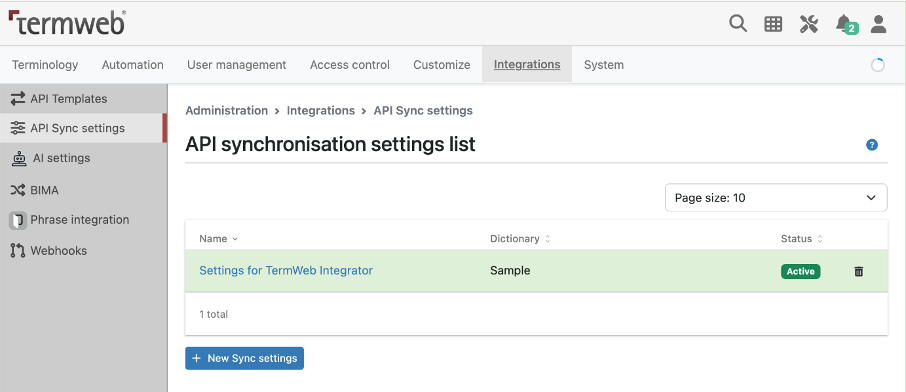
API Sync settings is a configuration page available via the Administration menu in TermWeb to restrict which languages and filtered list of Terms and/or Concepts should be downloaded as a Multiterm file for specified User group(s). Read and write permissions to this page require either the Administrator or System Administrator user role.
The API sync list will show a list of all currently created API synchronisation settings. It is recommended that a synchronisation setting be created for each group accessing TermWeb using the TermWebIntegrator to restrict the ability for users to download a full copy of a termbase as well as shorten the time it takes to download any future copies.
New API synchronisation setting
A new API synchronisation setting can be set up by clicking the + New Sync Settings button.
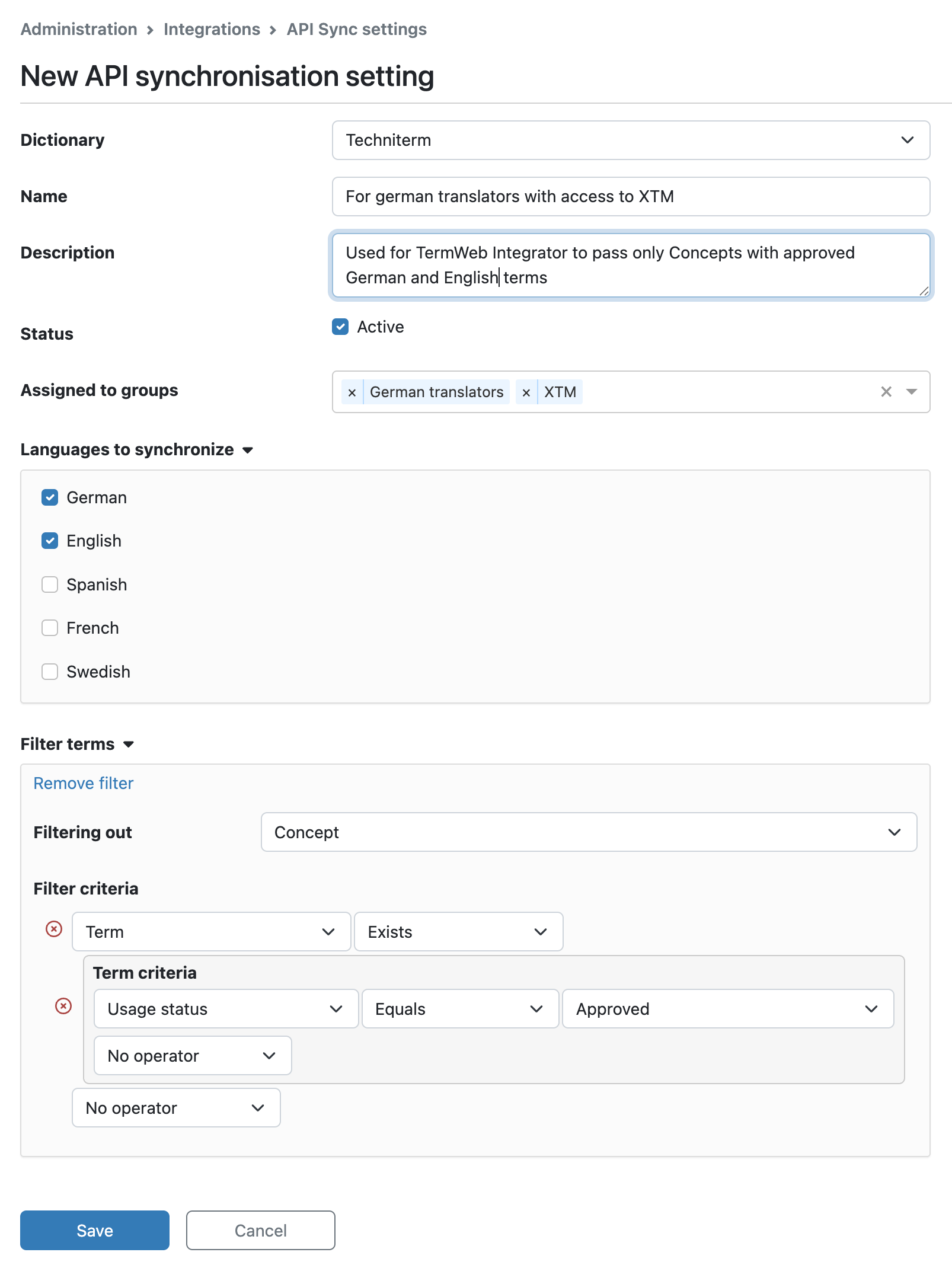
These settings include several configurations settings as noted below:
-
Dictionary
Required field. Single picklist showing the full list of termbases available in the TermWeb client. -
Name
Required field. Needs to be unique in a specific TermWeb client. -
Description
Custom descriptive text to describe the use of this API synchronisation setting. -
Status
Active checkbox to denote whether the current API synchronisation setting is turned on or off. -
Assigned to groups
Multi-value picklist showing the full list of User groups available in the TermWeb client. Any User groups assigned to this row will be provided access to the Languages and Filter terms as specified below.Users belonging to more than one User group that are individually assigned to different API Synchronisation settings will use the union of permissions. -
Languages to synchronize
Only the selected languages will be downloaded for the target user. Recommended security settings for localization are that specific language pairs, such as Source and Target, are enabled for translators of the specified language pair. -
Filter terms
Sets Conditions for restricting which Terms/Concept are downloaded. Recommended requirements are that only approved validated terminology is downloaded.
include::ai_settings.adoc
BIMA
This document describes the message format for TermWeb Business Integration Message Adapter (BIMA).
BIMA is used for integration of TermWeb with other enterprise systems via a message broker middleware, such as
WebSphere MQ, ActiveMQ, RabbitMQ, Apache Kafka.
BIMA uses the Java Message Service (JMS) standard and Kafka Streams.
Introduction
There are two TermWeb operations that causes BIMA to generate messages: initial transfer (export of term database) and update of term data.
When such an operation occurs, BIMA generates one or more messages and publishes them to the message broker’s
publish/subscribe topics defined in BIMA’s configuration file.
Each message consists of several properties and a message body, which is a XML structure. The properties are useful for
applications when filtering messages to avoid unnecessary XML parsing from the body.
Configuration
-
Copy the sample configuration file BimaAdapter.properties to [TERMWEB_HOME] and edit it as necessary.
-
Edit [TERMWEB_HOME]/termweb.properties and add the following lines to enable loading of BimaAdapter configuration:
adapter.class.1=com.termweb4.bima.BimaAdapter
adapter.config.1=[TERMWEB_HOME]/BimaAdapter.properties
For more information how to configure BIMA you can open full documentation: BIMA manual.
Adapter administration
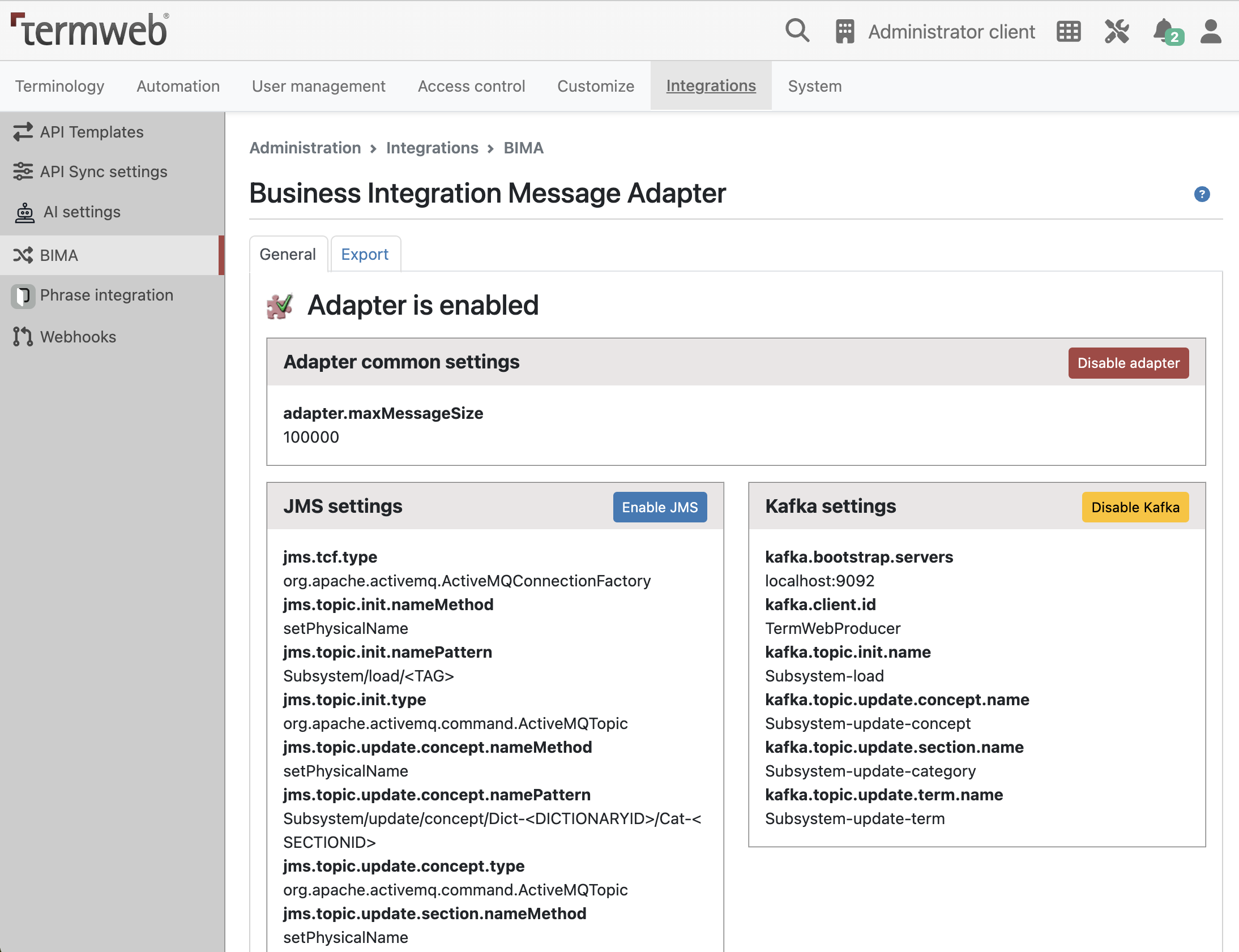
When the adapter is installed in TermWeb an BIMA administration panel is available in TermWeb. Log in as administrator and go to the Admin → Integrations → BIMA. The administration panel opens.
General panel
The general panel allows the adapter to be enabled and disabled. It also allows temporary disable one of the parts JMS or Kafka. Please note that the setting in BimaAdapter.properties is not affected by this control. After restarting TermWeb the adapter will be enabled or disabled according to the value in the properties file.
Information about current configuration is also displayed here.
Export panel
The export panel allows the administrator to do an initial transfer of all or a part of the term data in a dictionary. The selection of concept, terms and fields are based on regular Export settings used for normal exports.
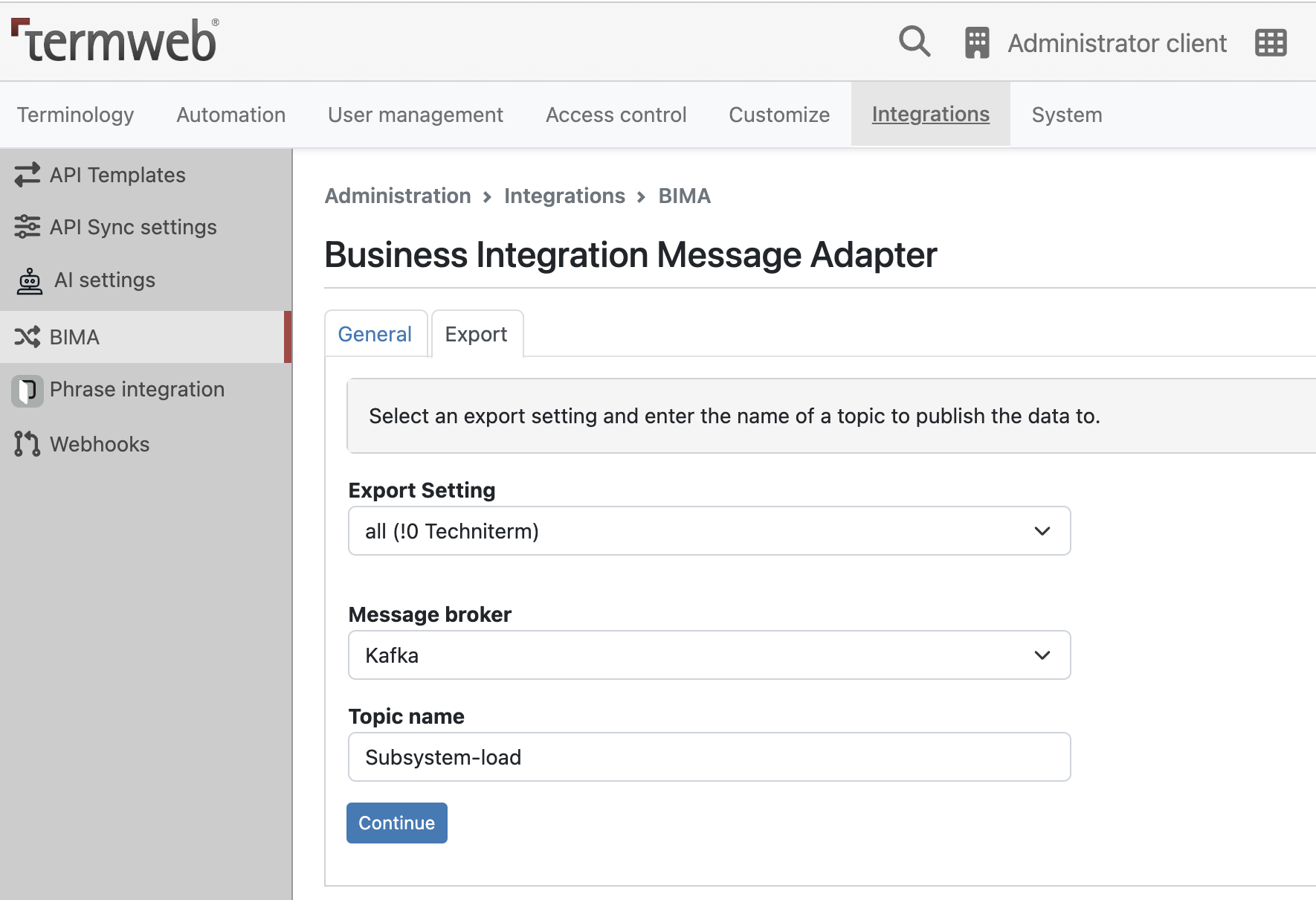
Select settings and topic
Start by selecting one of the available export settings. If no setting is appropriate for your needs, you can click the “Create export setting" link which opens the Export settings panel and lets you define a new setting. Save the setting and then select the BIMA administration icon again in the go to the Admin → Integrations and select the newly created setting.
Continue by entering a name of the topic to which the data should be published. Choose type of message broker configured in adapter (JMS or Kafka)
Click on the “Continue" button.
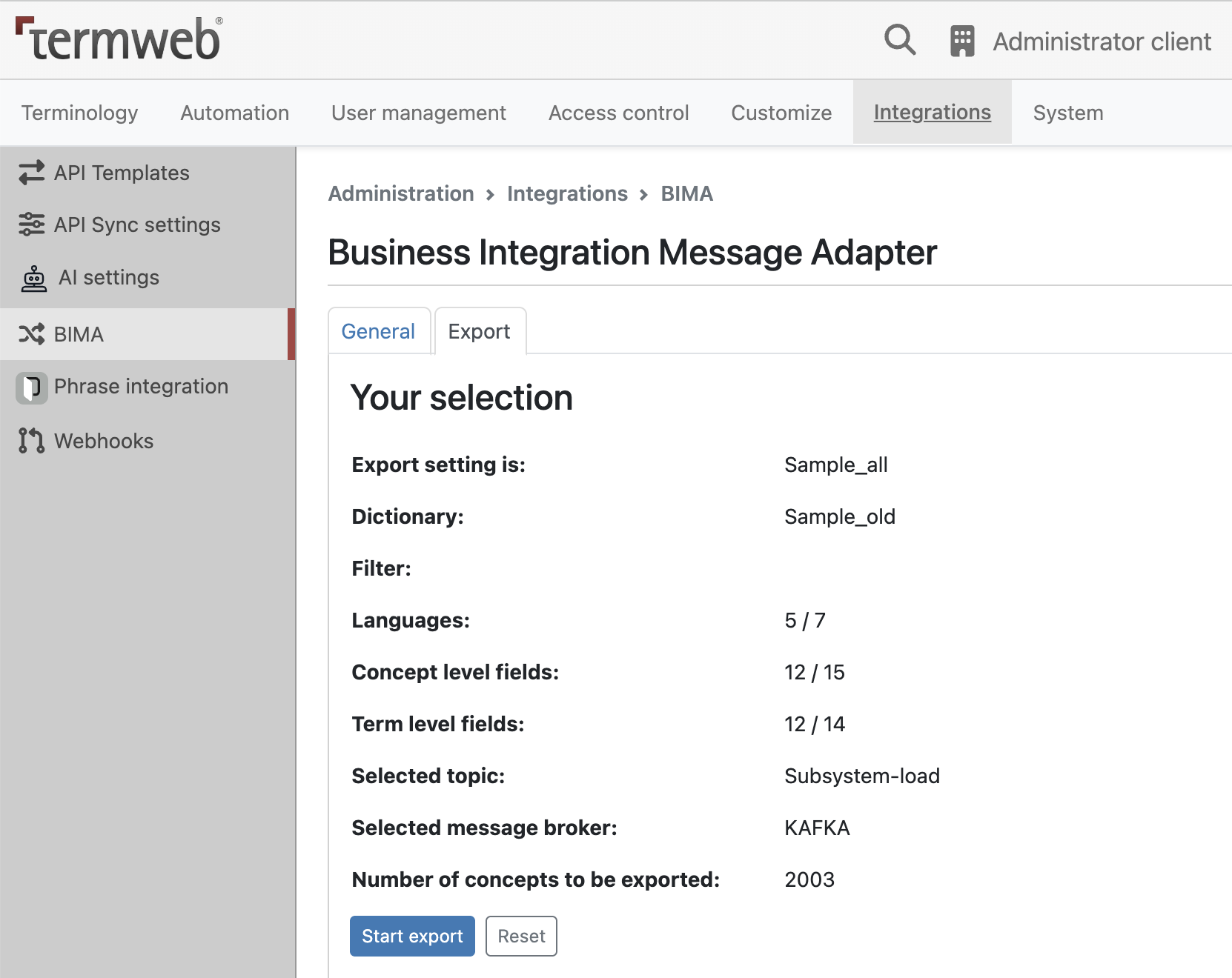
Confirm your selection
Your selected export setting is now displayed in detail with languages, fields and total number of concepts that
will be published when using this setting. By moving your mouse pointer over the language and field summary you
will see a list of all languages and fields included.
If this is the data you expected, click the “Start export" button to start publishing the messages. Otherwise, click the “Reset" button to go back and select another export setting and/or topic name.
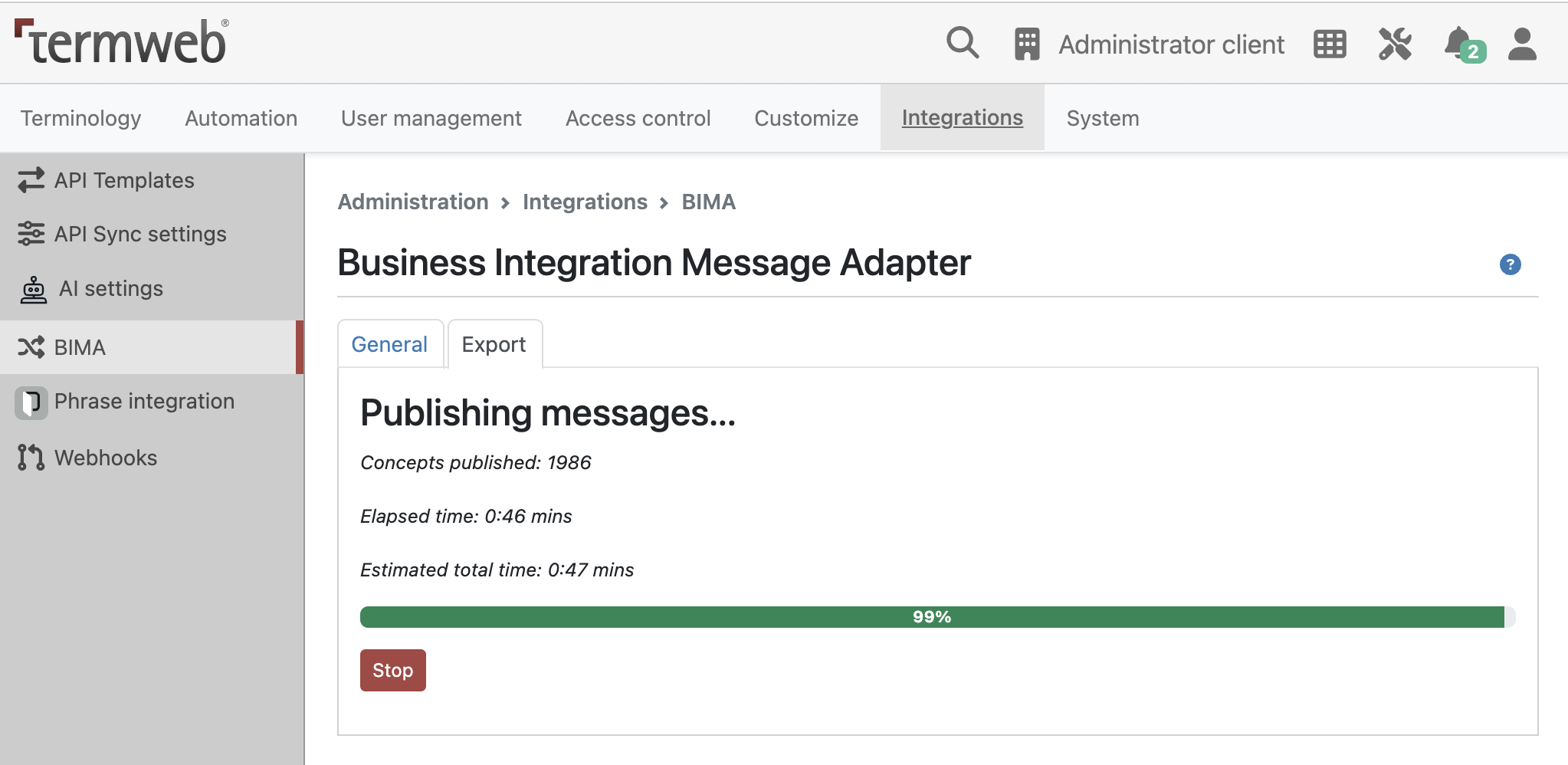
Export progress
The selected concepts are now retrieved from the database, converted to XML segments, and published to the selected topic.
For details about the message format, see section Message structure below.
A progress bar indicates how much of the export is completed. The elapsed time and an estimation of the total time is also given.
You can stop the export by pressing the Stop button. Please note that this may cause receiving systems to only get parts of the data intended.
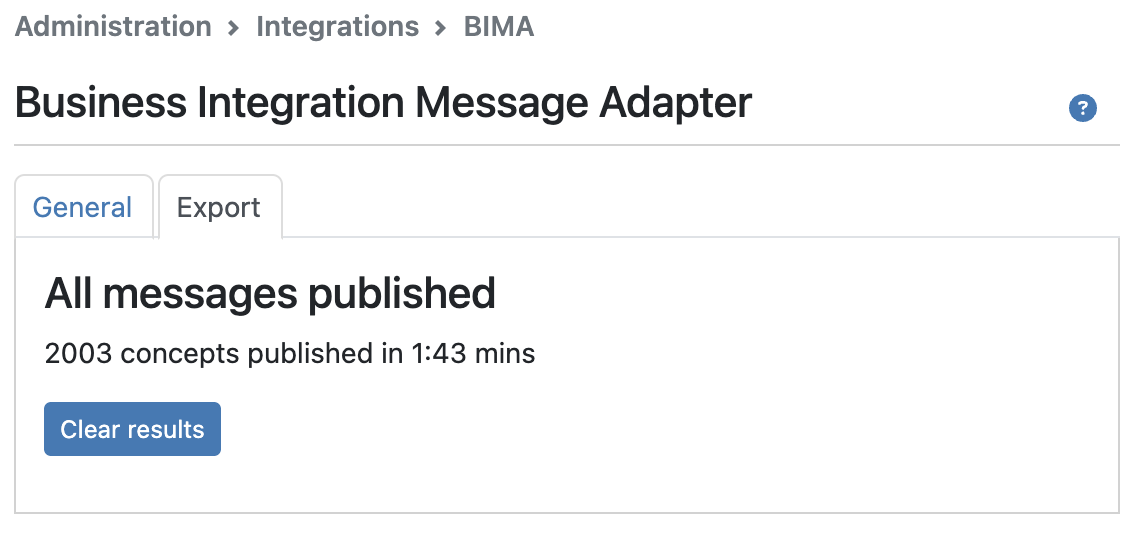
Export summary
When the export is done, or if the export was stopped by the user, a summary is displayed with the total
number of concepts published, together with elapsed time.
Message structure
Message properties
The following specific properties are defined in a JMS message or as header in Kafka’s record:
| Property | Type | Description | Possible values |
|---|---|---|---|
|
String |
Contains the oid of the dictionary that contains the object described in this message |
Any string |
|
String |
Contains the oid of the section that contains the object described in this message. |
Any string |
|
String |
Contains the new section oid when the section was changed for Concept, otherwise null. |
Any string |
|
String |
Contains the old section oid when the section was changed for Concept, otherwise null. |
Any string |
|
String |
Identifies the type of data entity that is contained in this message. |
Is one of:
|
|
String |
Identifies the type of action that was performed on the data. |
Is one of:
|
|
String |
Identifies the type of transmission. |
Is one of:
|
|
Boolean |
Identifies if the message was generated in a restore operation in TermWeb. |
|
Initial transfer
During an initial transfer (described in Adapter administration above) BIMA will create a message
(or several messages if the message is larger than the maximum message size specified in the config file)
for each section in the dictionary being exported. The TransmissionType in the message is set to INITIAL.
DictionaryId and SectionId are set to their respective values. All other properties are set to null.
The body of the message is an XML structure containing all the concepts being exported from the section, which could be none if the export setting’s filter does not include any concept from this section.
Update transmissions
An update transmission occurs when some term data is updated in TermWeb. This is done by either renaming or deleting a section, creation, modification, or deletion of concepts, or by importing a file. BIMA then creates one or more messages and publishes them to the broker.
Section updates
Messages caused by section updates are published to the section update topic(s) defined by jms.topic.update.section.namePattern or by kafka.topic.update.section in the config file. All messages have DataType set to SECTION.
If a section is renamed a message is published to the topic with DataAction set to UPDATED.
The XML in the body consists only of the dictionary and section. The new name is found in the “name" attribute of the section tag.
If a section is deleted a message with DataAction set to DELETED is published. Only dictionary and section in the XML.
See Example messages for more detailed information.
Term data updates
For every change there will be a message for the entire concept together with a message for each affected term. There is therefore a redundancy in the messages since the data in the term messages also are included in the concept message.
Concept messages are published to the concept topic(s) defined by jms.topic.update.concept.namePattern or by kafka.topic.update.concept in the config file. Term update messages are published to the topic(s) defined by jms.topic.update.term.namePattern or by kafka.topic.update.term.
The subscribing client applications can thus select the most appropriate data structure.
In the group of messages, the concept message has DataType set to CONCEPT, an appropriate value set for DataAction and the body is the XML for the entire concept. Each term message has DataType set to TERM, a DataAction value as appropriate and the XML structure for the term.
When importing a file there will be a series of messages, just like if every concept was created or modified manually. The messages will be sent to the broker when the import of the file is completed.
Term data updates
The messages generated from the different kinds of updates are as follows.
Creation of a new concept
One message for the entire concept, and one message for each term in the concept. All have DataAction set to CREATED.
Deletion of a concept
One message for the entire concept, and one message for each term in the concept. All have DataAction set to DELETED.
Modification of a concept
One message for the entire concept with DataAction set to UPDATED.
For every term that has been created, there is a message with the term data and DataAction set to CREATED.
For every term that has been deleted, there is a message with the term data and DataAction set to DELETED.
If any term field except the term name or language has been modified, there is a message with the term data and DataAction set to UPDATED.
If the term name or language has been changed, the old term is considered to have been deleted and a new one created. Therefore, this will create two messages: one DELETED and one CREATED.
If any field on the concept level has been modified, a message with DataAction UNMODIFIED is generated for every term that has not already generated a message with DataAction UPDATED, CREATED or DELETED. Subscribing systems can then determine if some action needs to be taken with the data.
If the section has been changed, the concept is considered to have been deleted and new one created. The messages for the deletion are published to the old section’s topic and the creation messages are published to the new section’s topic.
XML structure
The XML structure for the messages is like the structure of a TermWeb XML export file and is described in TermWeb_BIMA.dtd, see it on full documentation page
Message example:
<dictionary id="8" name="Automotive terms">
  <section id="16" name="Headings">
    <concept id="4116633" termno="430">
      <metadata>
        <createdOn>1999-05-12 03:12:54</createdOn>
        <createdBy>admin</createdBy>
        <changedOn>2004-10-04 13:53:27</changedOn>
        <changedBy>admin</changedBy>
      </metadata>
      <field name="Domain">All domains</field>
      <field name="Origin">Termlex</field>
      <field name="Term No.">430</field>
      ...
      <term>
	<metadata>
	  <createdOn />
	  <createdBy />
	  <changedOn>2004-10-04 13:53:22</changedOn>
	  <changedBy>admin</changedBy>
	</metadata>
        <field name="Term">Lubrication, injection pump</field>
        <field name="Language">en-GB</field>
        <field name="Region"/>
        ...
      </term>
      <term>
      ...
      </term>
      ...
    </concept>
    ...
  </section>
  ....
</dictionary>
As previously stated, there are one message containing the entire concept and one for each term affected for every term data update. The XML structure in a update concept message contains exactly one <concept> tag with corresponding content, for initial transfer it may have multiple concepts. For a term message, the body contains exactly one <term> tag with content.
The Status field of the concept level is also included in every term message before the <term> tag (messages which are sent to: to the topic(s) defined by jms.topic.update.term.namePattern or by kafka.topic.update.term), by default messages about terms in this topic don’t contain Concept fields, but Status will be present anyway:
<dictionary id="97qjc" id4="41" name="Sample new">
    <section id="97qk5" id4="1318" name="Sample new">
        <concept id="98dve" id4="1005635">
            <metadata>...</metadata>
            <field name="Status">Approved</field>
            <term id="98dvg" id4="2326755">...</term>
        </concept>
    </section>
</dictionary>
Kafka integration
Integration for Kafka is using the same message structure. By default, all messages serialized as JSON strings. XML part of message will be stored in records value.
For initial transmission key will be 1-100, where 1 and 100 sequential position number of first and last element in message.
Numbering starts with 1.
For update transmission key will be S1234, C1234 or T1234 depending on type of message. S1234 is for Section, C1234 is an id for Concept and T1234 id for Term. In case of Section change for Concept BIMA will create two messages with same key, but different DataAction: DELETED and CREATED.
See Example messages for more example.
Phrase TMS integration
With TermWeb’s integration to phrase you can export Dictionaries to Phrase TMS.
When the integration is enabled and Dictionary’s export/import mapping is configured, you can send Concept and Term updates almost immediately to Phrase TMS termbases.
If you want to have updates to Concepts and Terms happening in Phrase’s TMS you can configure the integration to listen for incoming changes via Webhook.
Integration Status: Enable / Disable
Two mutually exclusive buttons:
Enable Integration
Activates all export, synchronization, and webhook features for the current Client.
Disable Integration
Turns the integration off and prevents further synchronization for the current Client
When toggled:
-
Configuration panels reload
-
Data fields are reset based on the server configuration
-
Export functions hide when disabled
Outgoing Changes Configuration
This section configures the credentials that TermWeb uses to communicate with Phrase.
By default, this section is shown in view only mode: all fields are shown read-only and an edit button is available.
In edit mode
All credential inputs become active. Save is enabled only when a change exists and all required fields are valid.
Phrase TMS URL
Defines the Phrase endpoint.
Example: https://cloud.memsource.com
Validation: Required and must be a valid URL
Username / Password Authentication
User must be Phrase TMS Administrator to be able to create custom fields. To create new TermBase in Phrase TMS user must be Project manager or Administrator.
Fields:
-
User name - username from Phrase TMS, usually it not the same as email.
-
Password - password of that user from Phrase TMS.
-
User UID (optional) - user UID is only needed for advanced enterprise configurations, when your user is linked to multiple organizations, you may find it in user details url like https://cloud.memsource.com/tms/user/show/12345567890ABCDEFGHIJK, and user UID will be 12345567890ABCDEFGHIJK, this user details can be found in: https://cloud.memsource.com/tms/user/list
Credentials Test
Test saved credentials button becomes active when:
Credentials are valid and saved. Integration is configured sufficiently.
When you click on button "Test saved credentials" a spinner appears during testing.
Successful authentication shows a green success indicator
Failure shows: red error label and message.
The result card can be closed manually via “X”.
Export Dictionary to Phrase
The primary feature for creating Phrase termbases based on TermWeb dictionaries.
This section appears only if integration is enabled and connection is fully configured.
Step 1: Select Dictionary
A list of available dictionaries is shown. Selection triggers loading of:
-
Default section
-
Possible filters
-
Fields mapping suggestion
Step 2: Default Section for New Concepts
Specifies in which Dictionary Section in TermWeb new Concepts are created in when Concept suggestions are sent from Phrase. These settings are only applicable when the incoming changes is configured.
Step 3: Export Filter
The filter component allows selecting an existing TermWeb filter that:
Restricts which Concepts or Terms are exported to Phrase.
-
Only export Concepts tagged as part of the "Public Glossary"
-
Only export Terms with a valid status.
Step 4: Field Mapping
This is the most advanced component of the entire integration. It allows users configure how data from TermWeb is mapped to Phrase TMS. By default, users can edit it only before export. Existing mappings can’t be edited, if you need to change field mapping - than you need to export dictionary again with new settings.
It is described in section Dictionary Field Mapping below in full detail.
Export Task Monitoring
Shows two types of tasks: currently running or completed tasks.
Synchronize Dictionaries (Push Settings)
Push settings allow automatic export of changes as they happen.
Synchronized Dictionaries Table
Shows configured exports of Dictionaries to Phrase termbases.
Columns:
-
TermWeb Dictionary
-
Default Section
-
Filter name
-
Phrase Termbase name + link
-
Remove button (edit mode only)
-
Each row represents an active mapping.
-
A Show mapping / Close mapping link expands or collapses the detailed field mapping UI.
Edit Mode
In edit mode you can remove existing exports and configure which updates need to be pushed to Phrase TMS.
You also can change default section where new Concepts created from Phrase will be created in TermWeb.
Outgoing events configured for all dictionary exports. Currently there is no way to configure these settings separately for individual. Events that can be pushed from TermWeb to Phrase:
-
Language created
-
Concept created / updated / deleted
-
Term created / updated / deleted
Save button is enabled only if: events changed, any dictionary mapping row marked as deleted or default section changed otherwise Save remains disabled.
Outgoing Messages
User can review messages and its statuses used to create updates in Phrase TMS, by clicking on link with number of outgoing messages.
By clicking on link users may review last outgoing messages, find messages by event UUID, review message body and see processing status.
TermWeb keeps only messages received in last month. Messages older than one month are deleted.
Dictionary Field Mapping — Complete Detailed Description
This is the central and most complex part of the module.
Mappings define how TermWeb dictionary fields are transformed into Phrase Termbase structure.
Mapping Structure Overview
Each mapping consists of:
-
List of field mappings
-
Default section
-
Optional filter
-
Domain configuration
-
“Add unmapped fields to note” toggle
Each field mapping contains:
-
TermWeb field
-
Phrase field
-
Optional exact-match or conditional qualifiers
-
Optional value mapping
Special handling for: Sections, Picklists, Multi-valued fields and Phrase standard fields
Field Mapping
Initially without any field mapping TermWeb will send only Term names and languages.
This field mappings used in export and import configurations.
Users can configure which fields and how should be exported to Phrase.
TermWeb can map Dictionary fields to system Phrase fields such as: Definition, Note, Status, Preferred, Forbidden,
Match type, etc. You can also map TermWeb’s Dictionary fields to Phrase’s custom fields.
You can manage yours Phrase custom fields here: https://cloud.memsource.com/tms/setup/fieldsForConceptsAndTerms.
To ease up initial transfer of Dictionary, TermWeb will offer automatic creation of Phrase custom fields.
TermWeb supports conversion of multiple data types:
| TermWeb field type | Phrase field type |
|---|---|
|
|
|
|
|
|
|
|
|
|
Condition Logic
Each field mapping can contain conditions, enabling selective mapping. Before sending value to Phrase it will evaluate condition, and proceed with field mapping only if condition evaluation is true.
When field mapping contains multiple conditions, they’re joined with logical operator AND meaning that all conditions must be true to proceed.
Example:
-
Transfer value only when field “Part of speech” not equals Adverb.
Condition Object Structure
A condition consists of:
-
operation — comparison operator
-
value — single value for comparison
-
values — array for multi-value comparison
-
exactMatch — check letters case in condition or ignore
Comparison operators
Full list:
| Operator | Meaning |
|---|---|
EQUALS |
Field value equals given value |
NOT_EQUALS |
Field value does not equal given value |
CONTAINS |
Field value contains substring |
NOT_CONTAINS |
Field does not contain substring |
STARTS_WITH |
String begins with value |
GREATER_THAN |
Numeric value greater than specified value |
LESS_THAN |
Numeric less than specified value |
EQUALS_ANY |
Field equals any value in a multi-value list |
EMPTY |
Field has no value |
NOT_EMPTY |
Field has any value |
Multi-value comparisons
For some field types or operators you can specify multiple values.
Operator EQUALS_ANY
You can specify multiple values, condition will be considered true when one of values equals field value.
Field type MULTISELECT
When you specify multiple criteria values for all operators it means all values must be matching or not matching field values. EQUALS_ANY operator works the same, any value match is considered as true
Reserved field names
Some field names are reserved in Phrase TMS and cannot be used when creating new custom field mappings. These reserved names are case-insensitive.
| Concept field names | Term field names |
|---|---|
concept_definition |
definition |
concept_domain |
domain |
concept_subdomain |
subdomain |
concept_url |
short_translation |
concept_note |
url |
relation |
|
term_type |
|
status |
|
preferred |
|
forbidden |
|
exact_match |
|
usage_example |
|
part_of_speech |
|
gender |
|
number |
|
note |
Custom fields limit
Users can create up to 20 custom fields for each field level (Concept and Term) in Phrase TMS, at the time of writing.
Incoming Changes Configuration
Controls the webhook configuration that Phrase uses to send changes back into TermWeb.
Webhook URL
Read-only link generated by the TermWeb. You must use it when configuring outgoing changes in Phrase TMS: https://cloud.memsource.com/tms/webHook/list
Token Name and Token
These unique tokens are used to authenticate incoming webhook requests. Both values are generated by TermWeb. In edit mode administrators can generate new token.
Incoming Events
You can specify which Phrase TMS events TermWeb will be accepted:
-
Concept created (if you’re going to accept Term created event, then this should be selected too)
-
Concept updated
-
Concept deleted
-
Term created
-
Term updated
-
Term deleted
Incoming Messages
User can review messages and its processing statuses received from Phrase, by clicking on link with number of incoming messages.
By clicking on this link, users may review last outgoing messages, find messages by event UUID, review message body and see processing status.
TermWeb keeps only messages received in last month. Messages older than one month are deleted.
Webhooks
Webhooks are a modern form of real-time API communication that allows user-defined HTTP callbacks to send data automatically when an event happens.
You can configure another system to send updates to your TermWeb client.
For this we provide API for receiving and processing webhook messages sent by external services (e.g., Phrase TMS or other clients). Each POST request targets a specific webhook identified by a UUID and carries a JSON payload describing the event.
You can create a new Webhook which will listen for incoming messages. Every webhook will have their own unique UUID and secret token. Webhook can be configured to which Dictionary and what updates to apply. You can disable Webhooks temporarily or delete them completely after creation.
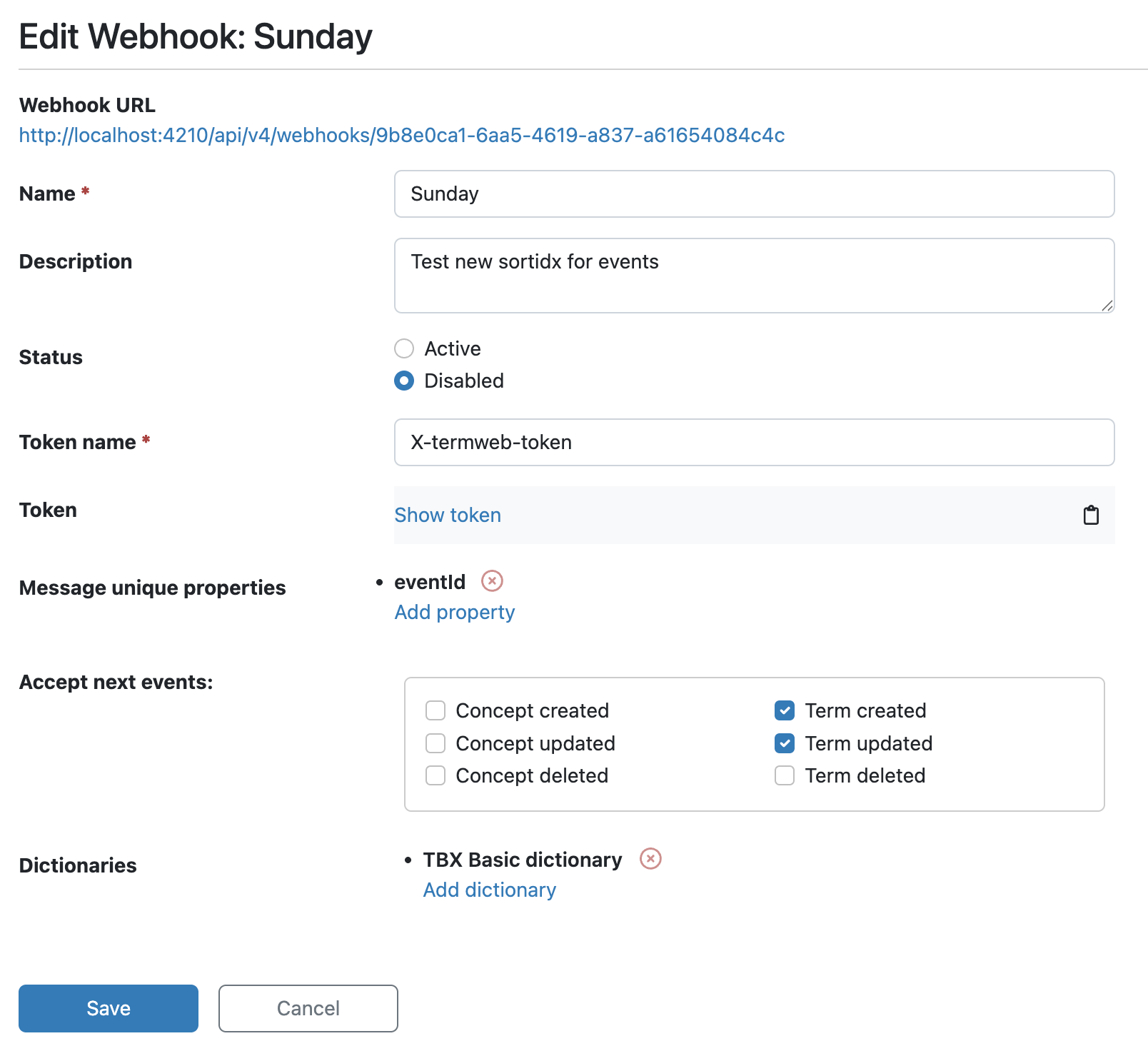
Webhooks use the same shared component schemas with REST API: ConceptDto, TermDto. The same validation rules are also applied. All update actions are executed as the System default user with administrator role permissions.
You can see more about accepted message format service definition file: https://docs.termweb.se/restapi/5.0/#webhooks