Users
The Users list shows all users and their current settings.
The page is available via:
-
Administration → User management → Users.
Add a user
Users can be created automatically via SSO or manually. To manually create a new user:
-
Click the New User button.
-
Type in a username, full name, e-mail address, and select user role (you can indicate if the user is to be an administrator or system administrator, specific dictionary administrator or users editor).
You can define any group membership later under Group Members. If you want to set the password for the new user, deselect the Send password reset link in email checkbox and fill in the desired password twice.
If you want to create a temporary user only, fill in or select the expiration date for the account. If the user tries to log in later, a "This user account is currently disabled" message will be issued. For further options, see below under "Change information about a user".
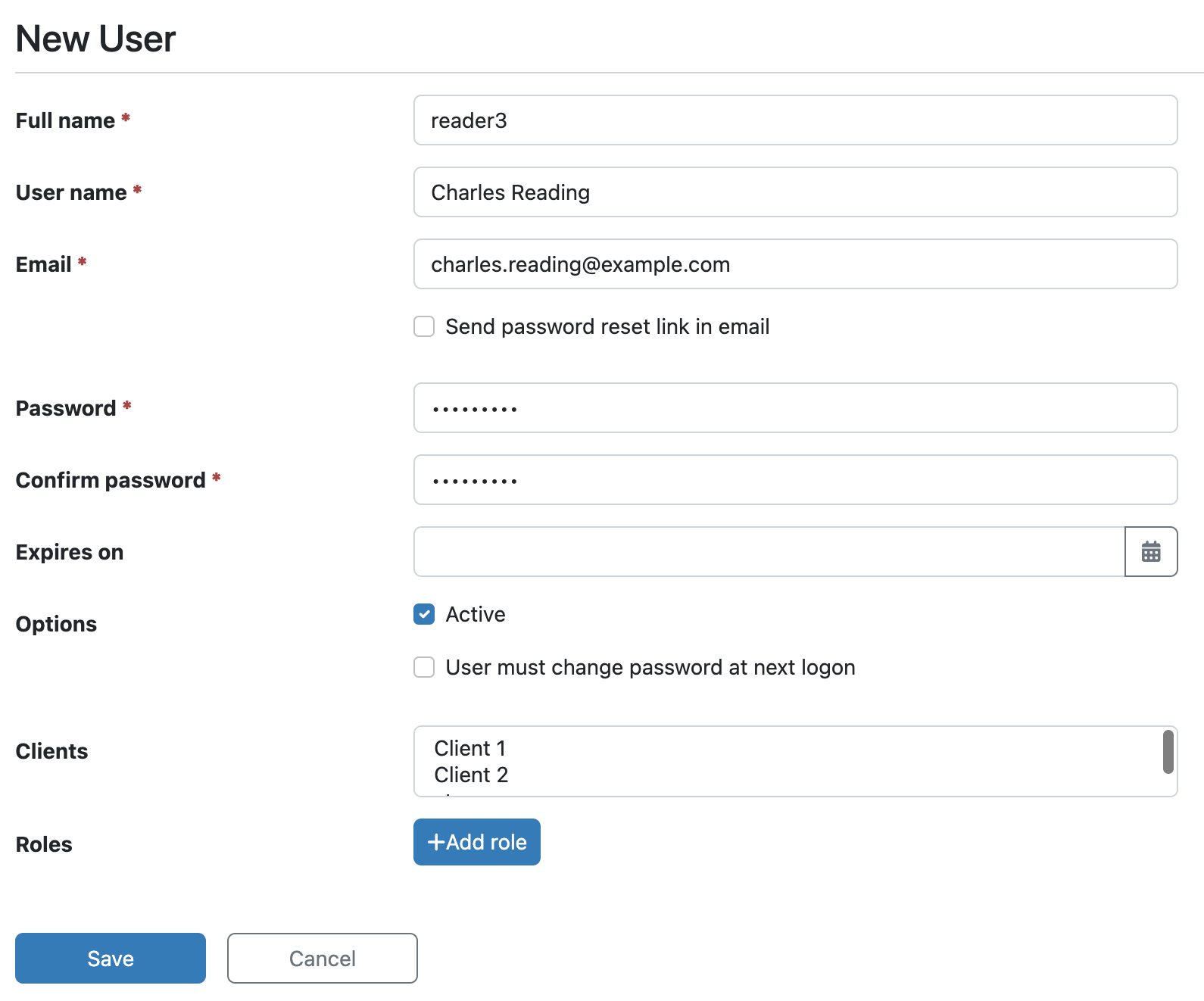
In the above case, the user won’t get an email with the credentials (this will have to be communicated via another channel). You can also set that user is required to change the password after logging in. (If only the Active checkbox is selected, no email is sent and there is no requirement to change password)
-
Click Save you’ll return to list of all users.
For the Clients and User Roles functions, please see below.
Change information about a user
-
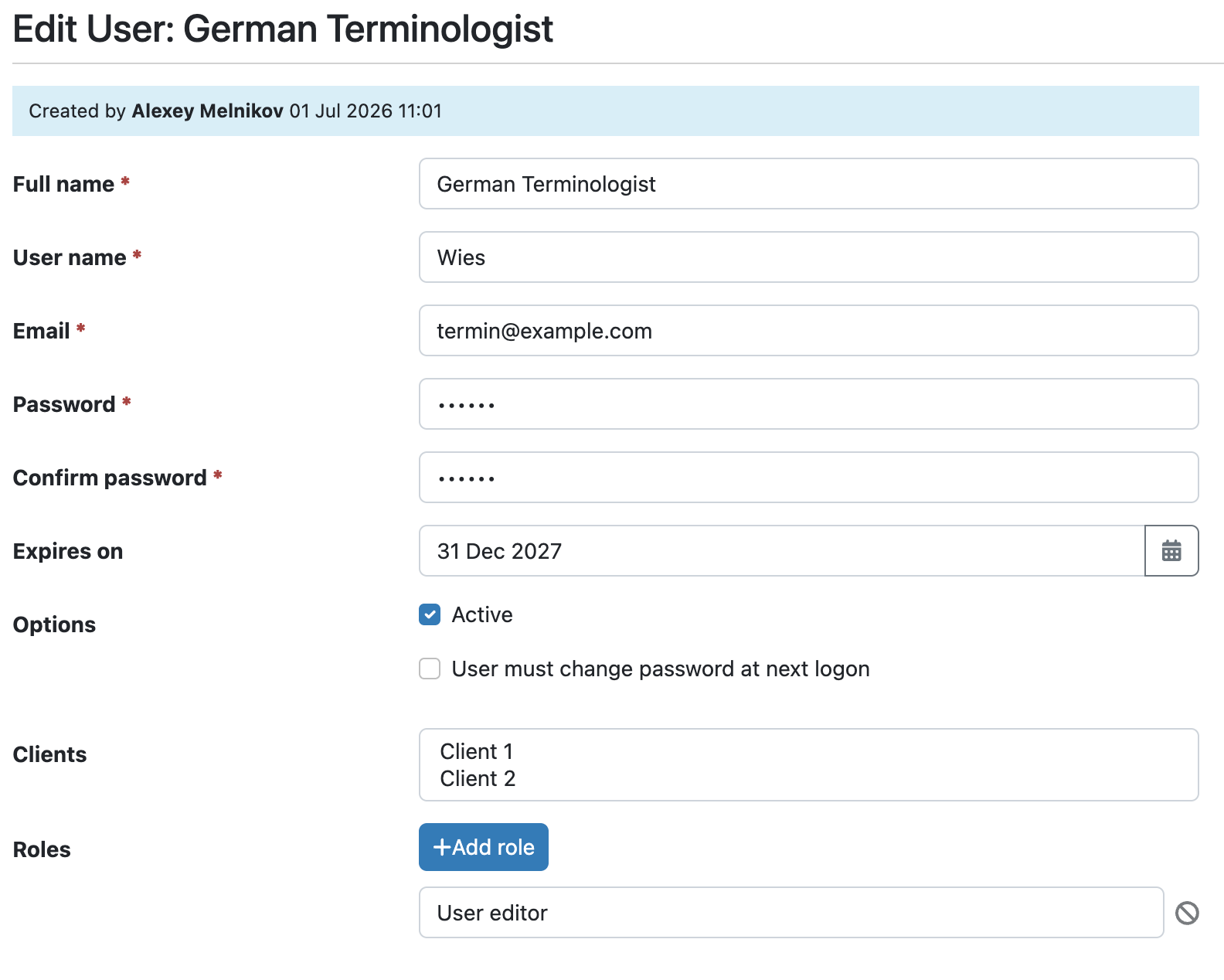
Click the user’s name. A dialog box similar to the one below will appear:
-
Make changes in the user data.
If you want to set an automatic expiration date for the user account, enter the date in ISO format (or select it from the calendar). At the selected date, the user will be deactivated.
Deselect the Active checkbox if you want to temporarily deactivate the user.
Click Add role to add a role to the user in the User Roles dropdown. As an example, select User editor for the user to be able to edit other users' info and place these other users in groups.
Here, a "normal" user can also be given the Administrator role for a certain dictionary: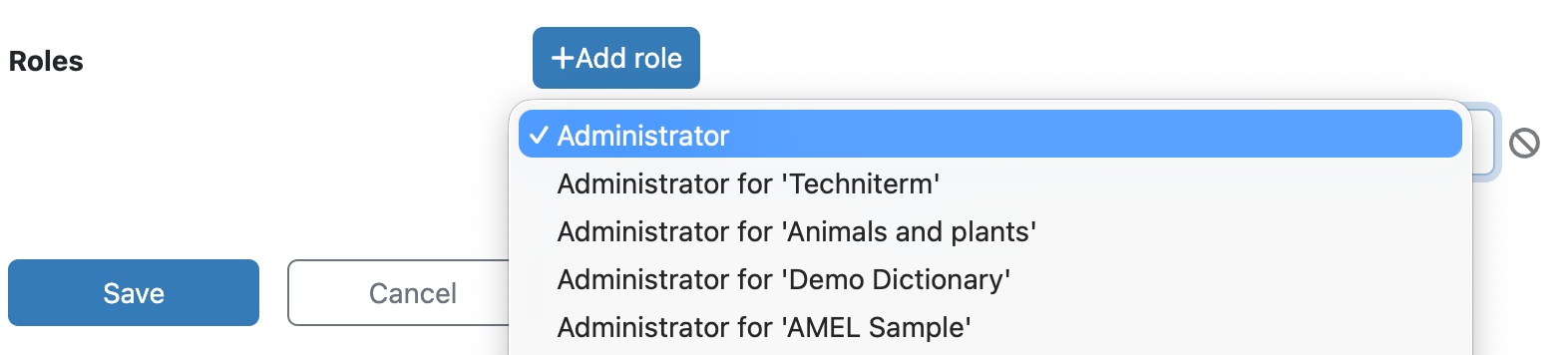
This means the user is given the rights to
-
edit the dictionary’s definition add, edit and delete sections of the dictionary
-
add, edit and delete views for the dictionary
-
work with the history of the dictionary (including restore to an earlier state)
-
import to and export from the dictionary.
-
-
Click Save to update User
If the multiple-client user function is enabled in your installation, and you are logged in as a
system administrator, you can also select more clients that the user should be able to access:

Select the client(s) that the user should be able to access using same login. In current versions users with access to multiple clients becoming automatically system administrators.