Running import
Data import formats
Data in the following formats can be imported to a TermWeb dictionary:
-
TBX (TBX basic fields are available for dictionary setup in TermWeb.)
-
Excel (xls or xlsx file), where tab names are mapped to existing dictionary sections, and column headings (from left to right) are mapped to existing concept-level fields (term record fields) and existing languages followed by their term-level fields, with a set of columns per language; the language name followed by the corresponding term-level fields.
Tip: If using Excel for collection and import of additional concept data, e.g. terms in another language, first export desired term records with desired fields (including Concept ID) and desired languages, e.g. source language and new target language, from the dictionary. Then have the empty target language columns filled in. Finally, import only the target language data with synchronization on Concept ID. -
MultiTerm iX XML
-
TermWeb 2 XML (for compatibility with earlier installations)
Procedure
-
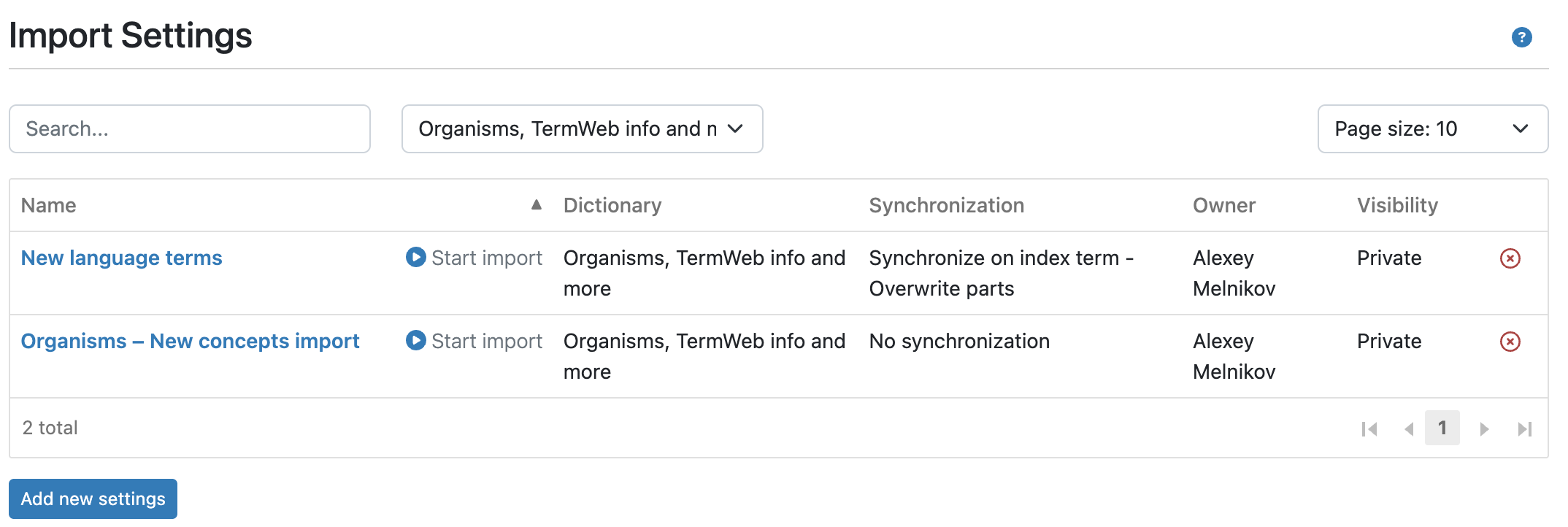
Click Administration → Import.
-
If you want to import terminology data using an existing settings file, first select the dictionary name in the Selected Dictionary list and then click the settings file name under Available settings.
To change an existing settings file, click the blue highlighted name for the appropriate Import Setting.
To create a new settings file click Add new settings, name the settings, choose a dictionary from the Import in Dictionary dropdown, define whether the import settings are to be visible to yourself (and administrators) only (Private), or to all users with import rights (Public) in the Visibility dropdown. Then specify the new settings for import synchronization, i.e. how the import file will be synchronized with existing information in the section(s), what will be imported, etc.
Click Save, and then click Start import after settings name. -
Click Browse, scroll to and choose the file you want imported.
-
Click Next.
-
Review validation report and click Next if the validation report is OK.
-
Unless already decided, select to what dictionary section the terminology data should be imported by mapping the dictionary section(s) to the section name(s) in the import file and then click Next.
-
If there are fields on the term record (concept) level in the import file that were not already connected (mapped) with the fields in the dictionary, select the fields that should be mapped and then click Map for one field name pair at a time in the Map concept fields text box. When you are finished, click Next.
-
Repeat step 7 if necessary on the term level (Map term fields) and then click Next.
-
Repeat step 7 if necessary for languages (Map languages) and then click Next.
-
You may now get a question if languages, sections, domains or fields existing in the import file, but missing in the receiving dictionary should be created in the dictionary:
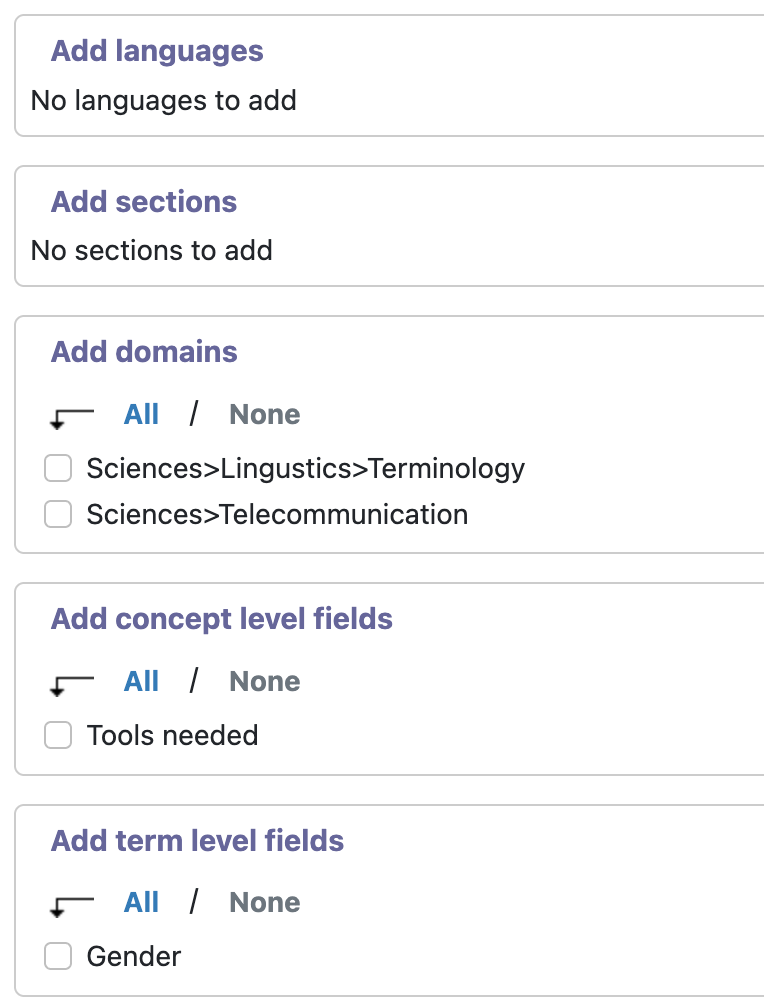
Select the desired data categories to be created and click Next. -
If you are satisfied with the mapping, click Next in the Import settings complete text box. Otherwise, you can click Change by the mapping you want to change.
-
Click Finish in the Import complete box.
Note! The next time you want to import a similar file, the settings for mapping the import file and dictionary are remembered and will be available.
|
When importing data from a file in the TermWeb 2 XML format:
Note! Any domain information in the import file will be transferred to the database only if the domain or subdomains already exist in the database. |
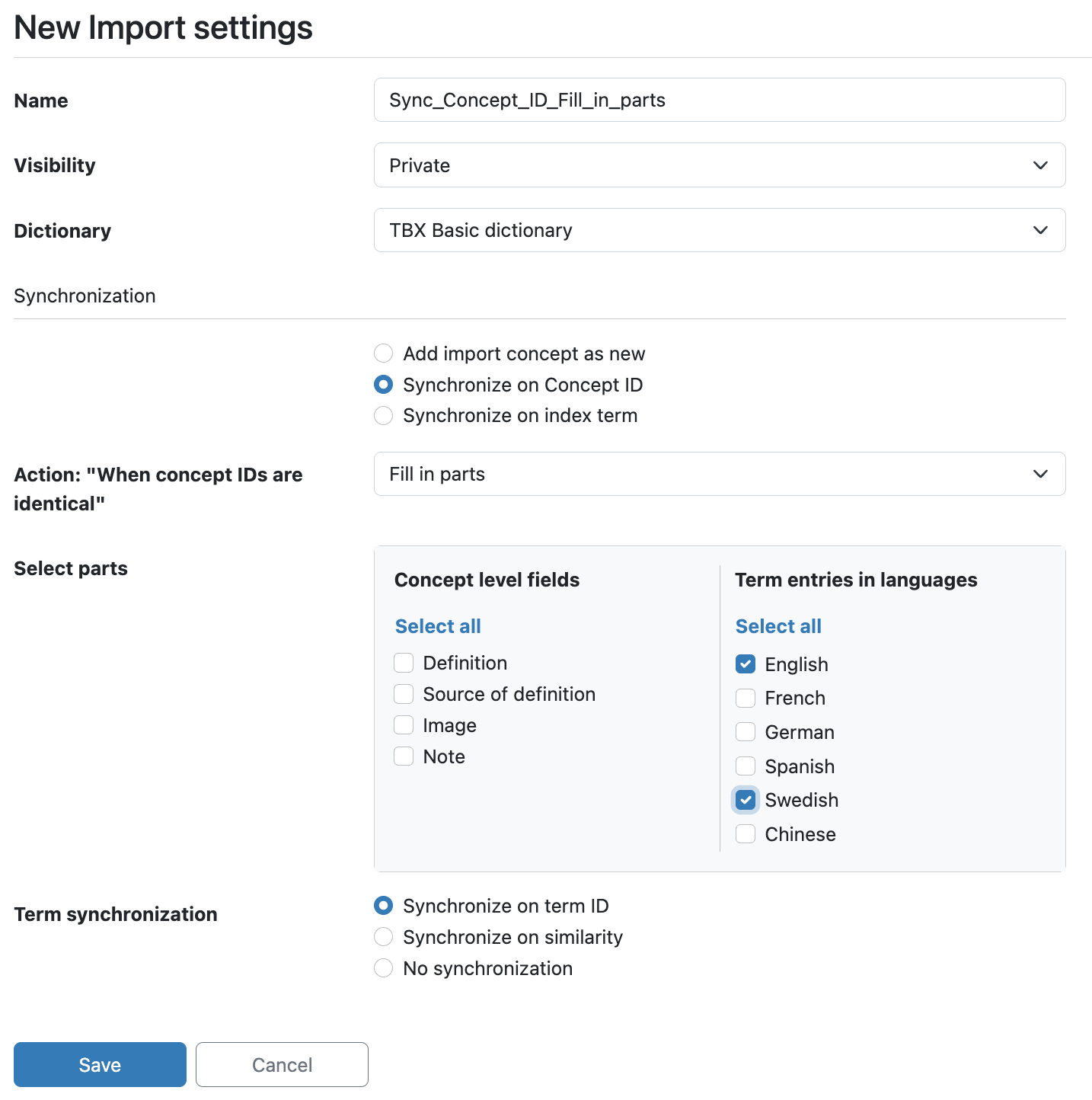
Use "Merge parts", however, if you want to supplement with new terms and possibly new detailed information about existing terms.