General information
The following description covers all the functions available in TermWeb 5.
The functions, and also the dictionaries and dictionary sections, to which you have access, are
associated with your user group and authorization.
Important note: Certain functions described in this document may or may not be available in
your installation (or enabled by the administrator of your installation).
Logging in
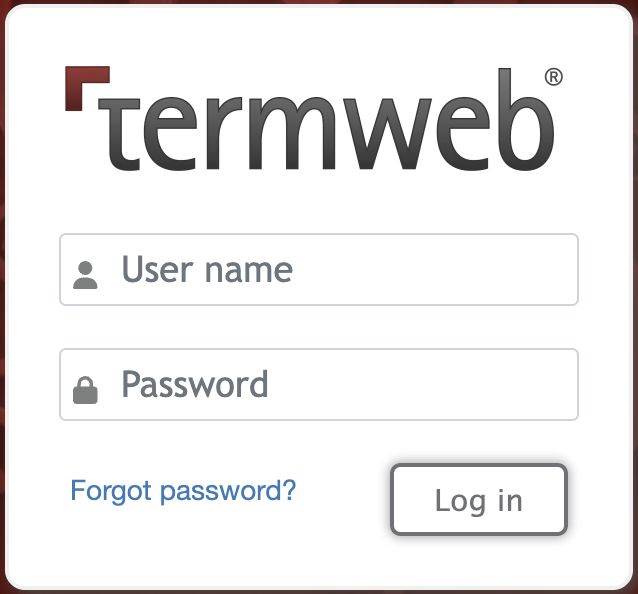
When you first go to the TermWeb application you are directed to the login page. Enter your company name (Client) if it has not been automatically filled out, your Username and Password issued by the administrator and then click Log in.
| If TermWeb has been configured to use a guest account with auto log on enabled, you will be logged on automatically as guest. Log out by clicking the link in the top righthand side of the window, and you will be directed to the login page. |
If the administrator and installation require that members of your group change password at regular intervals, the following dialog will appear after that interval:
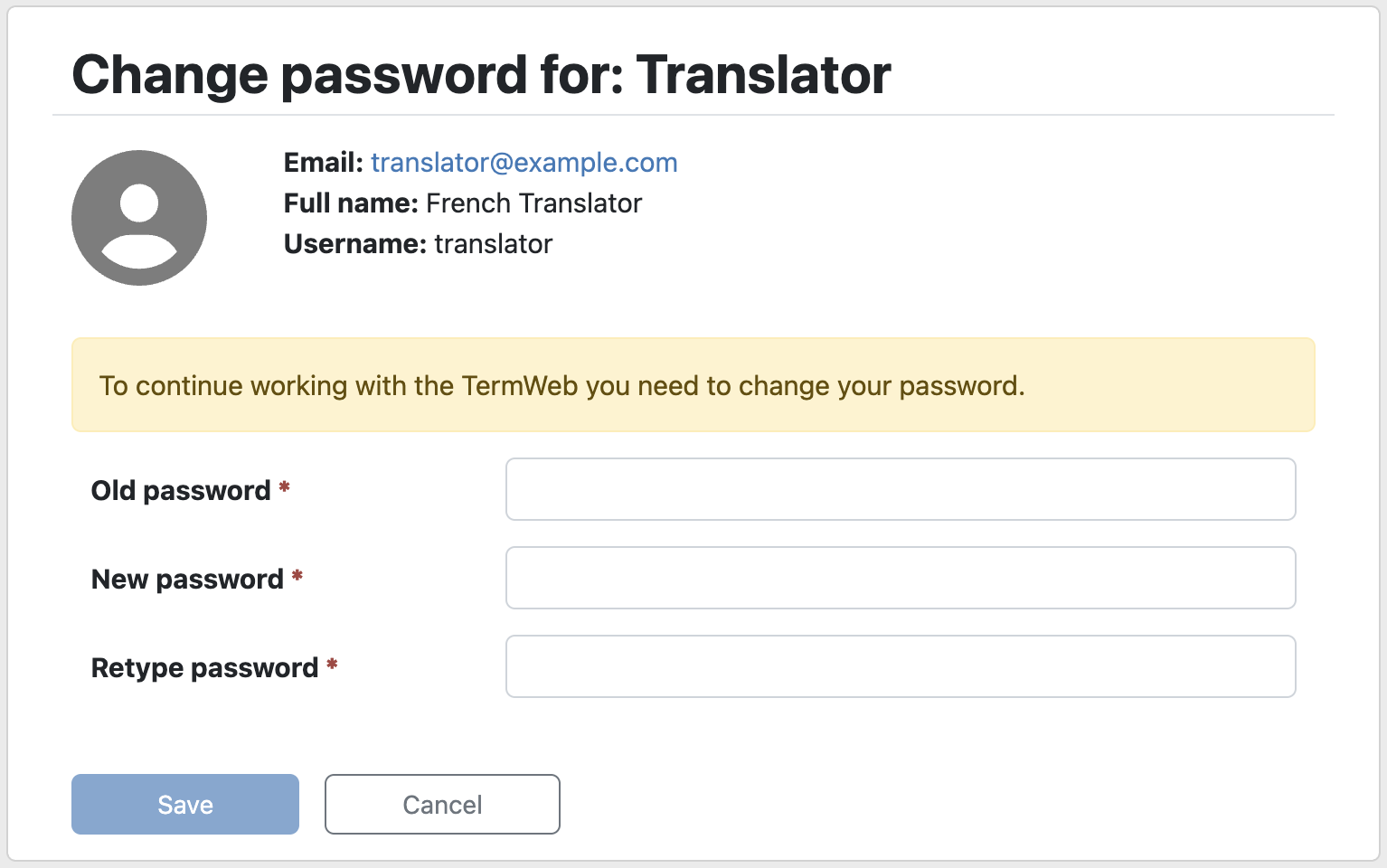
Then just enter a new password twice and click Save.
You use the same process if you have got an email with information about your new account and the administrator requires you to select and fill in a password before logging in.
If the multiple-client function has been enabled, the login dialog will look like this:
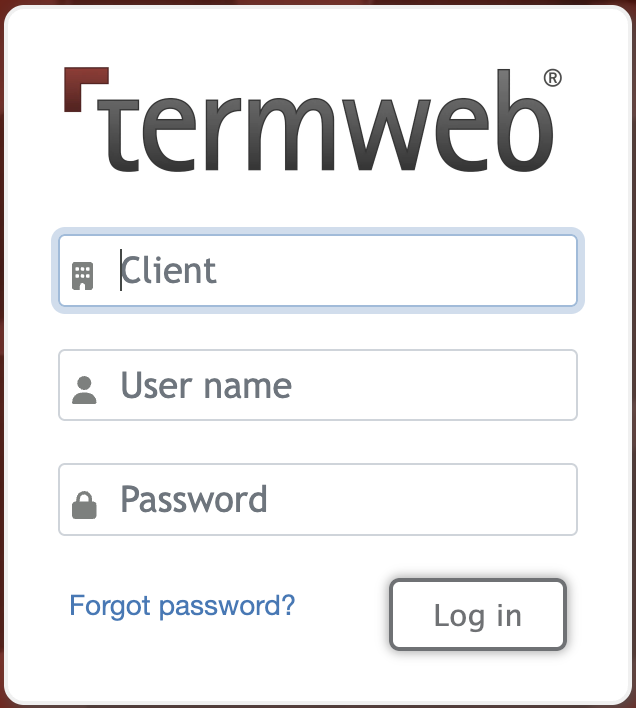
If you are a user in just one client, the username and password will give you access to the selected data of that client.
If you are already logged in but want to log in using a different authorization, log off (click Log out in the top right-hand side of the window), enter the new Username and Password issued by the administrator and click Log in.
In case you have forgotten your password and the show forgotten link function has been enabled by the administrator, you can click the Forgot Password? link. Then you will get a dialog
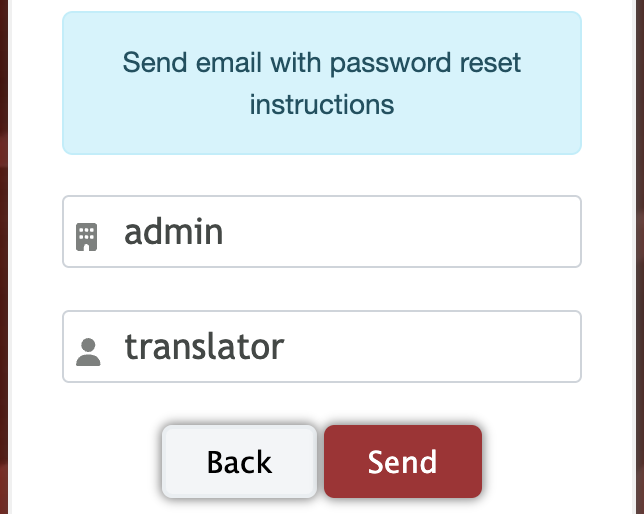
where you enter your client name and user login name. The following is displayed:
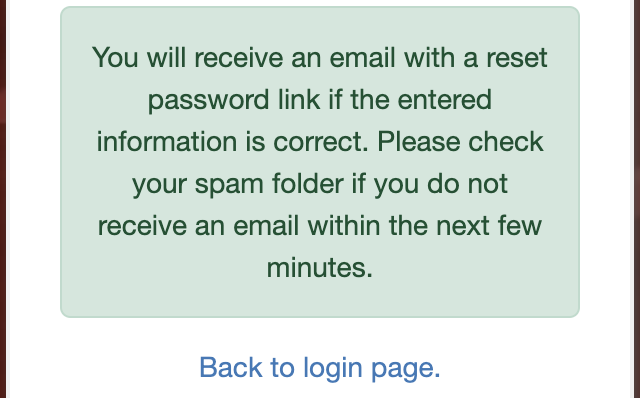
An email will then be sent to your email address registered in TermWeb with a link that you can use to set a new password:
Enter the desired new password twice and click Save, and you will be able to log in using the new credentials.