Import Settings
An import setting defines how a file should be imported. You can define which fields and languages that should be affected, and also specify how concept and terms should be synchronized.
Select a setting
Your available settings are displayed in the import settings selection view when you click on the Import button in the Admin view. You will see both your own settings and settings defined by other users and declared to be public. If you are an administrator all import settings for all users are displayed (both private and public).
Click on an import setting to select it and then click the Import button to start the import wizard.
Create or edit a setting
To add a new setting, click the New button in the import settings selection view. To edit a setting, click the Edit button for the setting you want to edit. You will see the settings editor where you define your import setting.
Start by entering a name for the settings. The name must be unique among all your defined import settings.
Select the dictionary in which the file should be imported. You can only select from the dictionaries where you have import permissions.
Select the visibility for the settings. Private means that only you and Administrators will be able to see and use the setting. Selecting Public lets all users with import permission in the dictionary use the settings.
Synchronization
With the synchronization features you can combine existing term data with imported data, e.g. adding translations for existing terms. You specify how concepts should be recognized for synchronization, and what action should be performed in that case. The preferred way of synchronizing concepts is to use the Concept ID, but TermWeb also lets you synchronize on index term. Since TermWeb 3.5 you also have the possibility to synchronize on Term ID on the term level.
Concept synchronization methods
The following methods are available for concept synchronization:
-
Add concept as new - No synchronization is performed, the imported concept is always added as a new concept and given a new concept ID.
-
Synchronize on concept ID - The imported concept is matched against any existing concept with same ID in the database. If no such concept exists, the imported concept is added as a new concept, and its concept ID is kept as is.
-
Synchronize on index term - The imported concept is matched against any existing concept with at least one term with same name in any of the selected languages. If no such concept exists, the imported concept is added as a new concept and given a new concept ID. You need to select at least one language for synchronization with this option.
| Selected languages for index term synchronization does not affect which terms are imported, only which terms should be checked for concept synchronization. |
Synchronization Action
The Synchronization Action defines what should be done with synchronized concepts. You can select one of the following actions:
-
Do not import - No changes are done to the existing concept and no new concept is added.
-
Replace old concept - The existing concept is deleted and the imported concept is saved.
-
Overwrite parts - Selected parts from the imported concept is used to overwrite parts of the existing concept. See more details below.
-
Merge parts - Selected parts from the imported concept is merged into the existing concept. See more details below.
-
Fill in parts - Selected parts from the imported concept is filled in into the existing concept. See more details below.
Selecting parts
You select the parts of the imported concept that you wish to use for updating the existing concept in the database. You can select any field on the concept level, and/or terms in selected languages. Selected parts from the import concept are then used to update the synchronized concept, according to selected action.
The term entries in the synchronized concepts can also be synchronized. You can select how TermWeb should attempt to synchronize the term entries in the Term synchronization settings.
When two term entries are synchronized, every field value of the term entries is handled depending on selected action:
-
Overwrite parts - The imported field value always overwrites the existing value, or deletes it if the imported value was empty.
-
Merge parts - The imported field value overwrites the existing value, but the existing value is kept if the imported value was empty.
-
Fill in parts - The imported field value is only added if there was no existing value for the field.
Same rules also applies for concept level fields.
For imported term entries that not are synchronized the actions behaves as follows:
-
Overwrite parts - All existing non-synchronized term entries in the imported term entry’s language are deleted, and replaced by the imported term entries.
-
Merge parts - The imported term entry is added to the existing concept.
-
Fill in parts - The imported term entry is only added if there was no existing term entry in the imported term entry’s language.
Term synchronization settings
You can select how term entries should be synchronized within synchronized concepts. The options are as follows:
-
Synchronize on term ID - The imported term entry is synchronized with any existing term entry with same term ID. This option is only available if Synchronize on concept ID is selected.
-
Synchronize on similarity - The imported term entry is compared to the existing term entries, and if there is enough similarity between the entries, they are synchronized. The fields being compared are term name, language, region and orthographical variant, and the probability for synchronization match depends on the combination of matching values in these fields. Two entries with same term name and language are always synchronized.
-
No synchronization - No term synchronization is performed
| Term entries can only be synchronized within synchronized concepts, e.g. entries with matching term IDs will not be synchronized if their concepts not are synchronized. |
When you are done defining your import settings, click the Save button to save them, or Cancel to leave the editor without saving your changes.
| If you want to “undo" a data import and restore the database to the position prior to the import, select Administration > History. |
| The metadata fields cannot be changed by editing the file to be imported. The "Created by", "Creation date", and "Change date" fields are set to the importer’s ID and time of the import. |
Importing using Permission Schemes
When term data is imported with Permission Schemes enabled the same permissions are enforced as for manual editing.
This means, that besides allowing the Import permission in the scheme, some other permissions should also be granted depending on what the users should be able to do during the import operation.
The table below describes what permissions are needed for different import and synchronization cases:
| Import type | Synchronization type | Permissions needed (for type of change) |
|---|---|---|
Import as new |
N/A |
Create Concept (for importing new concepts) |
Import with concept synchronization (on concept ID or index term) |
Replace old concept |
Create Concept and Delete Concept (all changes) |
Overwrite parts |
Edit Concept (all changes) |
|
Merge parts |
Edit Concept (all changes) |
|
Fill in parts |
Edit Concept (all changes) |
Importing domain information from Excel
In Excel, add a concept-level column with the heading "Domain". Enter domain (or domain and subdomain) information in the following format for all concepts needing a domain classification.
Three examples:
-
SCIENCES
-
SCIENCES > geography
-
BUSINESS & ADMINIST > public administration;SCIENCES > geography
In the latter case dual subdomain classification is imported.
Please note: From version 3.9 a check is performed whether the domain names in the import file
exist in the dictionary. If a domain does not exist, a message "Unknown Domain Values" is
displayed and you are given the possibility to go back and adapt the import file OR the
dictionary domains before a reattempted import.
Running import
Data import formats
Data in the following formats can be imported to a TermWeb dictionary:
-
TBX (TBX basic fields are available for dictionary setup in TermWeb.)
-
Excel (xls or xlsx file), where tab names are mapped to existing dictionary sections, and column headings (from left to right) are mapped to existing concept-level fields (term record fields) and existing languages followed by their term-level fields, with a set of columns per language; the language name followed by the corresponding term-level fields.
Tip: If using Excel for collection and import of additional concept data, e.g. terms in another language, first export desired term records with desired fields (including Concept ID) and desired languages, e.g. source language and new target language, from the dictionary. Then have the empty target language columns filled in. Finally, import only the target language data with synchronization on Concept ID. -
MultiTerm iX XML
-
TermWeb 2 XML (for compatibility with earlier installations)
Procedure
-
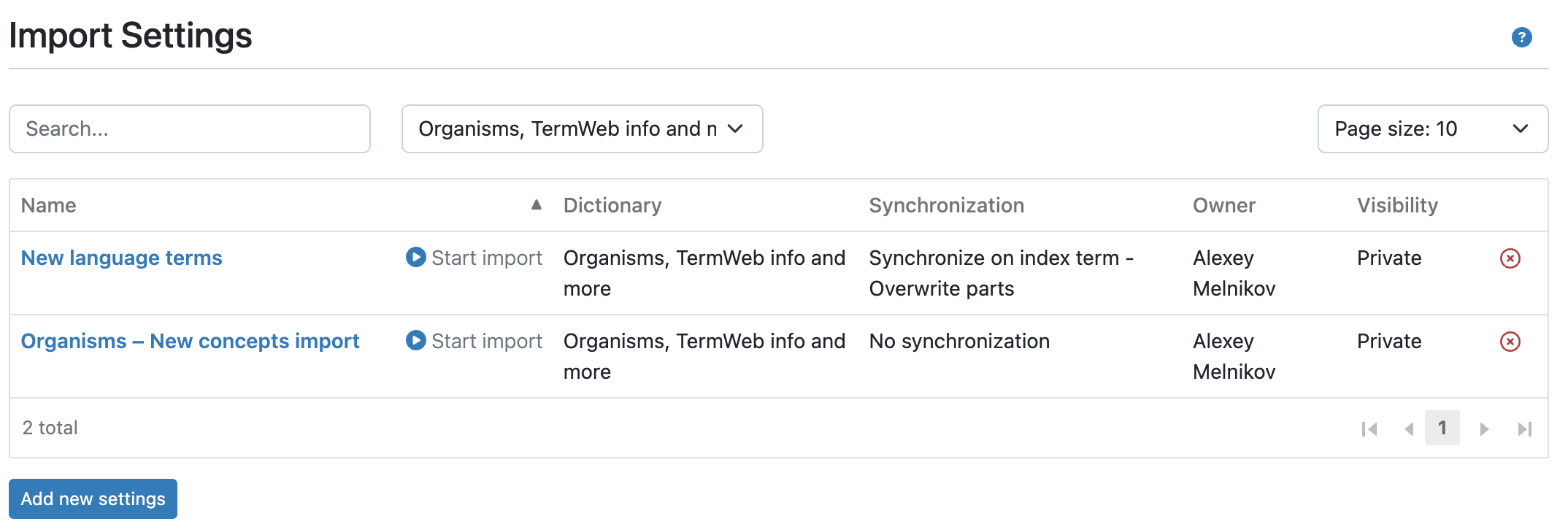
Click Administration → Import.
-
If you want to import terminology data using an existing settings file, first select the dictionary name in the Selected Dictionary list and then click the settings file name under Available settings.
To change an existing settings file, click the blue highlighted name for the appropriate Import Setting.
To create a new settings file click Add new settings, name the settings, choose a dictionary from the Import in Dictionary dropdown, define whether the import settings are to be visible to yourself (and administrators) only (Private), or to all users with import rights (Public) in the Visibility dropdown. Then specify the new settings for import synchronization, i.e. how the import file will be synchronized with existing information in the section(s), what will be imported, etc.
Click Save, and then click Start import after settings name. -
Click Browse, scroll to and choose the file you want imported.
-
Click Next.
-
Review validation report and click Next if the validation report is OK.
-
Unless already decided, select to what dictionary section the terminology data should be imported by mapping the dictionary section(s) to the section name(s) in the import file and then click Next.
-
If there are fields on the term record (concept) level in the import file that were not already connected (mapped) with the fields in the dictionary, select the fields that should be mapped and then click Map for one field name pair at a time in the Map concept fields text box. When you are finished, click Next.
-
Repeat step 7 if necessary on the term level (Map term fields) and then click Next.
-
Repeat step 7 if necessary for languages (Map languages) and then click Next.
-
You may now get a question if languages, sections, domains or fields existing in the import file, but missing in the receiving dictionary should be created in the dictionary:
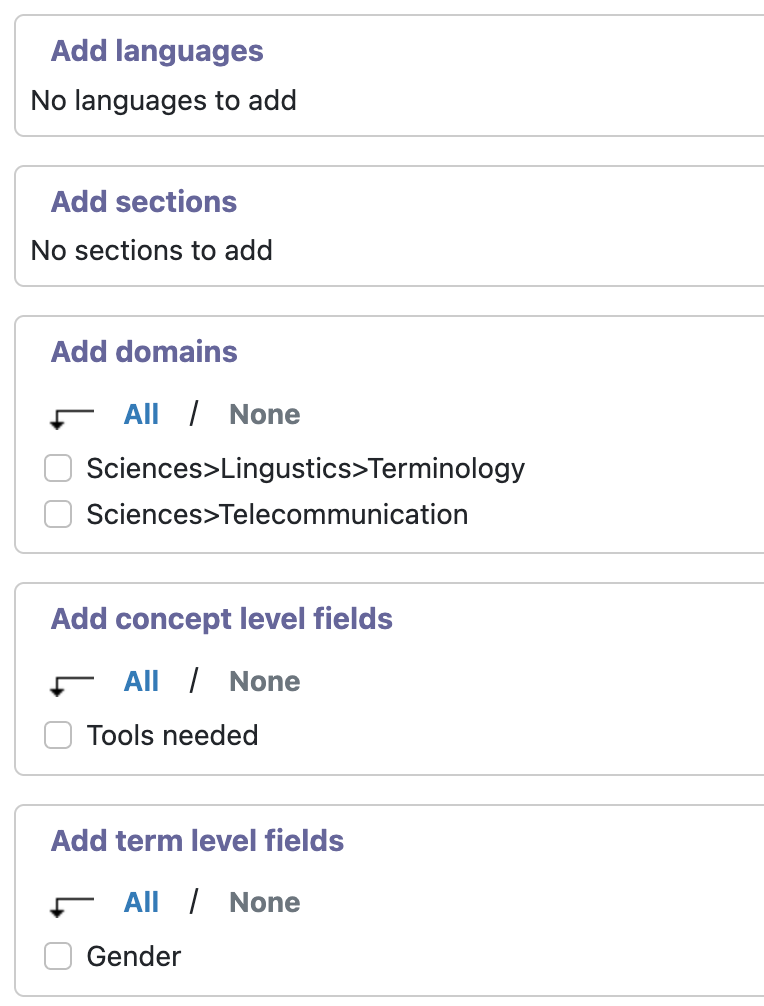
Select the desired data categories to be created and click Next. -
If you are satisfied with the mapping, click Next in the Import settings complete text box. Otherwise, you can click Change by the mapping you want to change.
-
Click Finish in the Import complete box.
Note! The next time you want to import a similar file, the settings for mapping the import file and dictionary are remembered and will be available.
|
When importing data from a file in the TermWeb 2 XML format:
Note! Any domain information in the import file will be transferred to the database only if the domain or subdomains already exist in the database. |
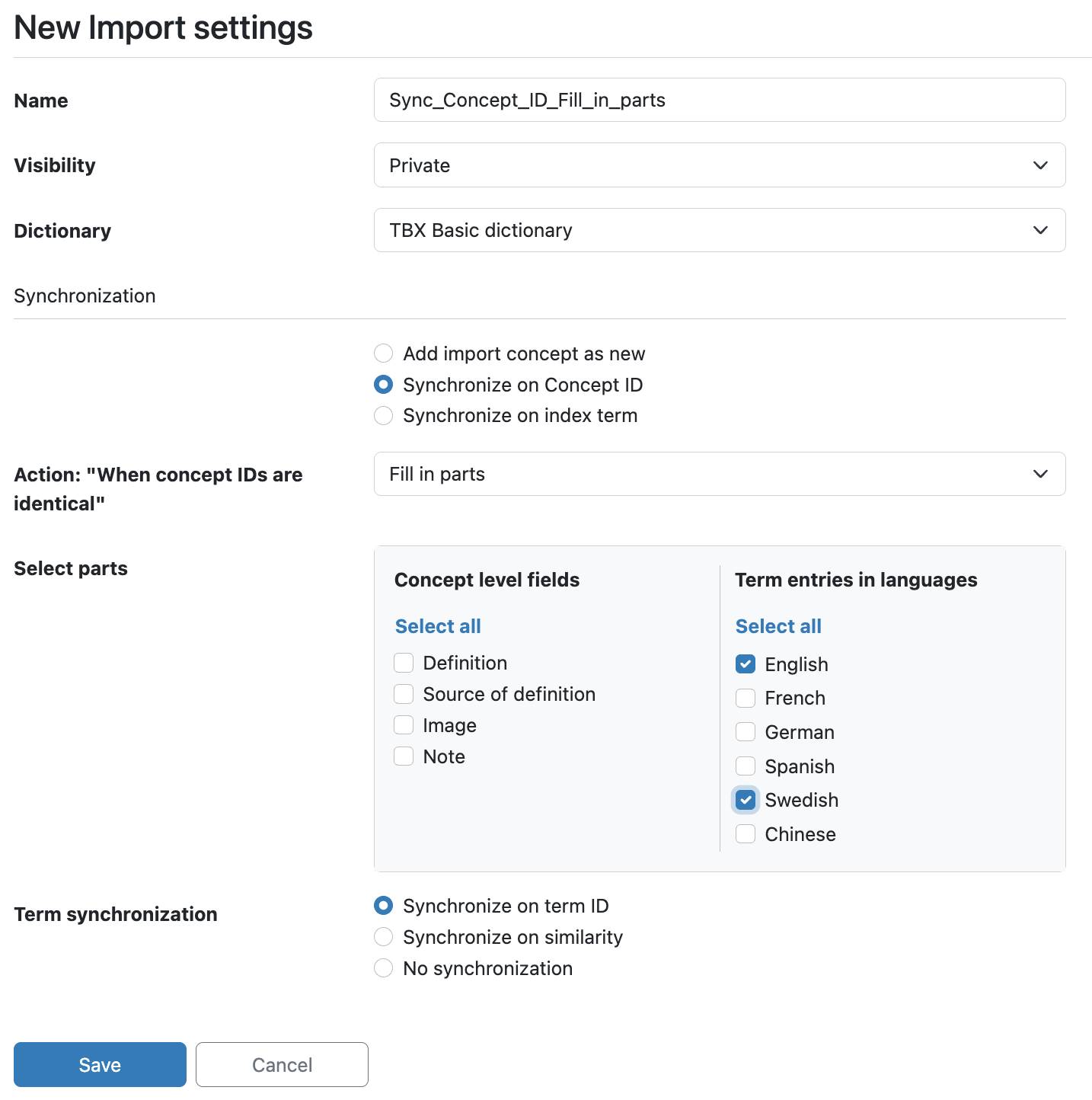
Use "Merge parts", however, if you want to supplement with new terms and possibly new detailed information about existing terms.
Quick Import
Quick Import automatically creates a new dictionary based on the structure of an existing dictionary file. The Quick Import feature is available via:
-
Administration → Terminology → Dictionaries
The Quick Import feature is listed at the bottom of the Dictionaries page.
Using the Quick Import feature
Provide a dictionary name in the Dictionary name field, browse for and select the dictionary export file and click Create Dictionary and Import.
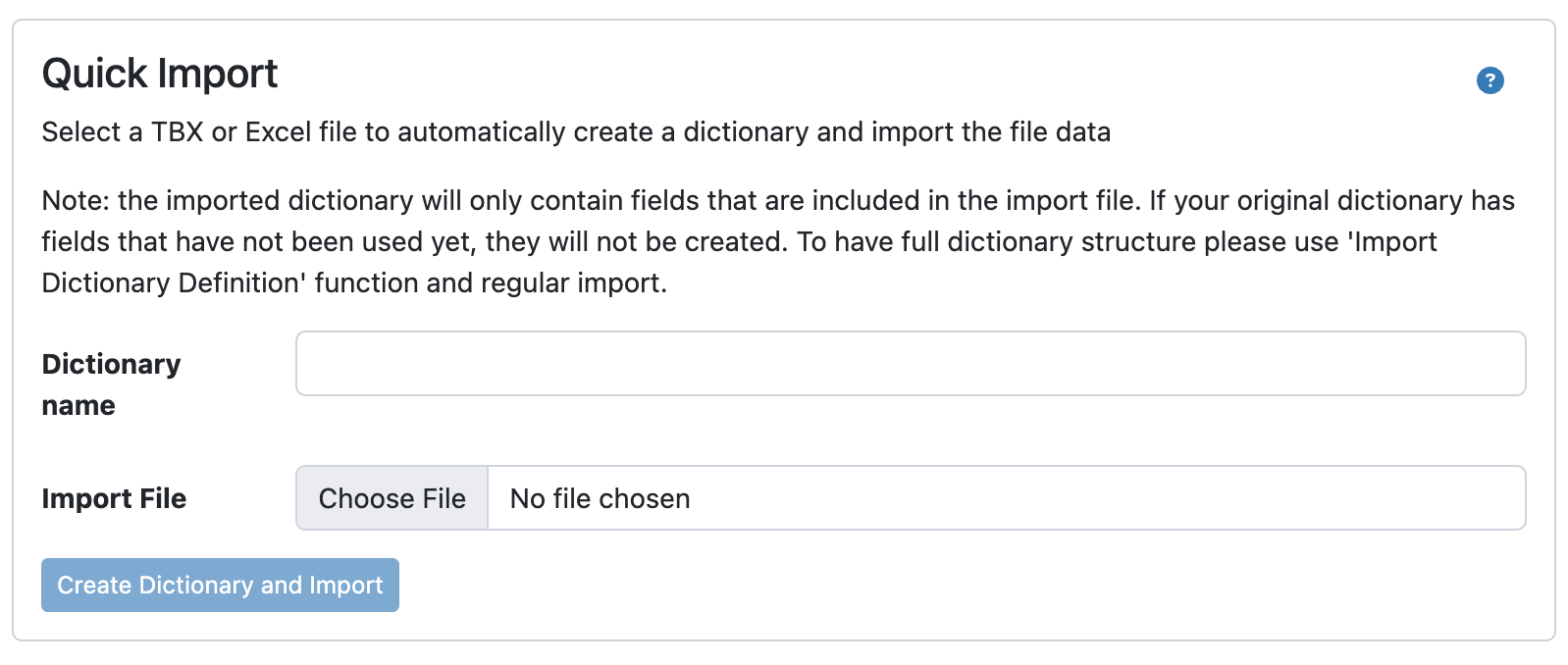
If you import an Excel or TBX file using the Quick Import option a dictionary structure can be created automatically. Please note that also domains and subdomains will be created automatically, but picklist fields, such as Part of speech, may be created as single-line text fields. Administrators can change the field to picklist or multi-value picklist by using the Generate picklist from existing values option in the dictionary definition. Additionally, no mapping can be done during the import process. If mapping is required, please create the dictionary and use the Import Settings function.