Domains
A concept-level data category used for classification of full terminological entries. Domains and subdomains are organized in a multi-level tree structure (defined per dictionary by the TermWeb administrator). A concept can belong to more than one domain.
Changing the presentation of the Domain feature only affects the display in the SearchView and Staging Areas. Other features that display domains, such as in the Search Settings feature, will always display them in hierarchical tree mode.
Domains can either be created in the Administration menu via Terminology > Domains or created during Import. The domain field is defined as “Domain” for Excel imports and “subjectField” for TBX/XML imports.
Edit Domains: Add, edit and delete domains and subdomains
How to specify domains and subdomains. While working, you can show or hide subdomains by clicking on plus and minus icons in front of name.
Add a domain:
-
Select the desired dictionary from the Dictionary dropdown.
-
Right click All domains and choose Add from context menu.
-
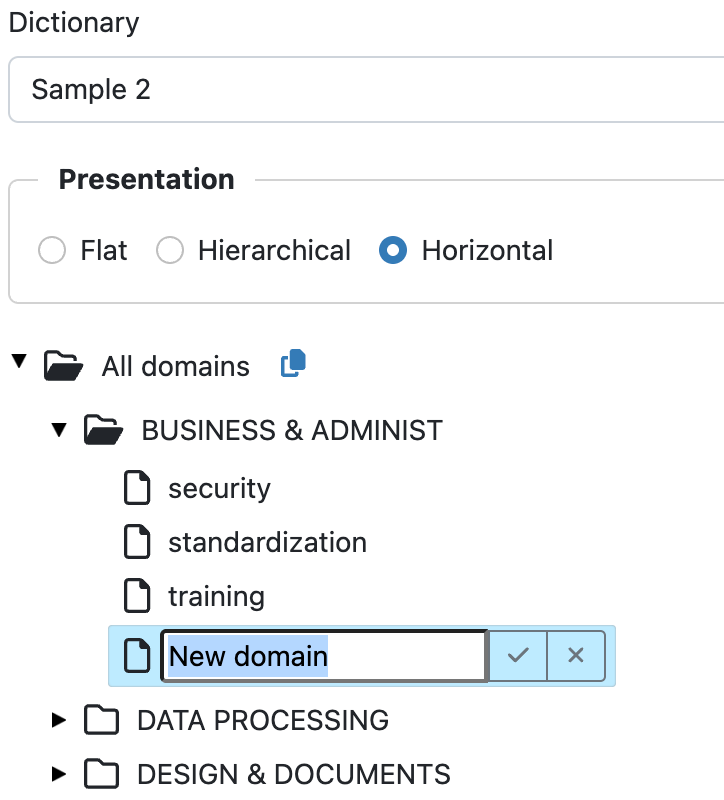
Write over the text "New domain" shown in the box at the bottom of the domain list with the name of your new domain.
-
Repeat steps 2 and 3 for all main domains.
If you want to have subdomains: -
Right-click on a domain and choose Add.
-
Write over the text New domain in the box that appears with the name of the subdomain and confirm by pressing Enter.
-
Repeat steps 5 and 6 for all subdomains of a main domain.
-
Repeat steps 5 and 6 also for other main domains that are to have subdomains.
All changes saved immediately after confirming action, no need to call any other Save methods.
To rename a domain:
-
Right-click on the domain name and choose Edit.
-
Write over the domain name that is shown in the box with the new domain name.
-
Confirm by pressing Enter.
