Export Settings
Export Settings are a list of reusable configurations for exporting a filterable list of Concepts and Terms. Each Export Setting can be configured for specific languages or fields in a specific format.
To export Concepts and Terms, e.g. for review or supplementary information, you can do the following: If you do not want to export an entire dictionary, remember to create a filter beforehand under Search view > Filters.
-
Click Export.
-
If desired, filter the export settings by dictionary:
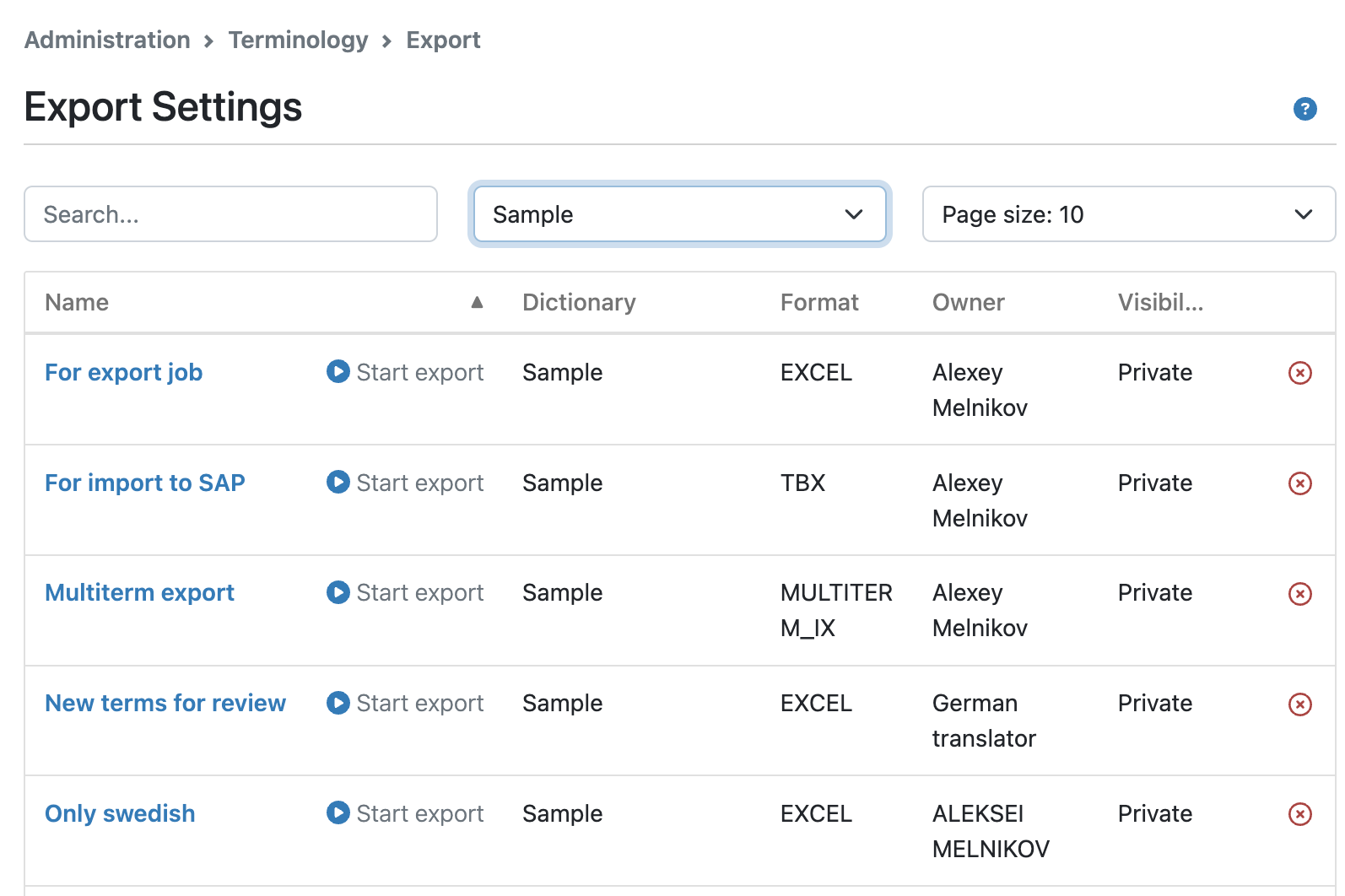
Select a completed settings file from Available settings list. -
To change an existing settings file, click the blue highlighted name of the export setting.
-
If there are no appropriate export settings files for the dictionary, create a new one (click Add new settings).
Write the name of the export settings file, for which dictionary it is applicable, whether the export settings are to be visible for you only, and administrators, (Private) or for other users with export rights (Public) and the desired format of the export file.You can choose one of the following formats:
-
TBX-Basic (TermBase eXchange); standard format according to ISO/DIS 30042
-
MultiTerm iX XML
-
Excel.
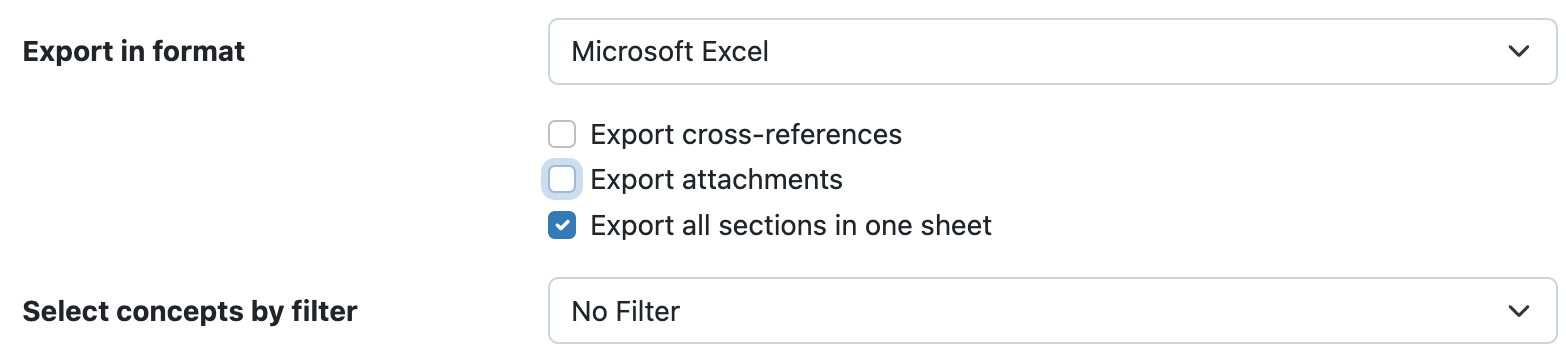
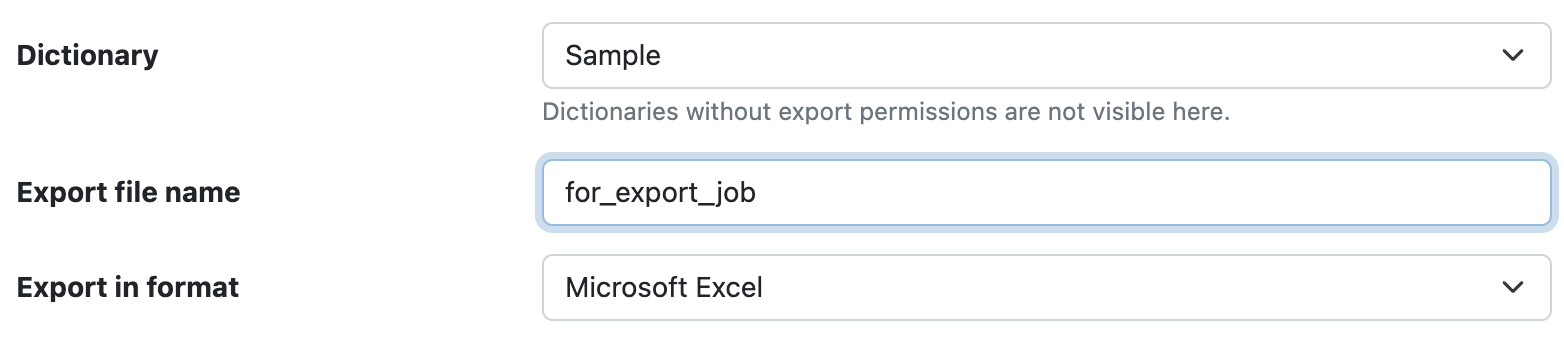
Concept-level field names, followed by language name and language-level field names become column names. If you want to give a custom name to the export file (not only the Dictionary name followed by a numeric value), enter that name in the Export file name field:
If you wish to include permalinks in the export file, tick the Export permalinks checkbox.
Then, the term permalinks will be exported to Excel in a column with the heading [permalink] or to TBX in a line like the following:<xref id="c1-1-pml" type="permalink" target="https://example.termweb.net/termweb/view/iseb/ised"/>where c1 is the termEntry id (TermWeb Concept ID =1), and c1-1 is the tig id, and
https://example.termweb.net/termweb/view/iseb/isedis the permalink to the term.If you want to export also possible attachments of concepts (thumbnail pictures), click the Export attachments checkbox:

Then choose the filter in the Select concepts by filter field.
Indicate which languages and fields you want in the export file.
Click Save when you have finished with the export settings.
-
|
For Excel exports, you can choose to sort the exported terms according to a picklist field value, e.g. Usage status. Select the desired term-level field under Order terms by field and the resulting exported Excel file will contain the term with the first picklist value first, and to the right of these columns, the term with next picklist value. As an example, this is useful for export of structured termbases with pairs of preferred and non-recommended terms. There, all preferred terms (or single unclassified terms) will be in the leftmost columns for each language. Please note that unclassified terms (terms with no picklist value) will be put in columns after terms with a picklist value. Also note that the order between the picklist values is defined in the dictionary definition. Sample export (acc. to standard order between picklist values of TBX Basic field Usage status). |