Workflows
With the workflow functionality in TermWeb you can define and automate tasks, control access permissions on the field level, and add styling or rendering to your term data.
A workflow is connected to one or more tasks in TermWeb, e.g. creating a concept or deleting a term. When a task is performed, the associated workflows are triggered. The full list of available tasks is here.
In a workflow you can define Conditions, Pre- and Post-functions, as well as Validations to control which workflows should trigger under what circumstances and in what order.
Create a workflow
To create a new workflow you must be logged in as a user with one of the administrator roles in TermWeb. Go to Admininistration → Automation → and Workflows. Here you see a list of all defined workflows in the TermWeb client.
To create a new workflow, click the blue "+Add Workflow" button.
This opens the Add New Workflow screen.
Here you enter a name for the workflow, an optional description, select the task(s) (see Tasks for more information), and the dictionary to which the workflow is connected. You can also set whether you want the workflow to be active or not.
Editing a Workflow
To specify what actions should be performed by a workflow you click on workflow’s name or create new one in the workflow list page. The "Edit Workflow Details" view opens.
Conditions
Conditions provides more detailed control over when the workflow should be executed. You can add conditions for field values in a concept or term, and also check user group membership for the user performing the task that triggered the workflow. For instance, you can define a workflow only to be executed when the concept has a specific status and when the user is a member of the specified user group.
If the workflow task affects a concept, e.g. Edit Concept or View Concept, and you have defined term level fields in the workflow conditions, all terms in the concept must fulfill the term level conditions. If the task affects a term, e.g. Edit Term or View Term in List, only the selected term and it’s concept must fulfill the conditions.
Functions
Workflow functions are actions that the workflow performs when executed. For instance, you can set field values in the concept or term, hide fields or make them read-only when editing, or change the field style (color, font style etc).
You can define the functions to be executed before or after the workflow’s task. The functions to be executed before the task are defined as prefunctions in the workflow. The functions that should be executed when the task finishes are defined as postfunctions. For details about when pre- and postfunctions are executed for each task, see Tasks for a full description.
Function types
The following workflow function types are available:
-
Set Field Value
Sets the value for a field in the current entry. -
Render Field
Changes how a field in the current entry is rendered, e.g. hidden or read-only. -
Style Field
Changes the appearance of a field in the current entry, e.g. color or size. -
Send Email
Sends a customizable email to a single user or User Group(s). Select additional User Groups by holding the CTRL or SHIFT button on your keyboard. Emails can be sent directly or collected in a digest sent on a regular interval. -
Send Reminder Email
Sends a customizable email to a single user or User group(s) with a delay. Delay value may use hours or days as time units. -
Set Permission Scheme
Temporarily changes the permission scheme for the user for the duration of the task. -
Sort Terms
Sorts the terms in a concept when displayed based on a specific field value in the term.
Not all functions are applicable for all tasks, or as pre- or postfunctions. Only applicable functions are listed in the Add Function screen.
Validations
Validations allow you to specify fields that should be required during an editing operation, besides the fields already defined as required in the dictionary definition. The workflow validations are checked when the entry is saved, and if a required value is missing the user will be informed and not able to save until a value is entered in the required field.
Validations will block the import of concepts if they are not fulfilled.
Tasks
The following table lists the available workflow tasks and when pre- and postfunctions are executed.
| Task | Prefunctions run when | Postfunctions run when |
|---|---|---|
Create Concept |
User is opening the Edit screen for a new concept entry |
The concept is saved |
Edit Concept |
User is opening a concept entry for editing |
The concept is saved |
Delete Concept |
User is selecting a concept entry for deletion |
After the concept is deleted from the database |
Add Term |
User clicks "Add term" when editing a concept entry |
User clicks "Save" in Concept editor |
Create Term |
A new concept entry is saved (for each term entry) |
Directly after prefunctions |
Edit Term |
User clicks "Edit term" on a term entry already stored in database when editing a concept entry |
User clicks "Save" in Concept editor |
Never called when editing in the Staging Area |
||
Update Term |
User clicks "Save" in Concept editor. A modified term entry already stored in database will trigger function. |
Directly after prefunctions |
Delete Term |
User clicks "Save" in Concept editor. A deleted term entry stored in database will trigger function |
Directly after prefunctions |
View Term in List |
A term is displayed in the term list |
Directly after prefunctions |
View Concept |
A concept entry is displayed in the concept window |
Directly after prefunctions |
View Term |
A term entry is displayed (collapsed or expanded) in the result window |
Directly after prefunctions |
Select Term when Editing |
Only supported in TermWeb 3 |
Only supported in TermWeb 3 |
Import Term Data |
An import is started |
When the import is completed, but not if the import is cancelled by the user |
Workspaces
Introduction to the Workspaces tool
With the Workspaces function in TermWeb you can define and automate certain project-related tasks. The main difference between Workflows and Workspaces is the ability for you to filter on which Concepts you affect by a Workflow.
A workspace may, as an example, be a batch of new term records to be worked on. You should define the workspace by a filter, e.g. a "batch number" field value, define a workflow for certain tasks, that can send a customizable email to a User or a User group, when the workflow conditions have been met and the task has been performed. The email can be sent at regular intervals, once the task has been performed a selected number of times, in the same way as for workflow emails initiated from Administration → Automation → Workflows.
Creating new workspace
-
Click New workspace.
-
Select the dictionary for which the workspace is to apply.
-
Fill in the desired data on the tabs displayed:
-
The General tab:
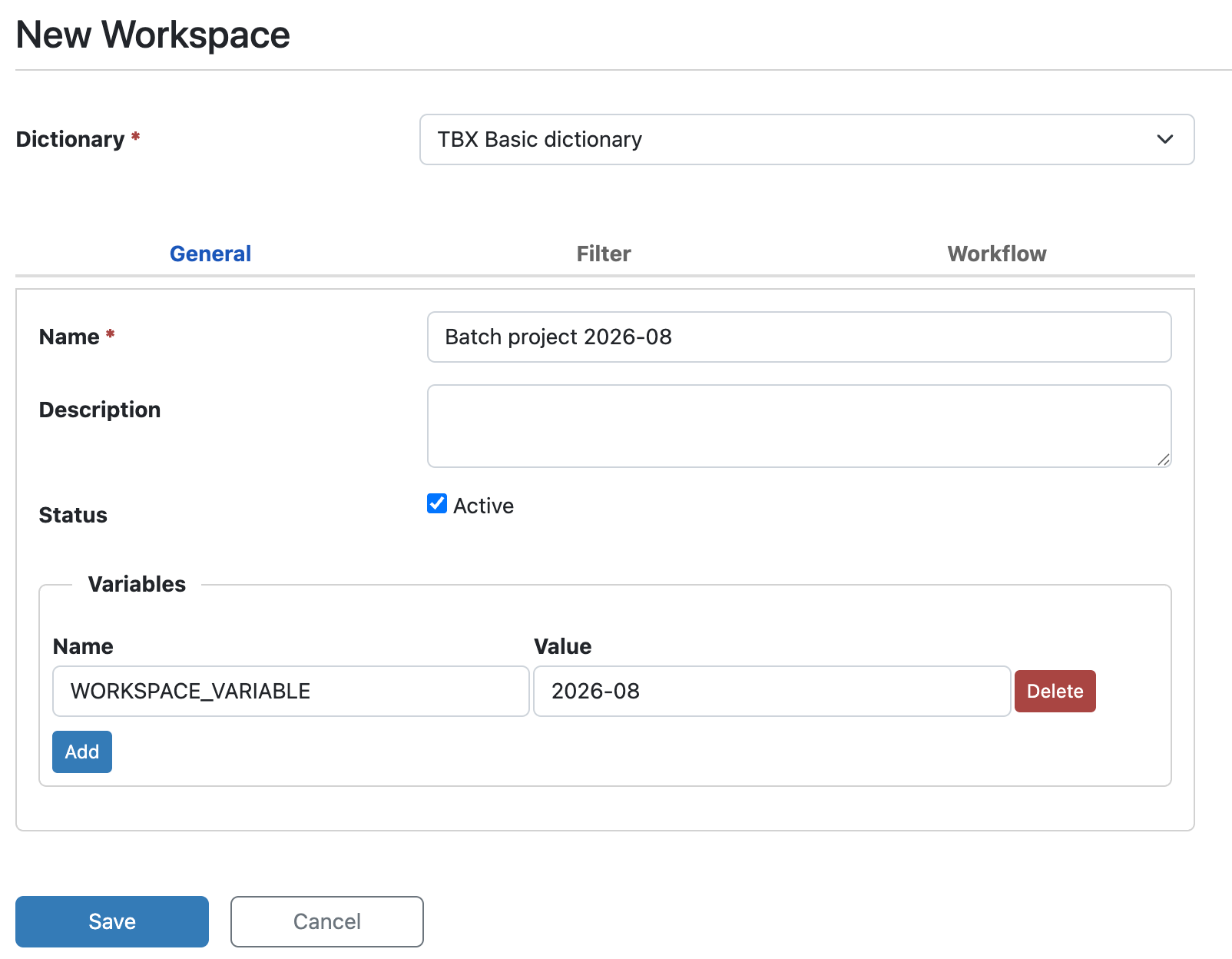 Define any variables you might need for emails.
Click Add and enter (short variable) name and (long) value.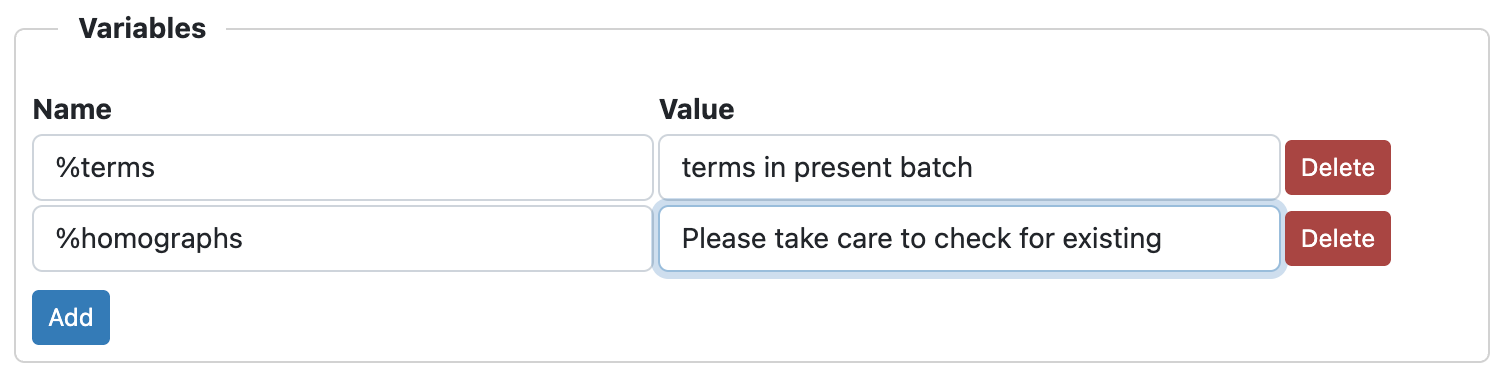
-
The Filter tab:
Click Edit Filter and create a filter for the term records to be included in the workspace.
An example: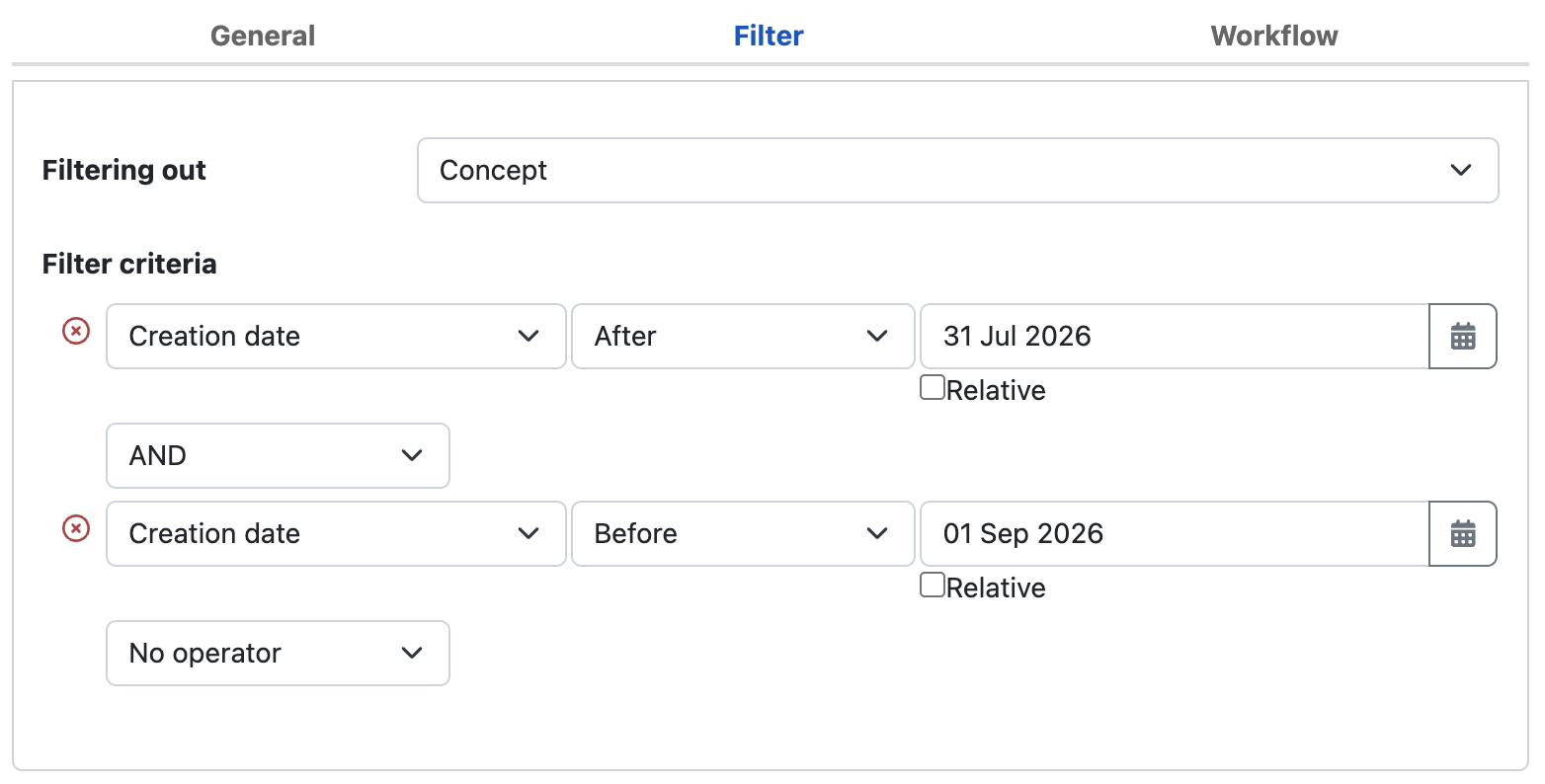
-
The Workflow tab:
Fill in the desired name of the workflow, select the task (out of the available tasks) to initiate the workflow and the condition(s) under which the workflow is to be initiated.
An example: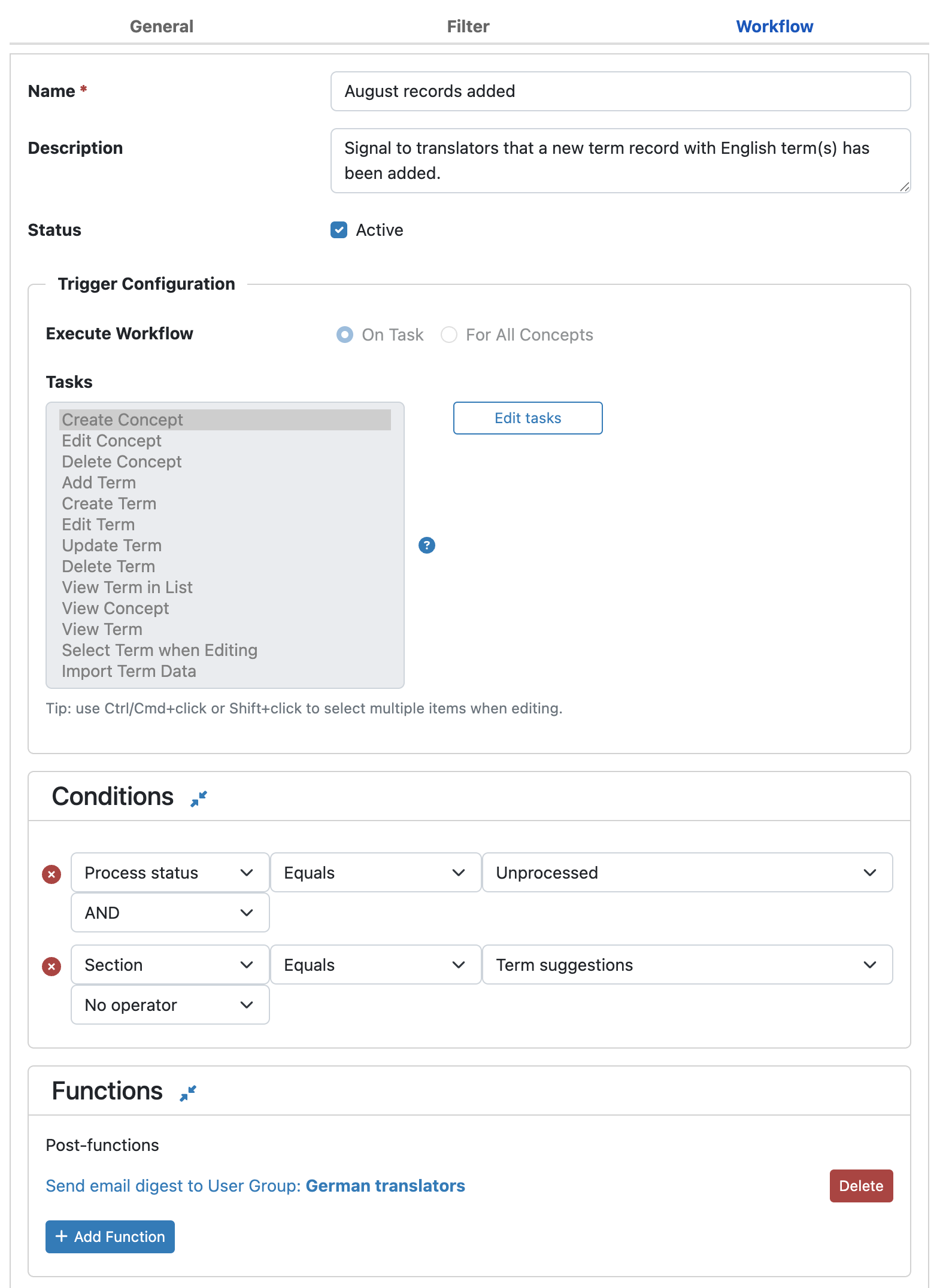
An example where the conditions for a concept are completed by having terms in all, or at least a few, of the required languages:
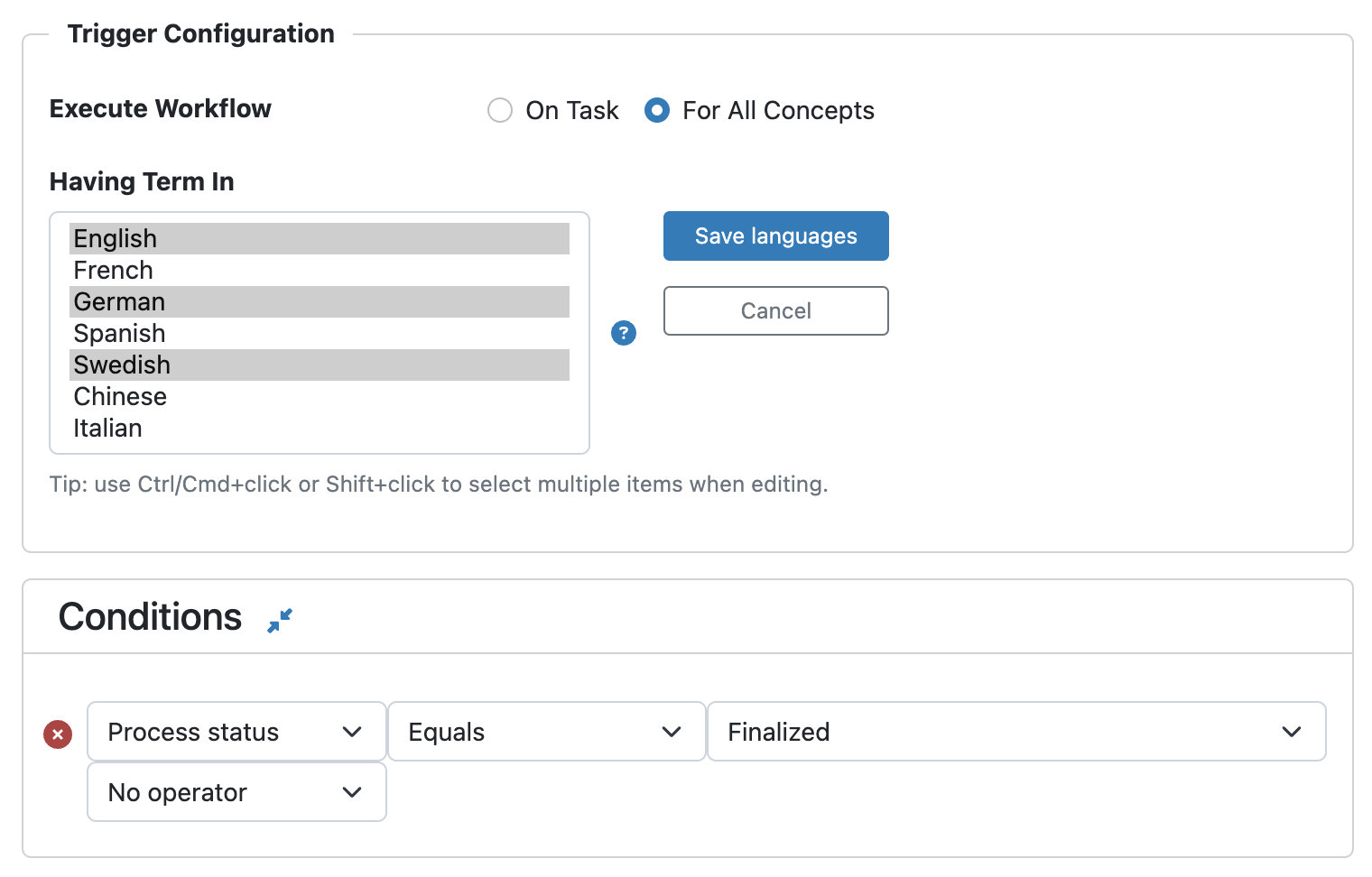 Click Add Function.
Fill in the email or reminder recipients and other conditions (see example below).The For All Concepts workflow can only use the Send email and Send reminder functions. 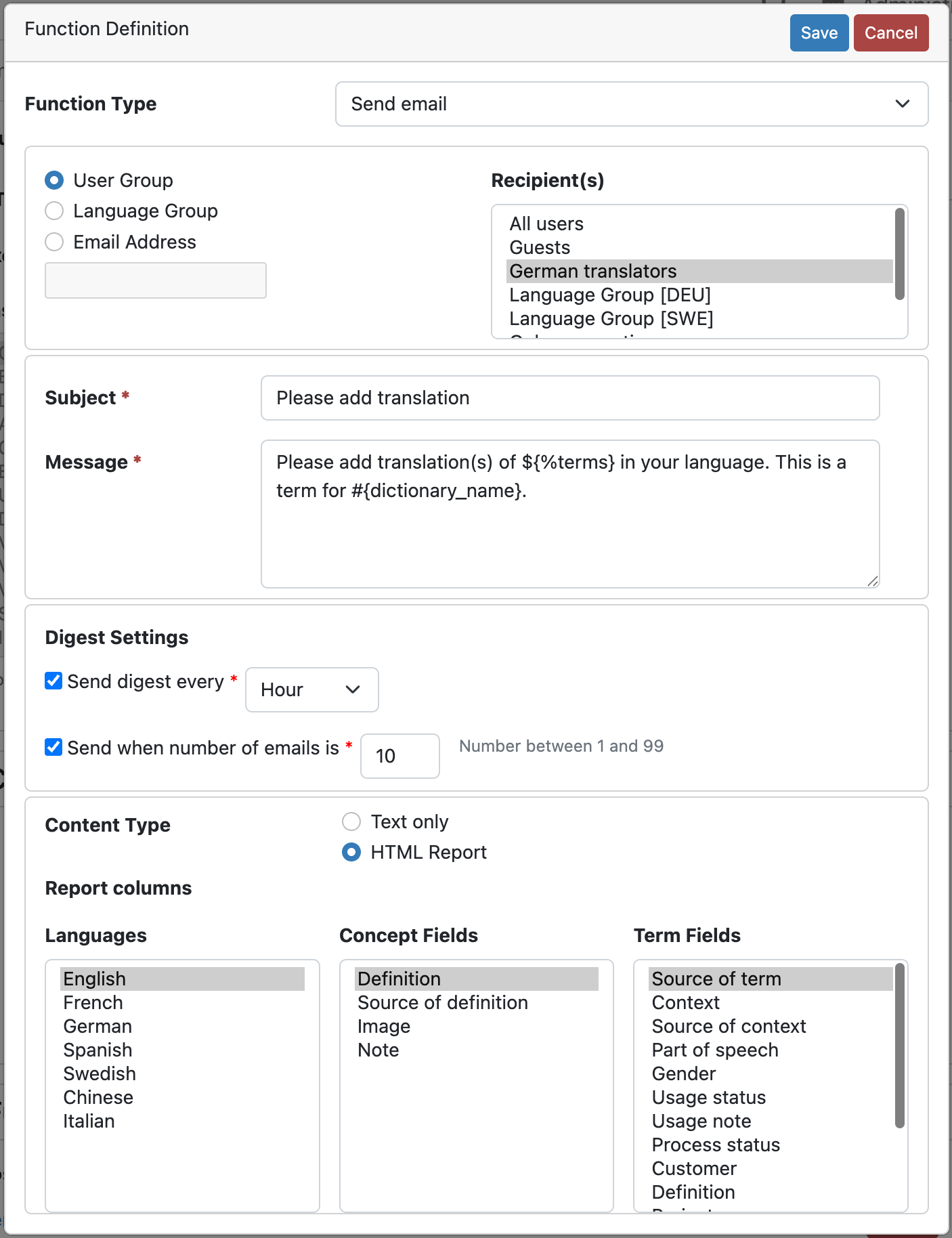 In the HTML Report you can define field names as part of an HTML table.
Additionally, if you want to make use of an earlier defined variable in the email text, right-click to insert the desired variable: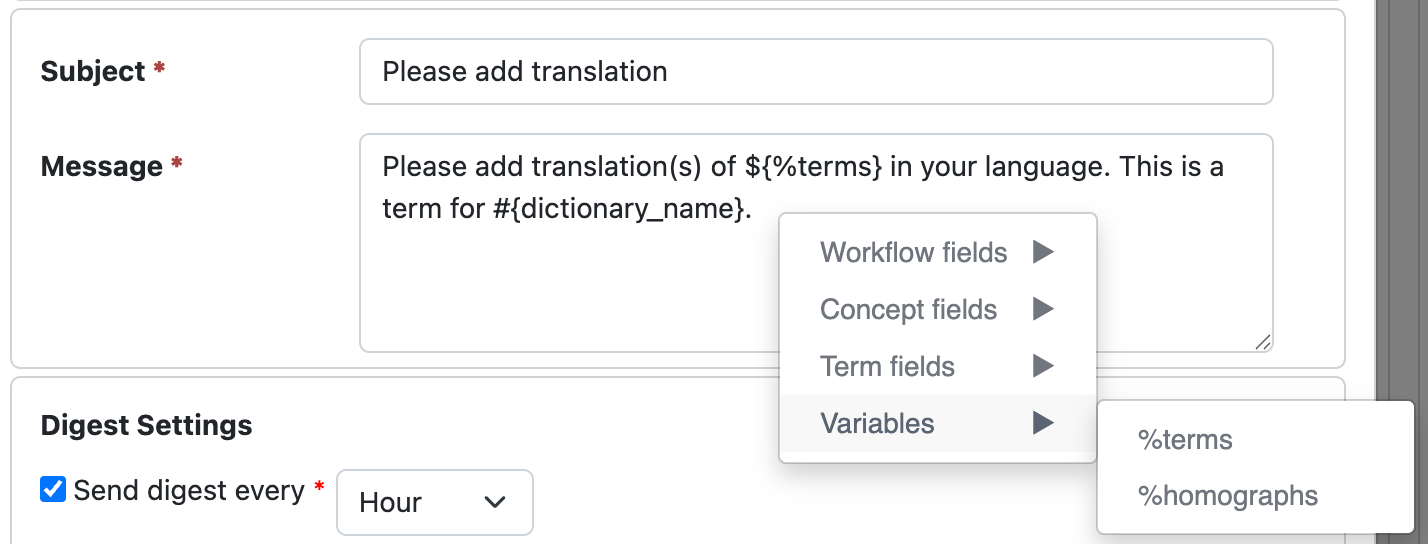
-
-
Click Save on top of dialog to save the function. You may then add another function, e.g. a reminder email.
-
Click Done to save the workflow.
-
Click Save to save the workspace.