Overview
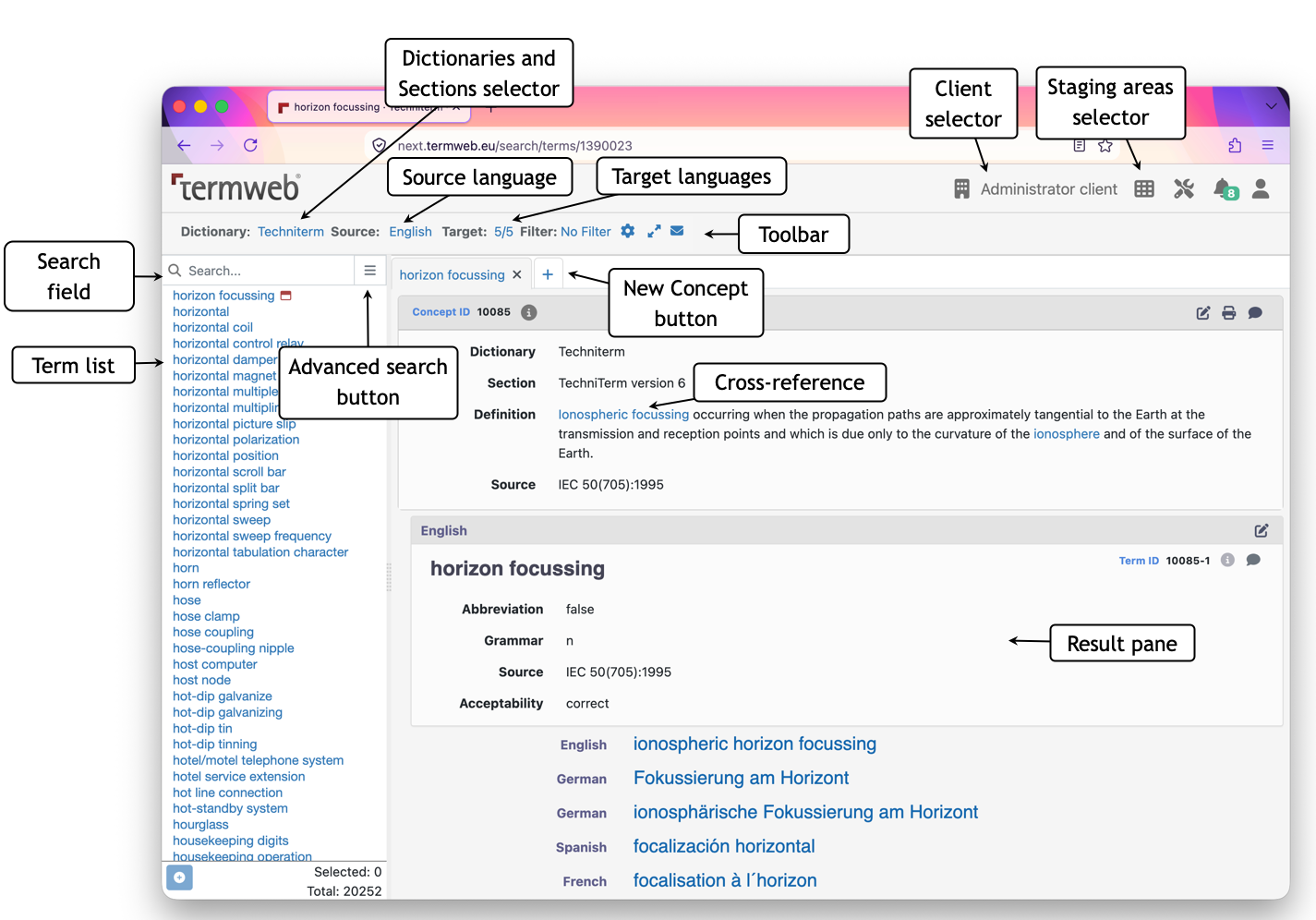
The number of terms in the current source language (possibly filtered) term list is shown at bottom of the list. When complex filter or search options is applied TermWeb won’t show exact number of search results, to see actual number you need to scroll to the bottom of search results.

Set the source language, target language and how much you want to view in the result pane
If you want to find a term in a language other than the current source language, then select the desired source language from the dropdown in the Source field.
You can also limit the results shown to one target language.
Click the box beside Target above the result pane and choose the desired target language.
If you would like all languages to be displayed, choose All languages in the Target box.
To specify how much term information is shown for each language in the dictionary:
Click on Custom view and choose which languages should be shown along with the level of
detail you want for each language (i.e. the term only or all term information).
Using one of the Select all links, you can choose to show all language terms expanded or collapsed or hide all languages. Please note that the term in focus will always be displayed expanded (with maximum term information as defined by the view applied to the user’s group). Then choose Custom from the Target dropdown.
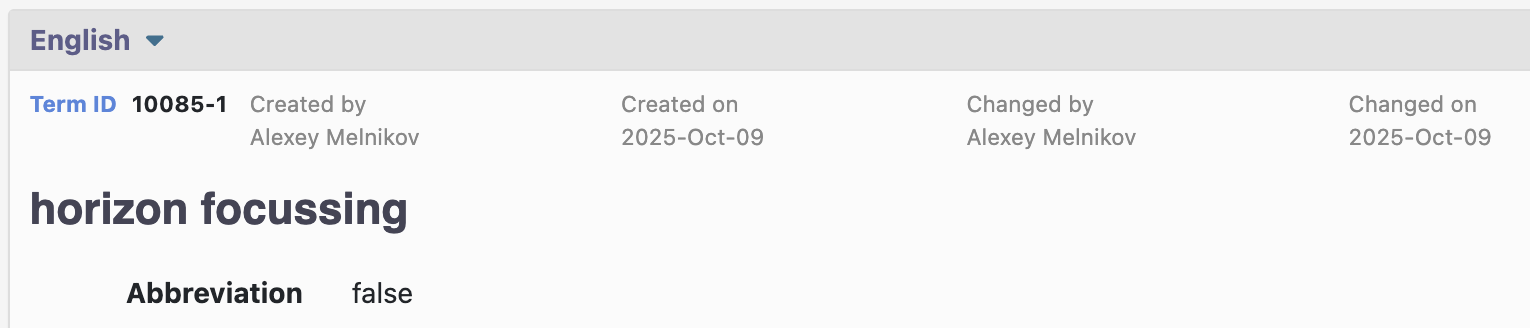
If you (are authorized and) would like to display the concept’s history (information about when
and by whom the term record was created and changed), click  (previously Settings) and check the Show history box. Deselect the Show history checkbox when you want
to hide the information.
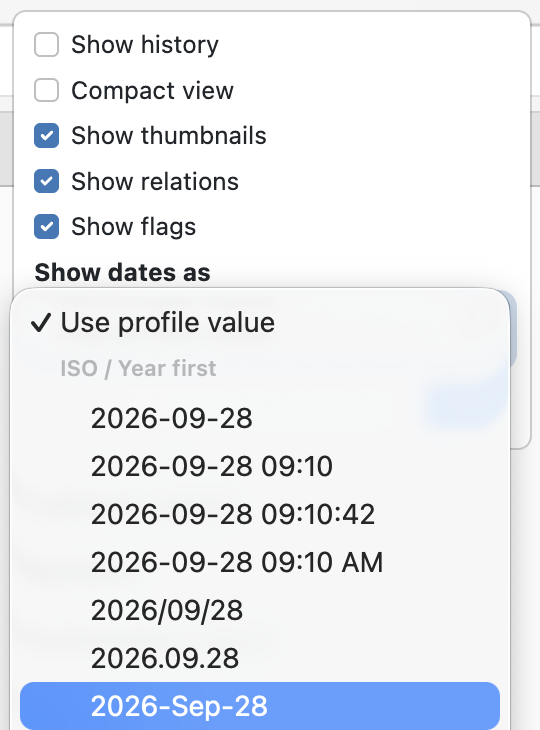
If you would like another date format displayed (the default is the ISO format YYYY-MM-DD),
click the cogwheel icon Show dates as dropdown.
(previously Settings) and check the Show history box. Deselect the Show history checkbox when you want
to hide the information.
If you would like another date format displayed (the default is the ISO format YYYY-MM-DD),
click the cogwheel icon Show dates as dropdown.
Then, in the example, date fields as well creation date and change date metadata will be displayed in the selected date format:
| The administrator can also specify which fields are displayed for each user, e.g. which level of information is shown. A single term record can thus be displayed differently depending on which user is logged in. |
Searching terms
Selecting dictionary
A dictionary is a large part of the database that contains a limited number of languages and fields.
Choose the main dictionary to use in the Dictionary selector. The term list is updated with the terms from selected dictionary.
Selecting sections
A dictionary can contain a number of sections with various types of terms and phrases. For instance, there might be a section with terms that are still being worked on, one with abbreviations and acronyms or one with approved terms that are standard in various languages.
You can choose to show terms from one or more of the sections:
-
Select all sections in the list (to the right of the Dictionary drop-down, to select all you click in select with mouse and then press ⊞ Ctrl + A or ⌘ Cmd + A).
-
Press and hold Ctrl and click the sections you wish to select or deselect for searching.
-
Click the "Apply" button. The number of chosen sections is displayed in the link text and the term list is updated to show only terms from selected sections.
Selecting additional dictionaries
If there are more than one dictionary available, you can select one or more dictionaries (besides the main dictionary selected in the Dictionary drop-down) to search in. These are referred to as additional dictionaries and are also selected in the same window as sections.
-
Select all sections in the list (to the right of the Dictionary drop-down, to select all you click in select with mouse and then press ⊞ Ctrl + A or ⌘ Cmd + A).
-
Press and hold Ctrl and click the additional dictionaries you wish to select for searching.
-
Click the "Apply" button. The number of additional dictionaries is displayed in the link text and the term list is updated to include terms from selected additional dictionaries. Terms from additional dictionaries are displayed with pink background in the term list.
Searching in additional dictionaries has some limitations compared to main dictionary searching:
-
Terms from all available sections are displayed from additional dictionaries.
-
Domain, filter and multi-field search only return terms from the main dictionary.
-
Fuzzy search returns matches from main and additional dictionaries.
-
Editing of concepts is only possible in the main dictionary.
When a concept from an additional dictionary is displayed, a message is displayed at the top of the result window with a link for setting the concept’s dictionary as main dictionary. This provides a quick way of changing the main dictionary if you for example want to edit the concept. The previous selected main dictionary is automatically selected as additional dictionary when this link is used.
If you change the main dictionary using the Dictionary drop-down the previous main dictionary is not selected as additional dictionary.
Selecting source language
To find a term in a language other than the present source language, click the box beside Source at the top lefthand side of the page and select the desired source language.
| If there are geographical or/and orthographical variants available for chosen source language they will appear in selects after the selected source language. |
Search for a term
First choose the dictionary. See What is a dictionary.
If you want to limit the search to certain sections in the dictionary, begin by choosing the desired sections. See the page entitled What is a section?
Select the language of the term you want to find. If you want to search for a term in Spanish, for example, then select Spanish from the Source dropdown.+
Then type the search string in the field beside Search.
If you want to limit the search to a certain domain or subdomain, click Domain search under the
search field and select the domain(s). See also the section entitled Show a particular domain or
subdomain.
Search with wildcards
You can use asterisks (*) and question marks (?) to perform a wildcard search.
Example 1: Type dog* and click Search.
A list of all the terms beginning with "dog" will be shown.
Example 2: Type * dog* and click Search.
A list of all the terms that contain the text string "dog" will be shown.
Example 3: Type *synchroni?ation* and click Search.
A list of all the terms that contain the text string "synchroni", followed by one character and the text string "ation" will be shown, e.g. "synchronization", "synchronisation", and flywheel synchronization circuit.
Example 4: Type ???ing and click Search.
A list of terms starting with three characters and ending with the string "ing" will be shown, e.g. coding, curing, O-ring, and string.
Select domains for search
If you want to limit the search to a certain domain or subdomain, click Domain search under the search field and select the domain(s)
The terms in a dictionary and its sections can be classified
according to the subjects to which they apply, i.e. their
domains, such as DATA PROCESSING or BUSINESS &
ADMINIST.
If you want to only show terms from a single domain or
subdomain:
-
Click Domain search.
In order to show as much of the domain selection frame as possible, you can switch to full screen view (F11 in Internet Explorer).
-
Select the desired domain(s). If you select a domain, its subdomains are also selected automatically. To select or remove subdomains, first click the plus sign to the left of the main domain selected and then the subdomain(s).
Click OK when you are finished. -
Only terms from the chosen domains/subdomains will be visible in the chosen source language.
You can always see which domains and subdomains you have chosen under the heading Selected domains above the result window.
Search settings
By using the Search settings features, you can search in multiple fields at the same time or for terms without knowing the exact spelling.
Advanced search options
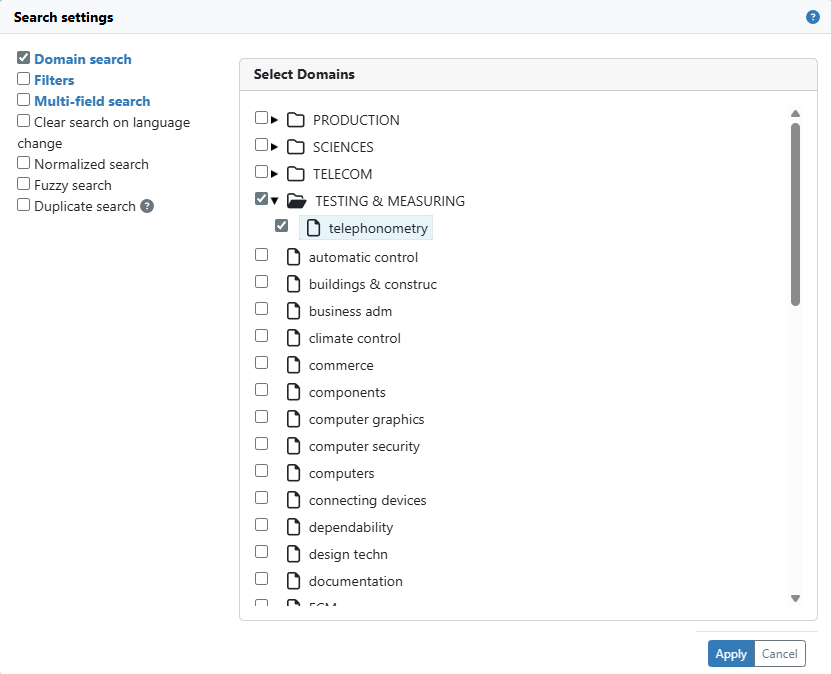
The Search settings window is displayed by pressing the Open Search settings button, shown as a square button with three horizontal lines, immediately right of the Search bar.

Select the checkbox next to the search feature you wish to use, select the criteria you wish to use and click the Apply button to submit the search criteria on the terms in the term list. If you click on the Cancel button, any changes to the settings will be lost.
When any of the advanced search options are enabled, the Search settings button will appear with an asterisk in the top-right corner.
Domain search (optional)
The Domain search feature will only appear if the selected dictionary has the Domains feature enabled. To enable this feature, an Administrator need to add at least one domain to the dictionary via the Terminology > Domains page.
Filters
The Filters menu shows all available filters to the user, whether they are created by the user themself or shared to a User group the user belongs to. The menu will also show the number of Concepts that fulfill the filter criteria.
Multi-field search
The Multi-field search option will allow the user to search for character strings in specific fields in addition to the Term name. Click Apply after selecting which fields to search, then use the normal Search bar for your searches.
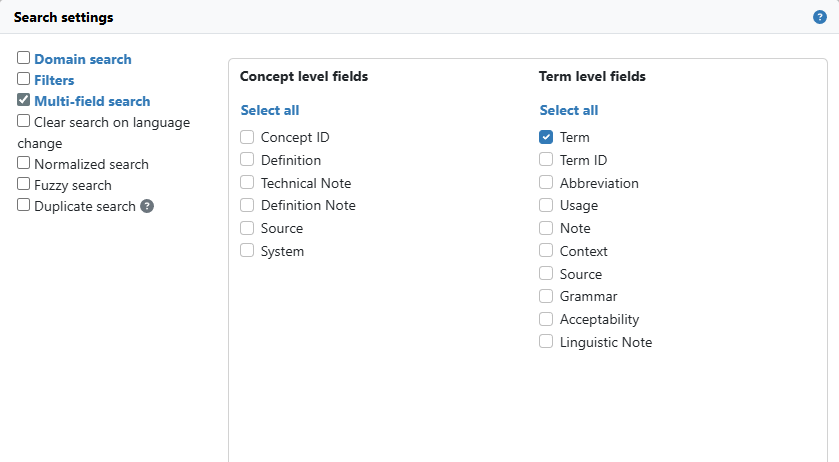
If you click on Select all, all checkboxes listed immediately below will be enabled.
All terms that matches the search expression in any of the selected fields will be displayed in the term list. The matches depend to some extent of the type of fields selected. For text fields, a search is made for all entries that contain the given search expression. If the field is numeric, e.g., the Concept ID field, an exact match is attempted. If the field is a picklist, the search text must match one of the defined values in the picklist exactly.
All matches are case-insensitive.
If you select term level fields, this will return all terms in the selected source language for every concept that contains at least one term in the current source language and has a field that matches the search expression.
legal with English as source
language. The dictionary contains a concept with two English
terms, legal rule and rule of law as synonyms.
If multi-field search is enabled and the Term field is selected,
TermWeb will find and match legal rule and include all
English terms in this concept in the result, i.e., both legal
rule and rule of law.
When using multi-field search, it is not possible to use
wildcards. Searching for legal* will try to match the
literal value legal* with the values in the fields.
| It is not possible to use Fuzzy search and Multi-field search at the same time. The Fuzzy search checkbox is therefore disabled if Multi-field search is enabled and vice versa. |
Fuzzy search
Check the Enable fuzzy search checkbox to enable fuzzy search. You will then be able to search for terms even if you do not remember the exact spelling.
plattform.With Fuzzy search enabled, the terms that approximately match the search text will be shown, e.g. piattaforma.
Clear search on language change
Select this checkbox if you do not want to keep the search string when you change Source language. If you want to search for the same string after having changed Source language, please deselect this checkbox.
Enable normalized search (single-byte and double-byte characters)
This option applies to wildcard searching only. If you select this option, characters with the same function but stored differently, as single-byte or double-byte characters, will be considered equal during filtering and term list sorting.
If the option is selected, the normalized value will be used in filter criteria and thus filters can return results for both single-byte and double-byte characters. Also, normalized values are used when calculating the term list order so that both single-byte and double-byte characters are considered equally during term indexing.
For example: converts compatibility characters into standard equivalents:
-
full-width characters → standard width (common in East Asian text):
A→A,123→123,abc→abc,!@#→!@# -
ligatures → separate letters:
ff→ff,fi→fi,fl→fl -
superscripts / subscripts → normal digits:
x²→x2,10³→103,H₂O→H2O -
Roman numerals → standard letters:
Ⅰ→I,Ⅱ→II,Ⅳ→IV,Ⅻ→XII -
symbols and units → plain equivalents:
℉→°F,℃→°C,№→No,K→K,Å(Angstrom Sign) →Å(Latin Capital Letter a with Ring Above. Latin-1 Supplement) -
styled / enclosed characters → plain text:
①→1,Ⓐ→A,ⓐ→a
Combines characters into canonical forms, for example:
-
e + ´→é -
a + ̊→å -
o + ̈→ö -
n + ̃→ñ -
c + ̧→ç
What normalization does with German letters:
-
ä→ä(unchanged) -
ö→ö(unchanged) -
ü→ü(unchanged) -
ß→ß(unchanged)
These are not ligatures in Unicode terms, so normalization leaves them as-is.
Use filters to search and export
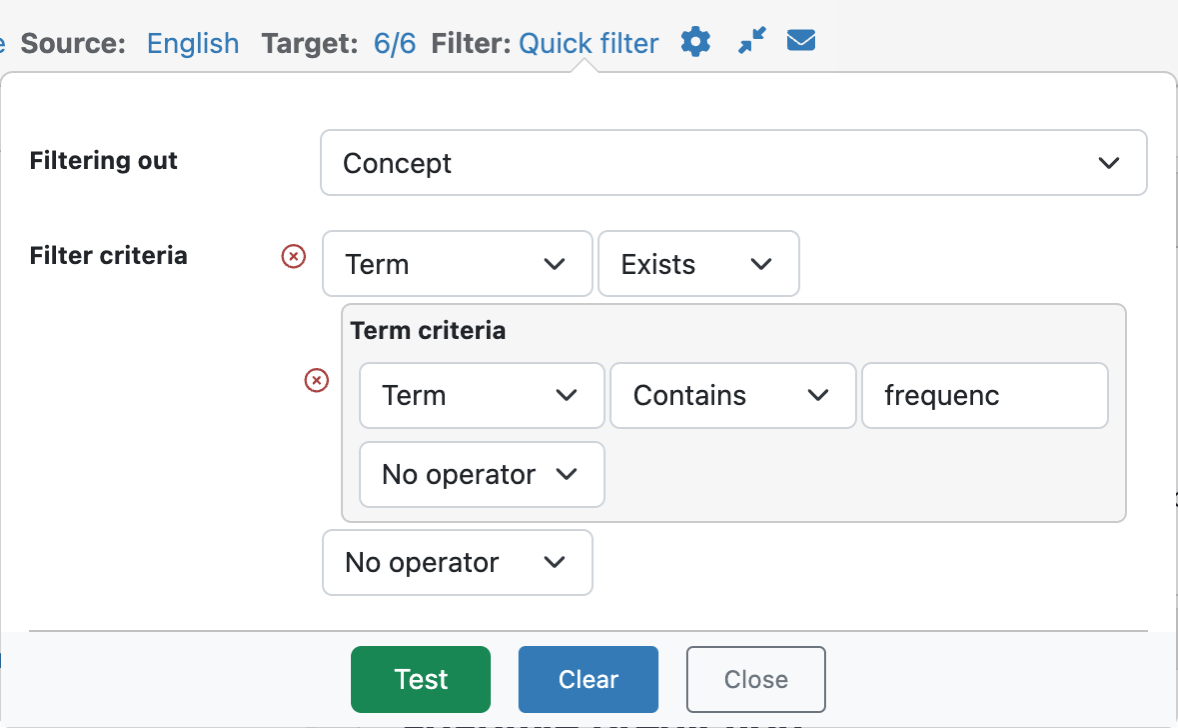
If you want to search for term records or term equivalents that fulfill specific criteria, e.g. all term records that do not have a definition, term records that do not have a term equivalent in a certain language or term equivalents in a certain language with a certain status, you can use the filter function.
| A filter limits the search to the selected dictionary (current main dictionary). |
A Filter can be defined to be private by setting its visibility to Owner and Administrators, or
accessible for a certain group selected in the Visibility dropdown, or to all users.
Only the owner of the filter, or an administrator, can edit or delete a filter.
If an administrator is unable to delete a filter, it is because it is in use (in an export setting or as
a standard filter for a group).
You can use several combinations of conditions in the filter.
You can create a set of filters for a certain dictionary and then select them from the Filter: picklist in the
SearchView menu. Filters can also be applied to Export Settings.
The conditions for the field contents can be set as follows:
-
fields that contain an exact string (typed after “EQUALS” or, if you do not enter a search string, empty fields)
-
fields that contain the string and additional contents (typed after “CONTAINS”)
-
fields that do not contain the string (typed after “NOT CONTAINS”)
-
fields that are not equivalent to a specific string (typed after “NOT EQUALS” or, if you do not enter a search string, fields that contain something; i.e. “not equal to nothing")
-
fields that start with a certain string (typed after STARTS WITH)
-
for certain fields: that fulfill a specific time value, e.g. that were changed before (BEFORE) or after (AFTER) a specific point in time (date and time) or on a specific date (EQUALS), or outside of a specific date (NOT EQUALS)
-
for numeric fields: where the field value EQUALS, NOT EQUALS, is LESS THAN or GREATER THAN a typed-in integer value
Comments and notifications
You can comment on all concepts and terms to which you have at least read access. The comments can be read by anyone with read access to a Concept. If you want to view (or add) a comment regarding a concept (the whole terminological entry), click the bubble to the right on the Concept ID line.
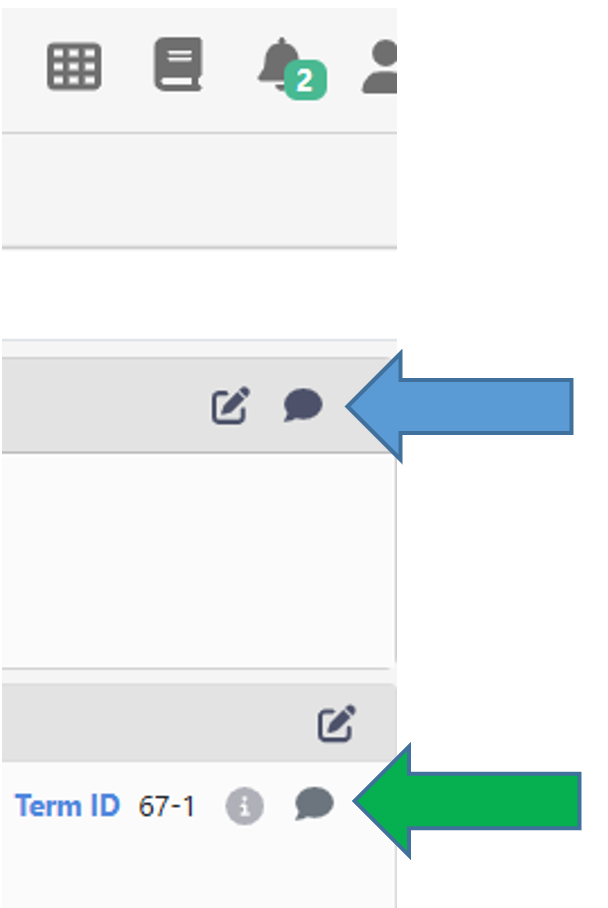
If you want to view (or add) a comment on a specific term, click the term and then click the bubble to the right of the Term ID info.
| If one or more comments already are made to the concept or term, a number, e.g., will be displayed by the comment bubble. |
Then enter your comment and click Add comment:
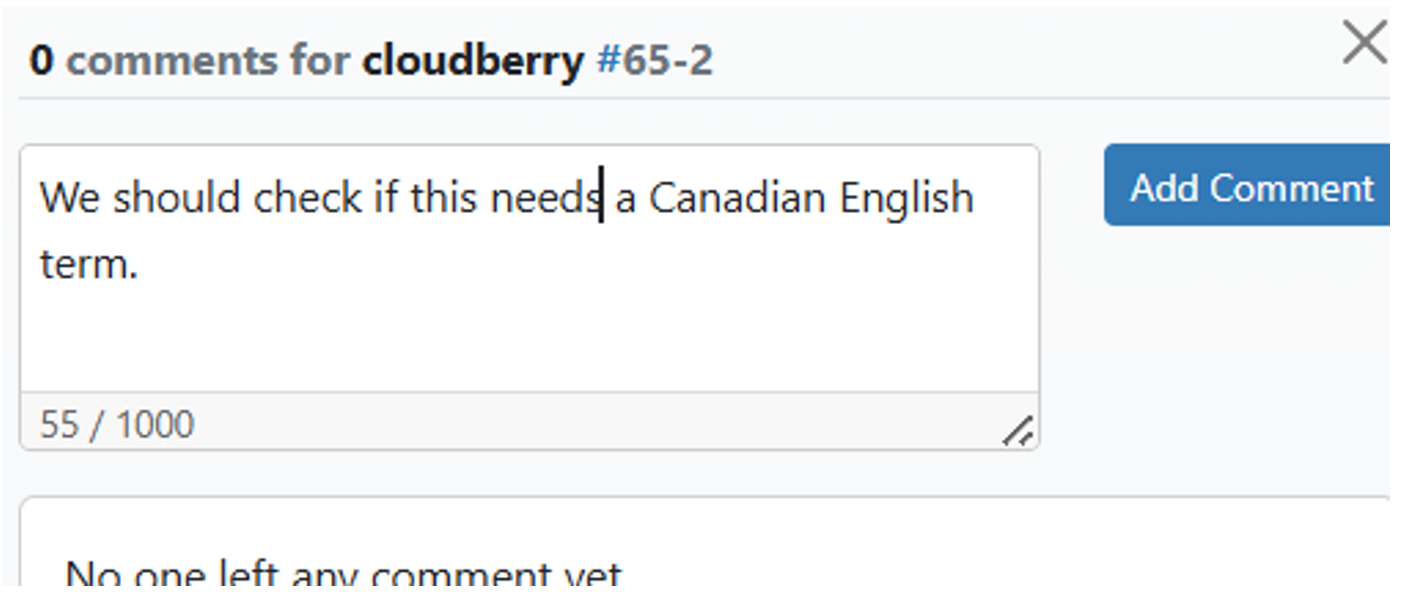
If you want to mention another TermWeb user in a comment, just type @, and you can choose from a
list of users that will be displayed.
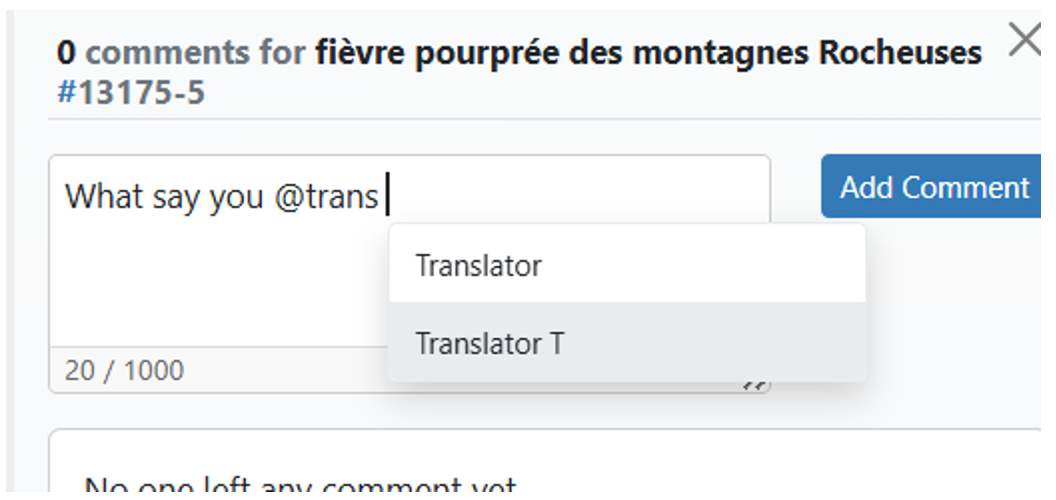
Then enter your comment and click Add Comment.
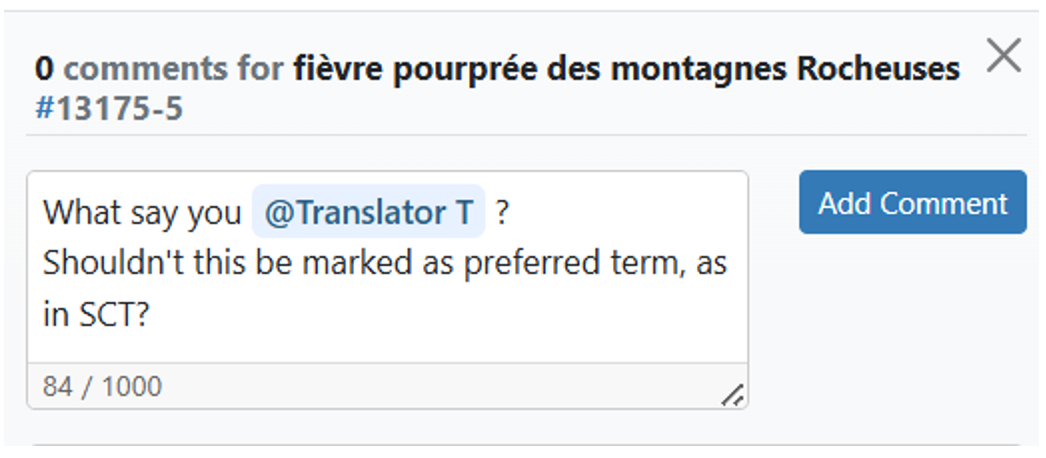
If the user has Notify me about mentions from all dictionaries enabled, he or she will get an email notification about the mention.
As a receiver, you can like and reply to the comment.
If you issued the comment, you can edit and delete the comment.
To close the Comment pane, just click ×
Notification settings
You can decide if you want notifications of comments. Click your user symbol 👤 in right top corner.
Select Profile & settings.
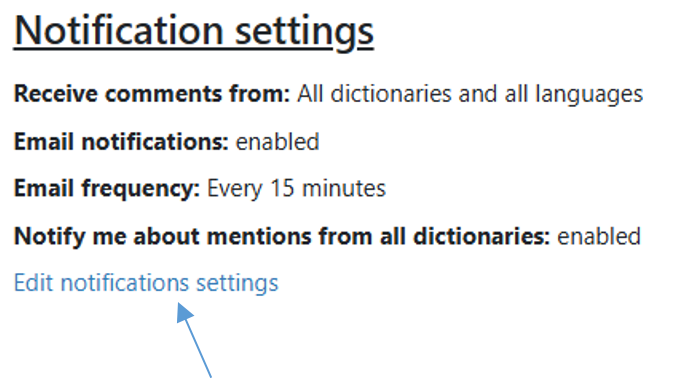
Click Edit notification settings. The following dialog appears:
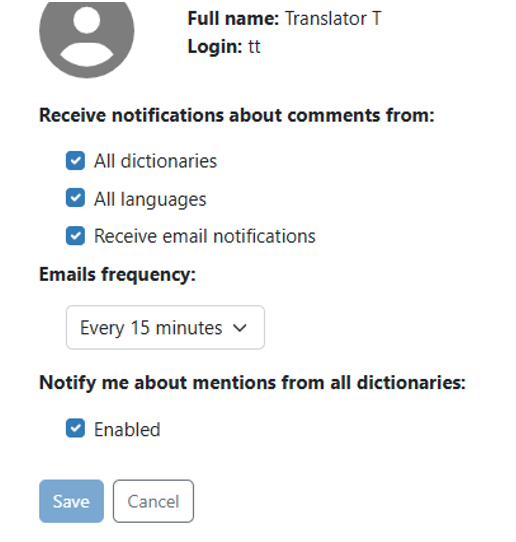
If you just want notifications of comments to concepts in a specific dictionary, deselect All dictionaries.
Then, select the dictionary or dictionaries, the comments to concepts or terms of which you want to be notified.
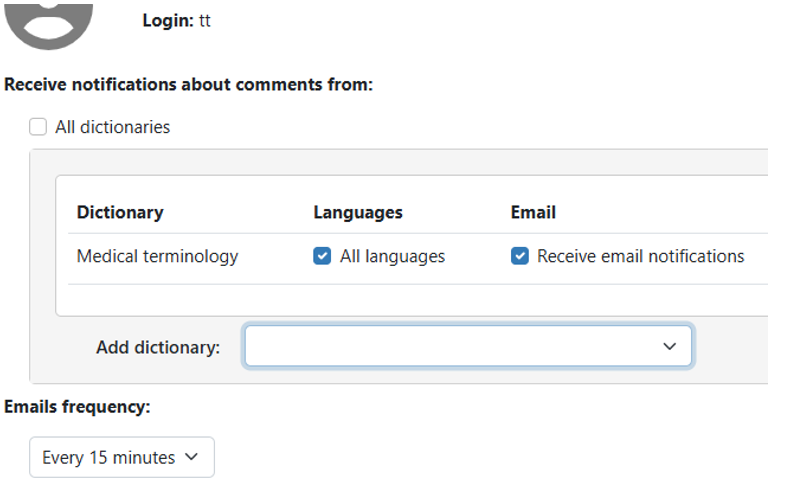
If you just want to be notified of comments to terms in a specific language or specific languages,
deselect All languages and add the desired language(s).
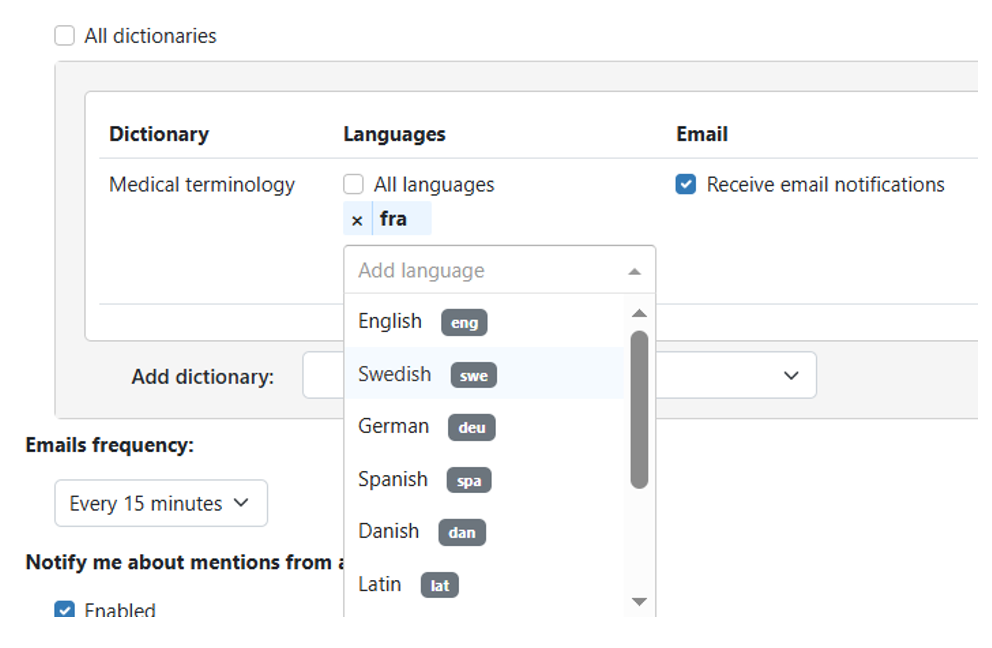
You can also decide how often to receive notification emails in the Emails frequency droplist.
If you do not want to receive any email notification of concept or term comments, please deselect
the Receive email notifications checkbox.
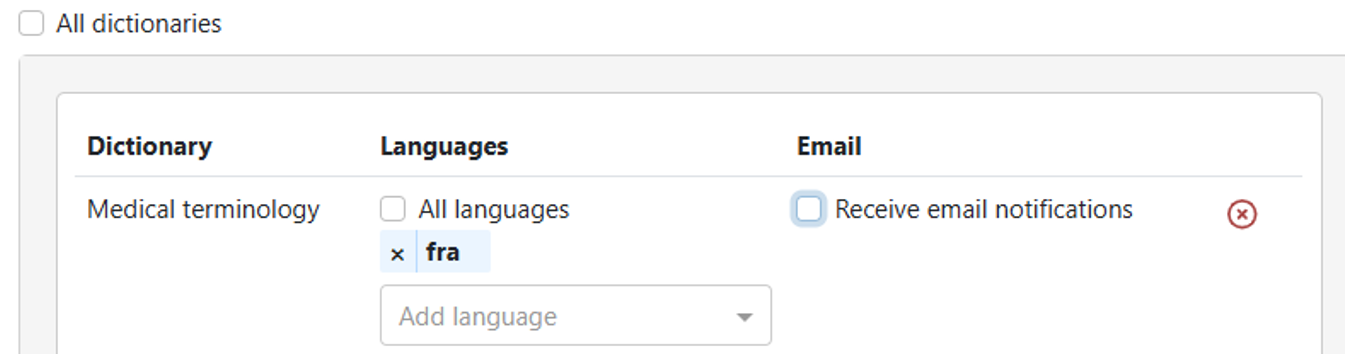
When you are ready, click Save.