Batch Search Tool
The Batch Search tool allows Administrators or users with the Import permission to check what terms are already in a dictionary before importing or adding a set of new terms, use the Batch Search Tool. The search terms can be entered manually or imported from a simple Excel file, and the customizable report of found terms can also be exported as an Excel file.
To run a Batch Search:
-
Proceed to Terminology menu item and then click the Batch Search Tool link.
-
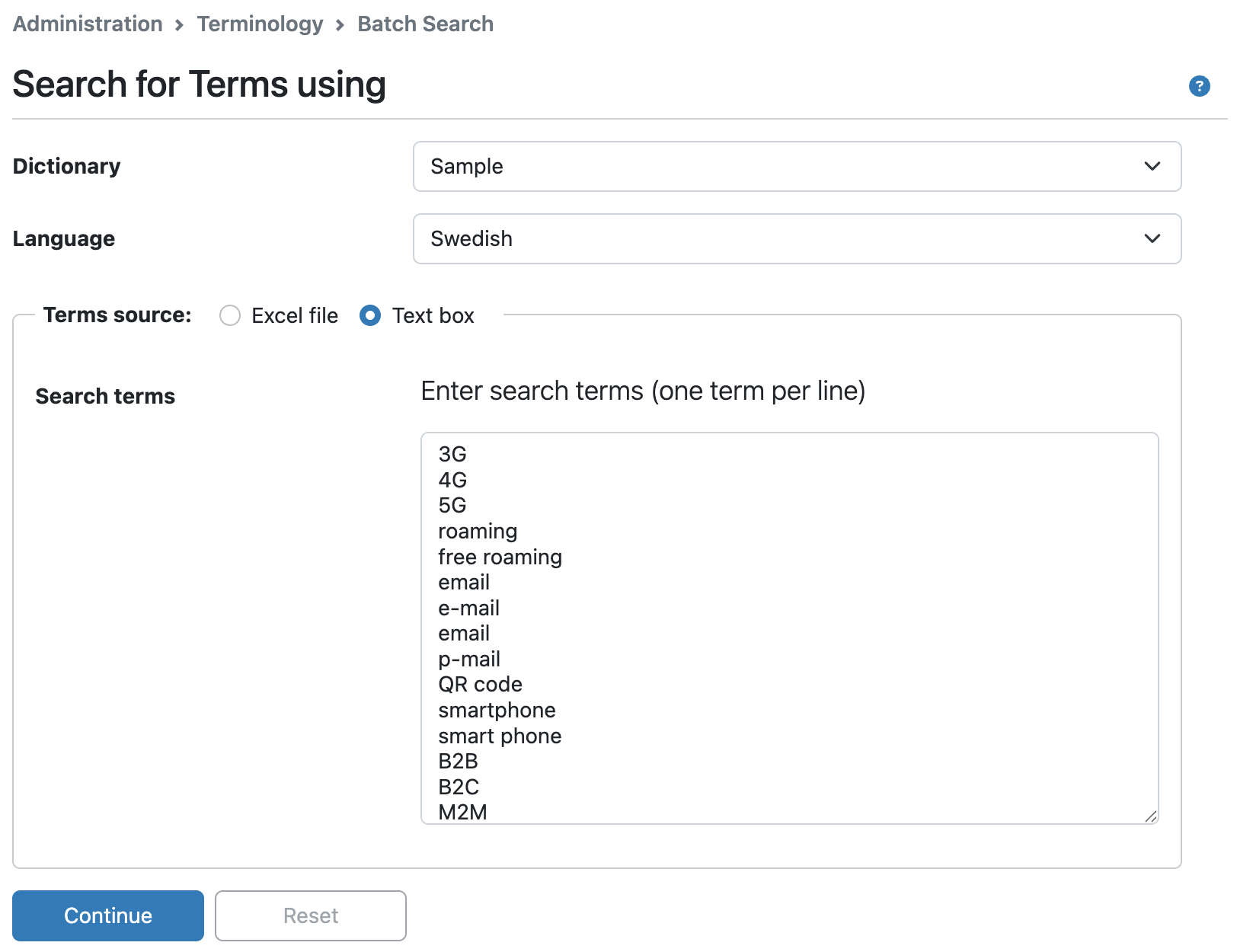
Select the dictionary you wish to search, and the language of the search terms. Then either enter (type or paste) the terms you wish to look up in the box, as in the example below. As an alternative, save the term candidates in the leftmost column of an Excel file, click the Excel file radio button, browse to and select that file. Please note: Only the first sheet in the file is read, any additional sheets are ignored.
-
Click Continue.
-
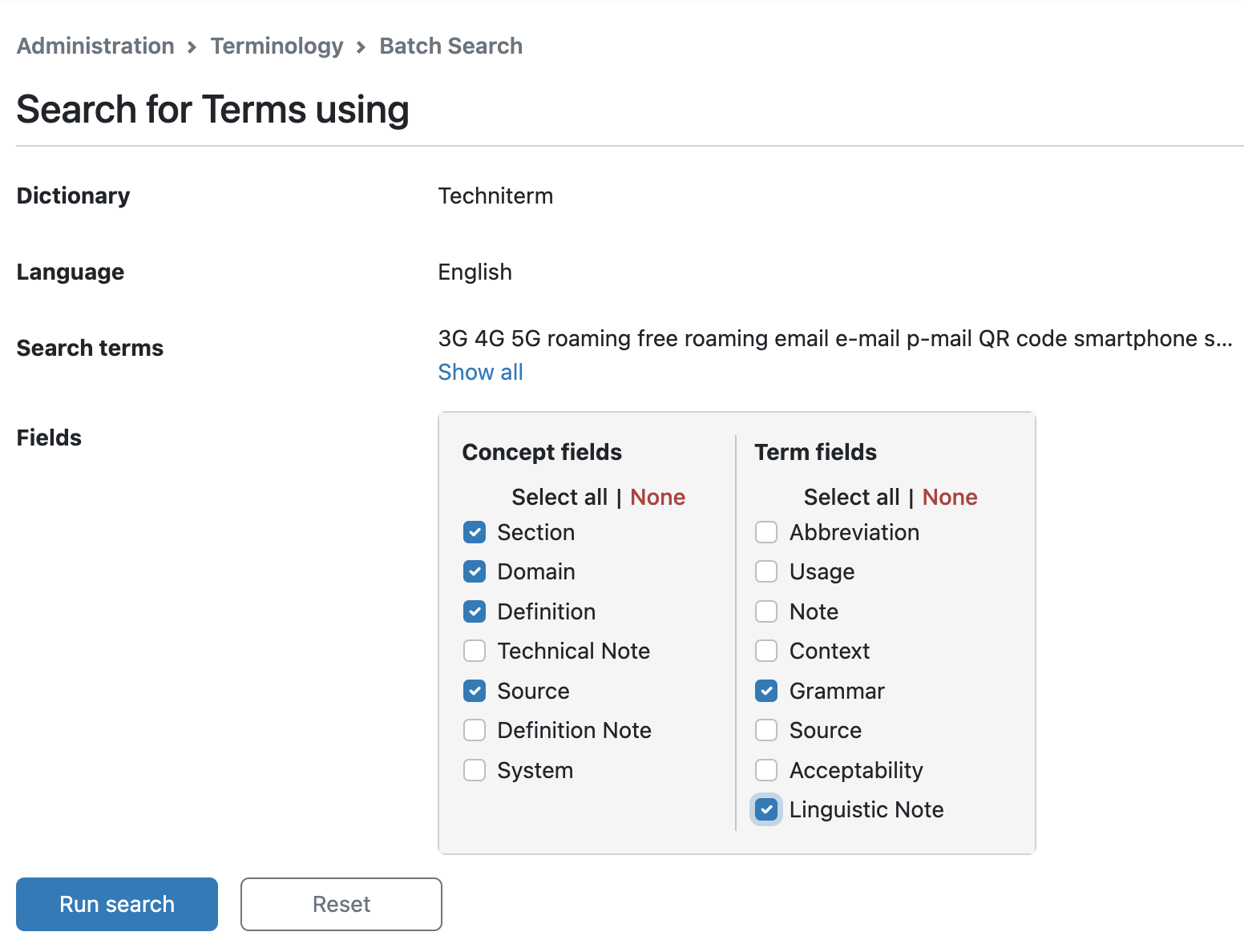
Select the fields to be included in the report for found terms on the Report Field Selection tab.
-
Click Run Search to start the search.
-
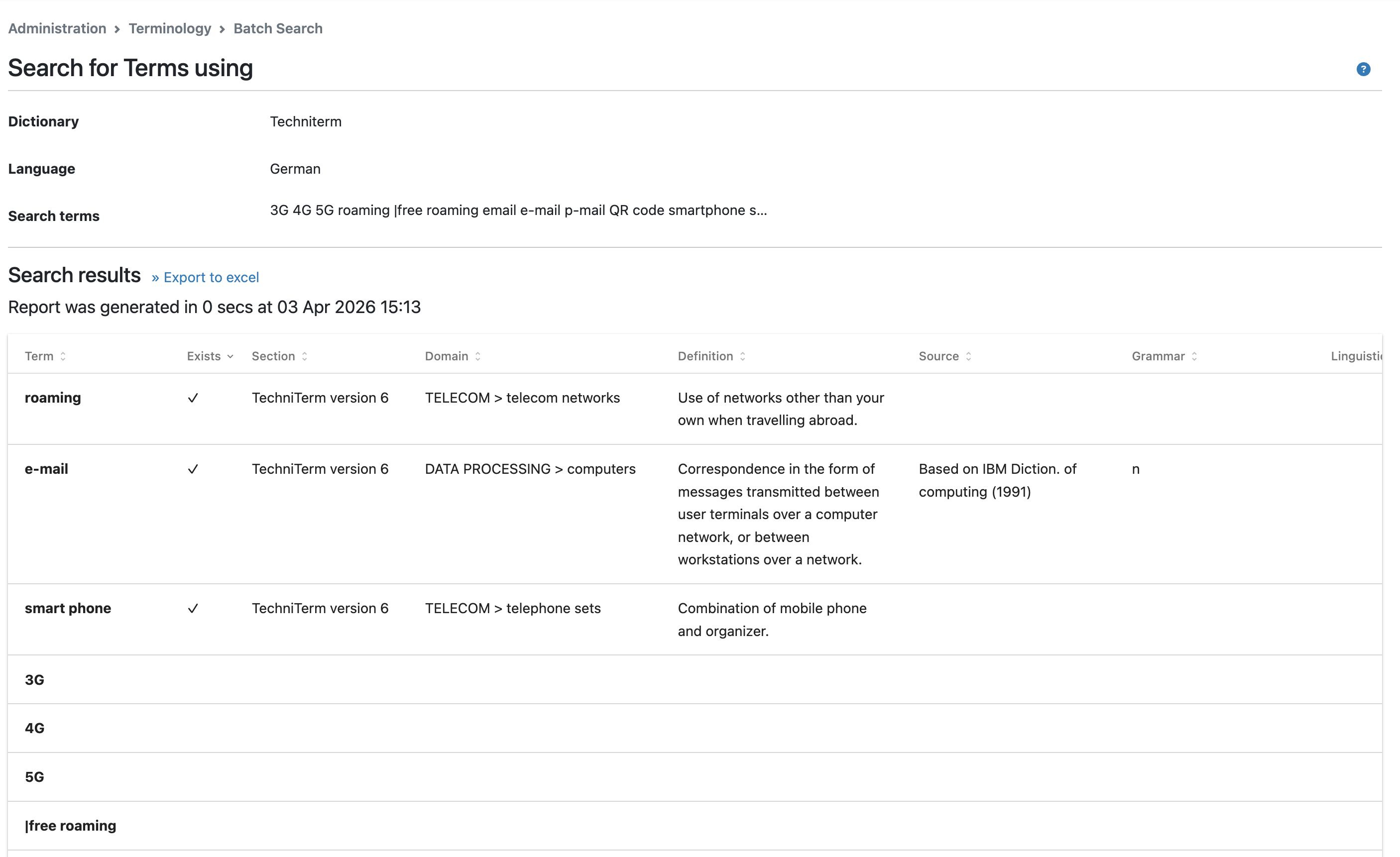
The report, including the text and values of the selected fields is displayed on the Report tab. If you wish to save it as an Excel file, click the » Export to Excel link:
-
The entered search data, report settings, as well as the latest generated report, are kept during the user’s session. Dictionary and source language selections are saved and restored for the user’s next session.