Scheduled Jobs: Regular automated exports of term data
Here, you can automate the export of terminology data. (Please note that also scheduled actions resulting from workflows are listed here.) Proceed as follows to schedule exports: Go to Administration > System > Scheduled Jobs. A list of currently defined jobs will be displayed.
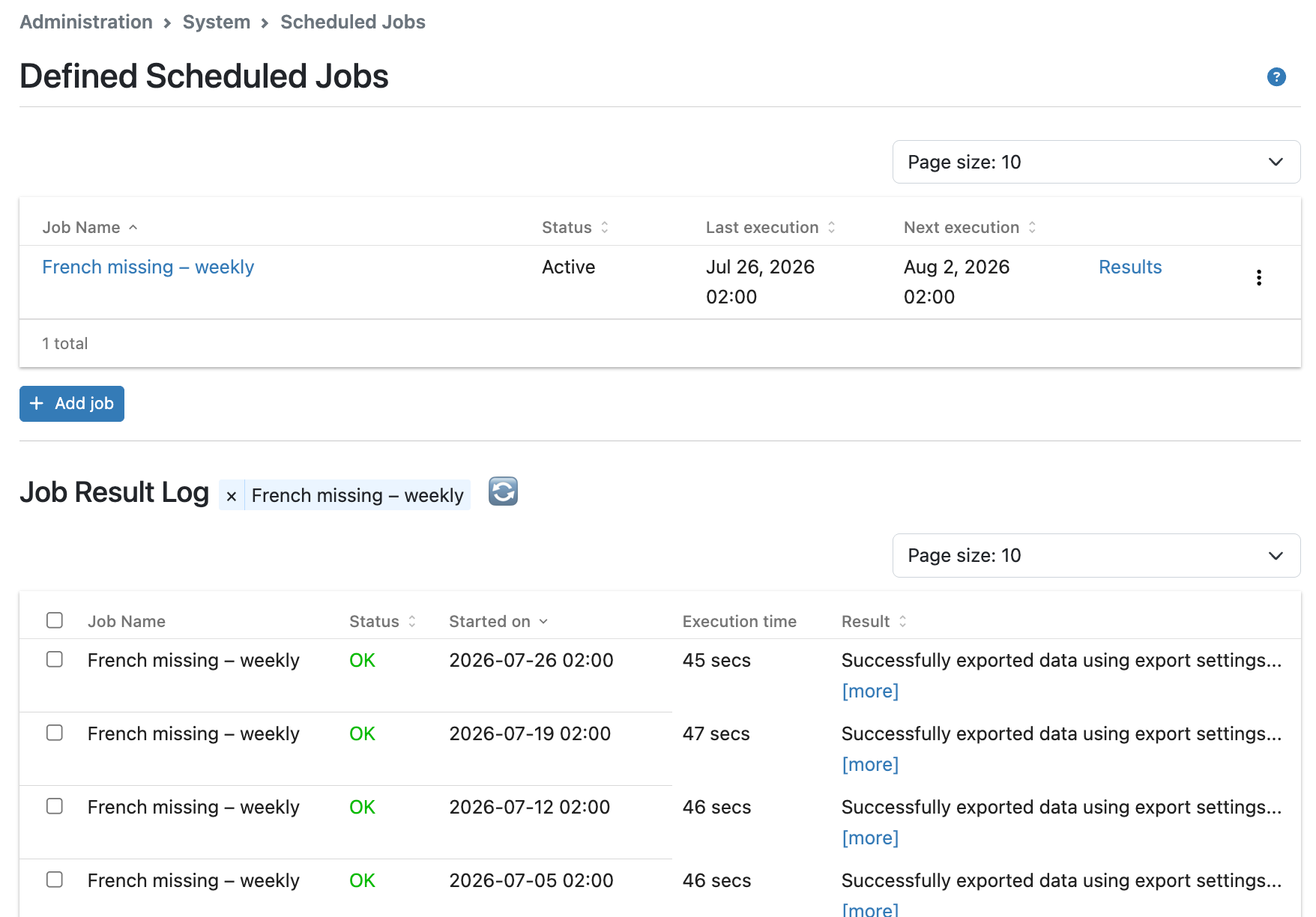
Here, you can select to order a job to be run immediately (Run now), as an example to make a test export, refresh the list (click the circular arrows , 🔄), and view the results of a certain export (click [more] and the file link that is displayed). You can also delete selected exported files with their corresponding log entries and from the job result log.
To add a job:
-
Click Add job.
-
How to configure job, read next article about configuring
Scheduled job
Scheduled job form
Create a Scheduled Job
A scheduled job is used to perform automatic exports on a regular basis.
Export Base Directory
This is a file path to a folder on the server where export files can be written. The path is defined in
termweb.properties by setting the
property job.export.dir. If the property is not set the folder defaults to work.dir.
Export Setting
Select the export setting to use. Export settings need to be once manually to be available for Scheduled Jobs.
Path to Export File
You can enter a path (on the server) where a copy of the exported file should be written. The path should include the full file name including extension, and the directories must exist and be writable. The file will be overwritten for each execution of the job.
It is also possible to specify the filename as a date pattern to include the date and/or time in the name of the exported file. To use a date pattern you surround the pattern with %, e.g. "filename_%yyyy%-%MM%-dd%.xlsx" will create the file "filename_2026-12-31.xlsx" if today’s date is Dec 31, 2026.
The following letters are recognized:
| Letter | Date or Time Component | Presentation | Examples |
|---|---|---|---|
|
Era designator |
Text |
|
Year |
|
||
Month in year |
|
||
Week in year |
|
||
Week in month |
|
||
Day in year |
|
||
Day in month |
|
||
Day of week in month |
|
||
Day in week |
|
||
AM/PM marker |
|
||
Hour in day (0-23) |
|
||
Hour in day (1-24) |
|
||
Hour in am/pm (0-11) |
|
||
Hour in am/pm (1-12) |
|
||
Minute in hour |
|
||
Second in minute |
|
||
Millisecond |
|
||
Time zone |
|
||
Time zone |
|
Cron expressions
A UNIX crontab-like pattern is a string splitted in five space separated parts. Each part is intented as:
-
Minutes sub-pattern. During which minutes of the hour should the task been launched? The values range is from 0 to 59.
-
Hours sub-pattern. During which hours of the day should the task been launched? The values range is from 0 to 23.
-
Days of month sub-pattern. During which days of the month should the task been launched? The values range is from 0 to 31.
-
Months sub-pattern. During which months of the year should the task been launched? The values range is from 1 (January) to 12 (December), otherwise this sub-pattern allows the aliases "jan", "feb", "mar", "apr", "may", "jun", "jul", "aug", "sep", "oct", "nov" and "dec".
-
Days of week sub-pattern. During which days of the week should the task been launched? The values range is from 0 (Sunday) to 6 (Saturday), otherwise this sub-pattern allows the aliases "sun", "mon", "tue", "wed", "thu", "fri" and "sat".
The star wildcard character is also admitted, indicating "every minute of the hour", "every hour of the day", "every day of the month", "every month of the year" and "every day of the week", according to the sub-pattern in which it is used.
Once the scheduler is started, a task will be launched when the five parts in its scheduling pattern will be true at the same time.
Some examples:
5 * * * *
This pattern causes a task to be launched once every hour, at the beginning of the fifth minute (00:05, 01:05, 02:05, etc).
* * * * *
This pattern causes a task to be launched every minute (usually not needed, it will add only high load to TermWeb and export probably would not even finish before starting new task).
* 12 * * Mon
This pattern causes a task to be launched every minute during the 12th hour of Monday.
* 12 16 * Mon
This pattern causes a task to be launched every minute during the 12th hour of Monday, 16th, but only if the day is the 16th of the month.
Every sub-pattern can contain two or more comma separated values.
59 11 * * 1,2,3,4,5
This pattern causes a task to be launched at 11:59AM on Monday, Tuesday, Wednesday, Thursday and Friday.
Values intervals are admitted and defined using the minus character.
59 11 * * 1-5
This pattern is equivalent to the previous one.
The slash character can be used to identify periodic values, in the form a/b. A sub-pattern with the slash character is satisfied when the value on the left divided by the one on the right gives an integer result (a % b == 0).
*/15 9-17 * * *
This pattern causes a task to be launched every 15 minutes between the 9th and 17th hour of the day (9:00, 9:15, 9:30, 9:45 and so on… note that the last execution will be at 17:45).
All the fresh described syntax rules can be used together.
* 12 10-16/2 * *
This pattern causes a task to be launched every minute during the 12th hour of the day, but only if the day is the 10th, the 12th, the 14th or the 16th of the month.
* 12 1-15,17,20-25 * *
This pattern causes a task to be launched every minute during the 12th hour of the day, but the day of the month must be between the 1st and the 15th, the 20th and the 25, or at least it must be the 17th.