TermWeb Dictionaries and terminology
What is a dictionary?
A dictionary is a major part of the database of a given structure, e.g. a limited number of languages and fields. The fields may be valid for the entire term record (concept level fields) , e.g. a definition. The fields may also be valid only for terms (term fields); used to specify e.g. grammar or source of a translation of a term in a particular language (a term equivalent).
An Administrator defines dictionaries. You specify which dictionary will be shown by clicking the scroll arrow beside the Dictionary dropdown and choosing the dictionary from the list. The list of terms in the chosen source language is then updated.
More than one dictionary:
There is possibly more than one dictionary available to you. In this case, you can either change
which dictionary to view, search, and work with, as described above, OR select one ore more
additional dictionaries to view and search in the same time as the main dictionary.
Dictionary creation
The easiest way to create a new dictionary is by clicking the + New Dictionary button.
Step 1: Name and description
As a first step you should enter a unique name for the new dictionary. The name can be up to 40 characters in length.
You can also enter a description for the dictionary.
Step 2: Select languages
You can select which languages you wish to include in the dictionary. TermWeb has over 400 languages predefined from the list of ISO 639-1/2/3 languages. By default, TermWeb servers use the three letter language code for languages as defined by ISO 639-2/3. All TermWeb servers will correctly map two letter language codes to their corresponding three letter language codes in accordance to the ISO 639 and TBX standards. The languages are divided into subsets to easier let you find the languages you wish.
Select the languages you wish to include by clicking Add Language and either searching for a particular language in the "All languages" menu or selecting an language from the Language subset menu. You can select multiple languages by holding the CTRL or SHIFT key.
If you wish to change the language name, make the language into a custom language (i.e. "eng-us" or "eng-US" instead of "eng") or create a geographical/orthographical variant, you can click the highlighted blue language name immediately after you add the language to the language list. To create a custom language, uncheck the "Standard code" checkbox to make the "Code" field editable. Please note you can only change the language code of languages during their creation.
You must select at least one language to create a valid dictionary.
Step 3: Select concept-level fields
TermWeb contains a number of predefined field types among which you can choose. The fields are defined in the TBX standard and described briefly here. You can also add custom fields by clicking the checkbox "New custom field". In this step you select which fields you wish to use on the concept level.
Select the fields in the same way as you selected languages in step 2. You are not required to select any of the predefined fields on the concept level. You can always add, change or remove fields by editing the dictionary later.
You can select multiple fields by holding the CTRL or SHIFT key.
Step 4: Select term-level fields
In this step you select among the predefined fields for the term level. You can also add custom fields by clicking the checkbox "New custom field".
You can select multiple fields by holding the CTRL or SHIFT key.
Step 5: New dictionary
TermWeb 5 will present you with a complete list of additions to the new dictionary. Click the Confirm save button to complete the creation or the Back button to return to the earlier steps.
Dictionary complete
You have now completed the definition of the dictionary. Click on the Finish button to create the new dictionary.
What is a section?
A Section is a subset of a dictionary that can have individual read and write permissions set. For instance, there might be a section that allows users to suggest new concepts while a public glossary section is restricted from editing rights.
Concepts can only be stored in a single section but can be moved across sections. All Search functionality can function across sections.
It is recommended to use sections to leverage your workflow process for approving terminology.
Dictionary Languages
Add Language
To add a new language in the dictionary, click the "Add language" button to the right of the language list. This opens the New Languages view. In the New Languages view you can select a subset of all available languages to be displayed in the selection list. The diffent subsets are:
-
All languages - Displays all languages defined in TermWeb
-
Language subset - Display common languages in different regions around the world
Multiple custom languages in a dictionary can be based on the same language, so the list may contain languages already defined in the dictionary. These languages are displayed with grey background in the list. Select a language in the list and click the "Continue" button to go to the Edit Language.
Edit Language
In the Edit Language view you can edit the name, code, direction and variants of the language. The default values for the selected languages are filled in when adding a new languages and you can click on "Save" to save it in the dictionary without any further changes. You can set a custom name for the language by editing the Name field. The name of the language must be unique in the dictionary. It is also possible to edit the code for the language if you for example want to create a variant of the language which is handled as a regular language.
| Changing the language code is only possible for new languages. If you need to change the code for an existing language you can create a new language with the new code, and then, if necessary, use the Language Replace function to move existing terms into the new language. |
A custom language code must begin with the original three character code for the language and must be unique in the dictionary. You may change the writing direction of the language. The direction is either left-to-right or right-to-left and the most commonly used direction is selected by default. The direction affects how fields are displayed in the result window and the text direction of input fields when editing terms in the language.
Variants
Variants can be used for the language if it is a regular language, i.e. the default ISO639-2 language code is used. If you have specified a custom code, the variants section of the view will be hidden, unless you have already defined some variants. You cannot save the language if both variants and custom code are defined.
When you are done, click "Save" to save the language changes to the dictionary. The changes are not applied in the system until "Save Changes" are clicked in the Dictionary view.
Predefined fields
These are the predefined fields in TermWeb in alphabetical order.
Concept level
- Concept origin
-
The name of an originating database or terminological collection.
- Customer subset
-
If the concept is only valid for a certain customer, this can be specified in this field.
- Definition
-
A text describing the concept in a common way.
- Environment subset
-
If the concept is only valid in a certain environment (hardware, software, technical, biological etc.) this can be described here.
- Example
-
An example sentence or phrase using the concept.
- Explanation
- Product subset
-
If the concept is only valid for a certain product or product series, this can be specified in this field.
- Project subset
-
If the concept is only valid for a certain project, this can be specified in this field.
- Source
-
The source of the concept.
Term level
| Field | Description | Field type | Possible values |
|---|---|---|---|
Animacy |
Indicates whether the term refers to something animate or inanimate. |
PICKLIST |
|
Context |
Describes the situation or domain where the term is used |
MULTILINE |
- |
Customer subset |
If the concept is only valid for a certain customer, this can be specified in this field. |
MULTILINE |
- |
Definition |
Explains what the term means. |
MULTILINE |
- |
Environment subset |
If the term is only valid in a certain environment (hardware, software, technical, biological etc.) this can be described here. |
MULTILINE |
- |
Example |
An example sentence or phrase using the term. |
MULTILINE |
- |
Grammatical gender |
Indicates the term’s grammatical gender, if applicable |
PICKLIST |
|
Grammatical number |
Indicates the term’s grammatical number |
PICKLIST |
|
Part of speech |
The grammatical category of the term |
PICKLIST |
|
Process status |
Indicates the term’s review or processing stage |
PICKLIST |
|
Product subset |
If the term is only valid for a certain product or product series, this can be specified in this field |
MULTILINE |
- |
Project subset |
If the term is only valid for a certain project, this can be specified in this field |
MULTILINE |
- |
Sample sentence |
A sentence demonstrating the term in natural use |
MULTILINE |
- |
Source |
Where the information or term comes from. |
MULTILINE |
- |
Source language |
The language the term was originally taken from. |
SINGLELINE |
- |
Term location |
Specifies where the term appears or is used, such as in a document or system |
MULTILINE |
- |
Term type |
Describes the kind of term |
PICKLIST |
|
Usage note |
Provides guidance on when or how to use the term. |
MULTILINE |
- |
Usage status |
Indicates whether the term is preferred, accepted, discouraged, or obsolete |
PICKLIST |
|
Export a dictionary definition
Dictionary definitions are the structure files with all information on the structure of an existing dictionary (languages, fields and sections, and, optionally, layout and/or filter definitions), e.g., to be able to recreate the dictionary on another TermWeb client or as a backup:
-
Click Dictionaries.
-
Click the Export option available via the ellipsis (three dots) button to the right of the Dictionary name. Then select the export format and details in the following dialog:
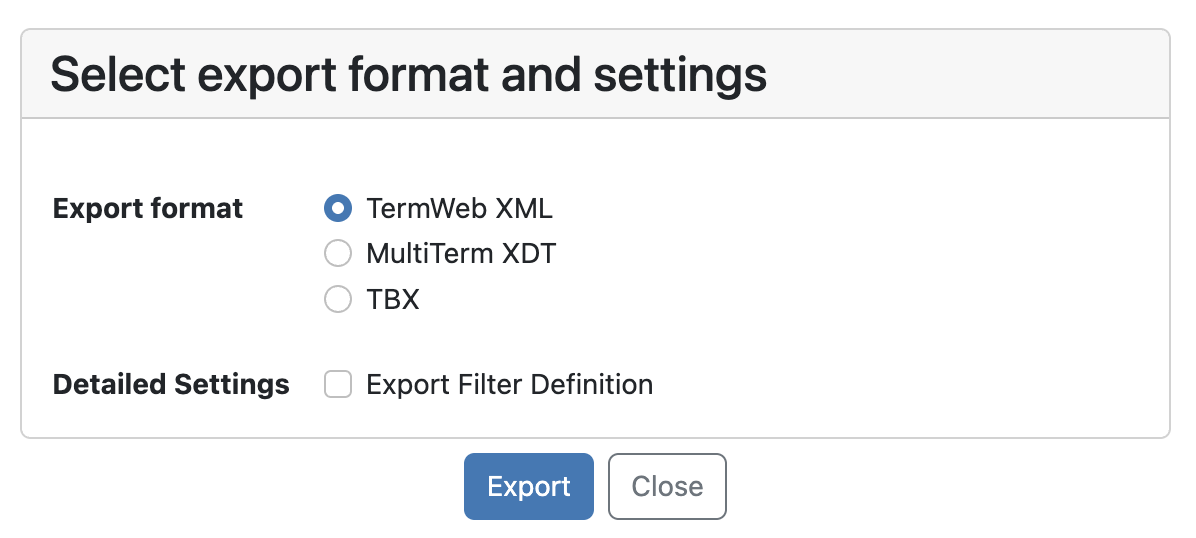
-
Save the resulting XML file in an appropriate location and with an appropriate name.
Only the dictionary structure is exported. No term data, user data, view data or access rights (permission schemes) data is exported. User and group data can be exported using the "Export all users and groups" to file option on the Admininstration > User management > Users or Groups dialog.
Import a dictionary definition
| If you want to create an identical copy of an existing dictionary, with or without term data, in the same TermWeb installation and client, use the Copy dictionary function, see the section Create a copy of an existing dictionary. |
| It is also possible to create a dictionary structure and import the data in one step by importing an earlier exported dictionary data file (or a correctly structured import file). Then TermWeb will recreate the structure. See the section Quick import in the chapter "Import: To import term data". |
Otherwise, this is how to create a new empty dictionary with the same structure (languages, fields and sections, and, optionally, layout and filter definitions) as one which you have previously exported:
-
Click Dictionaries.
-
Click Browse and choose an exported dictionary definition file from the Import dictionary definition from the file box…
-
Click Import dictionary, select Create new dictionary and select whether to import also layout and filter definitions. Then click Import dictionary, and a dictionary with the same languages, fields and characteristics as the previously exported dictionary is created.
If you import the dictionary definition while logged on to the same TermWeb site and client that created the original dictionary, the new dictionary will have the same name as the exported dictionary definition but with an added number, e.g. (2).
Term information is not imported, but you can import it via Import Settings in the Terminology menu.
Alternatively, you can choose to import filters and/or layout from the selected dictionary definition file into an existing dictionary by selecting Import to existing dictionary and then clicking Import dictionary:
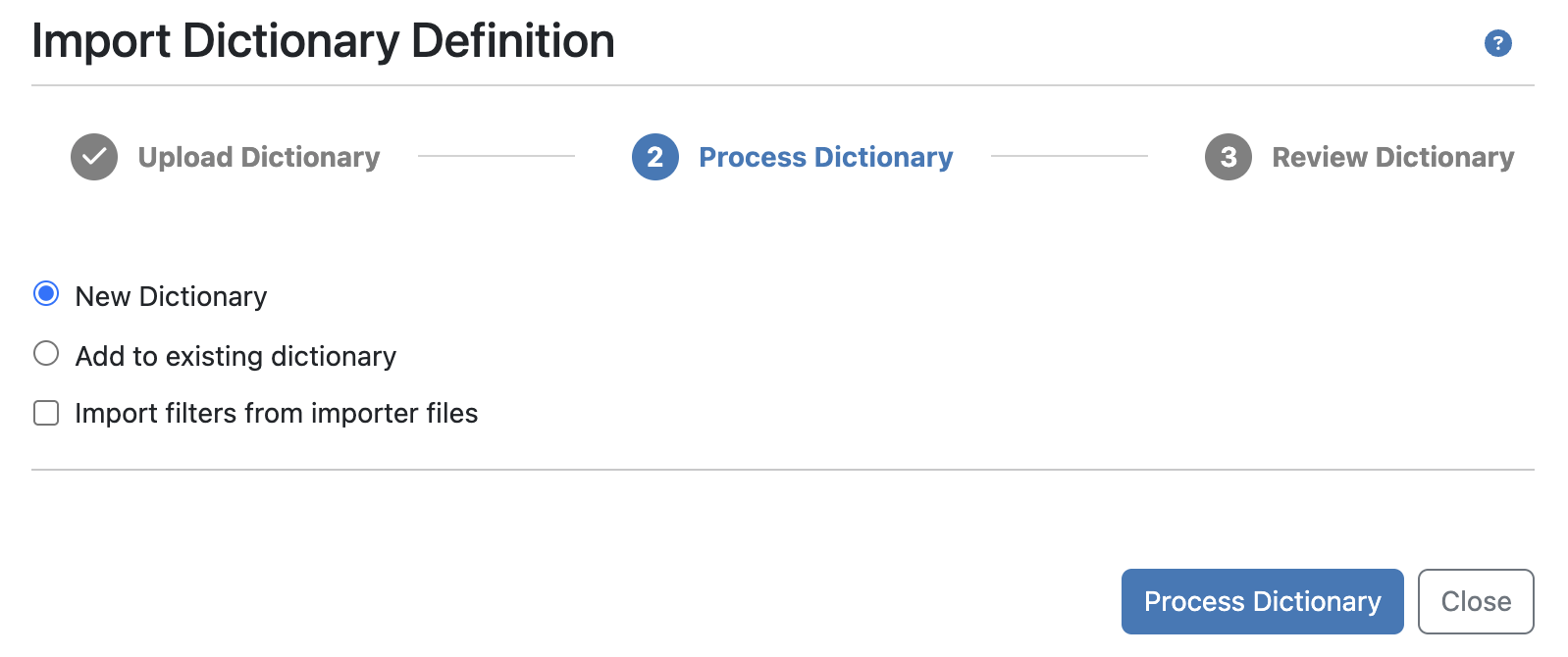
If you want to recreate the structure of a dictionary from an earlier exported dictionary data file (or a correctly structured import file in Excel or TBX format), you can choose the Quick Import option from the Administration > Terminology > Dictionaries screen (see here). This will both create the structure (dictionary definition) and import the term data into the dictionary.