Users
The Users list shows all users and their current settings.
The page is available via:
-
Administration → User management → Users.
Add a user
Users can be created automatically via SSO or manually. To manually create a new user:
-
Click the New User button.
-
Type in a username, full name, e-mail address, and select user role (you can indicate if the user is to be an administrator or system administrator, specific dictionary administrator or users editor).
You can define any group membership later under Group Members. If you want to set the password for the new user, deselect the Send password reset link in email checkbox and fill in the desired password twice.
If you want to create a temporary user only, fill in or select the expiration date for the account. If the user tries to log in later, a "This user account is currently disabled" message will be issued. For further options, see below under "Change information about a user".
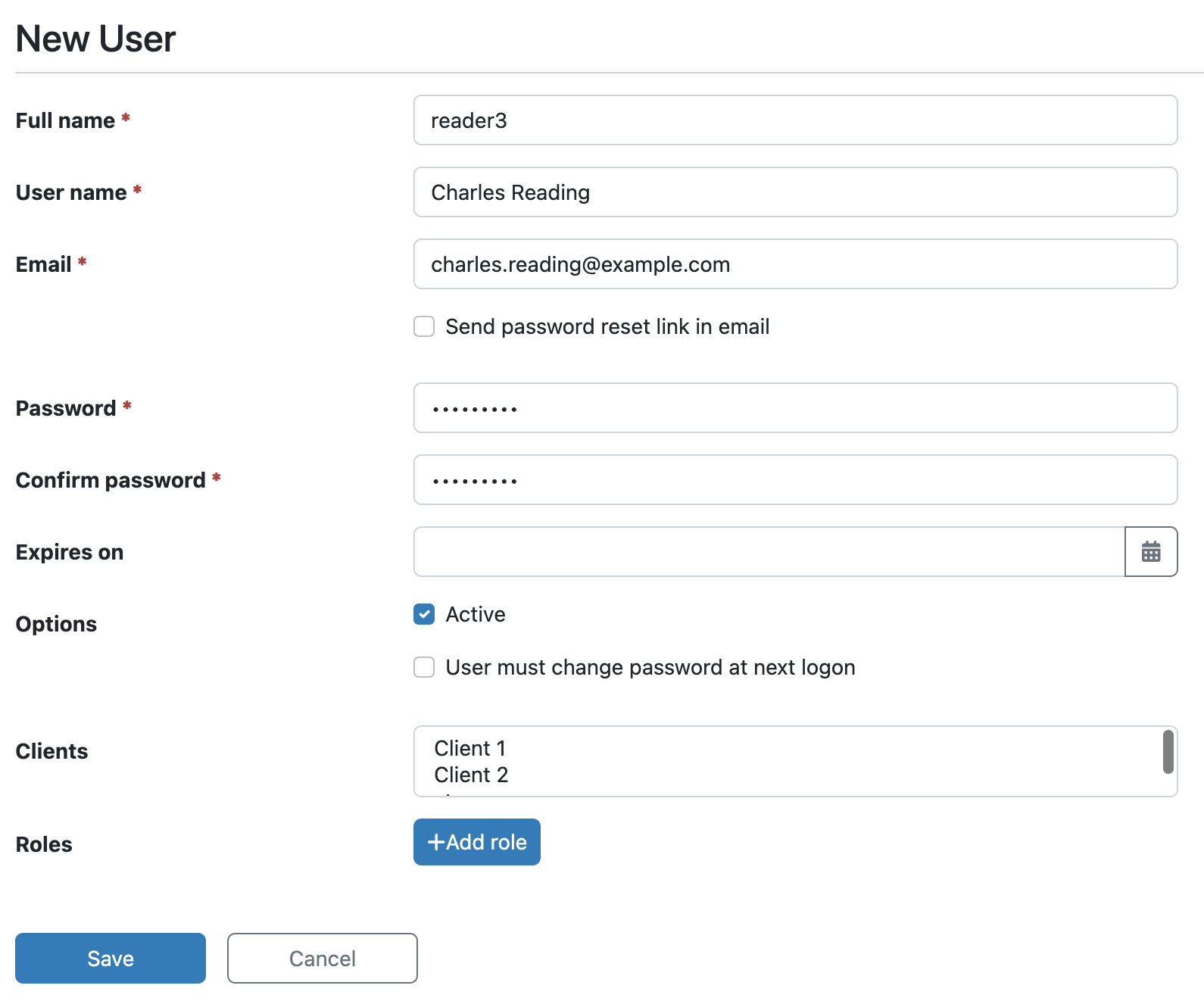
In the above case, the user won’t get an email with the credentials (this will have to be communicated via another channel). You can also set that user is required to change the password after logging in. (If only the Active checkbox is selected, no email is sent and there is no requirement to change password)
-
Click Save you’ll return to list of all users.
For the Clients and User Roles functions, please see below.
Change information about a user
-
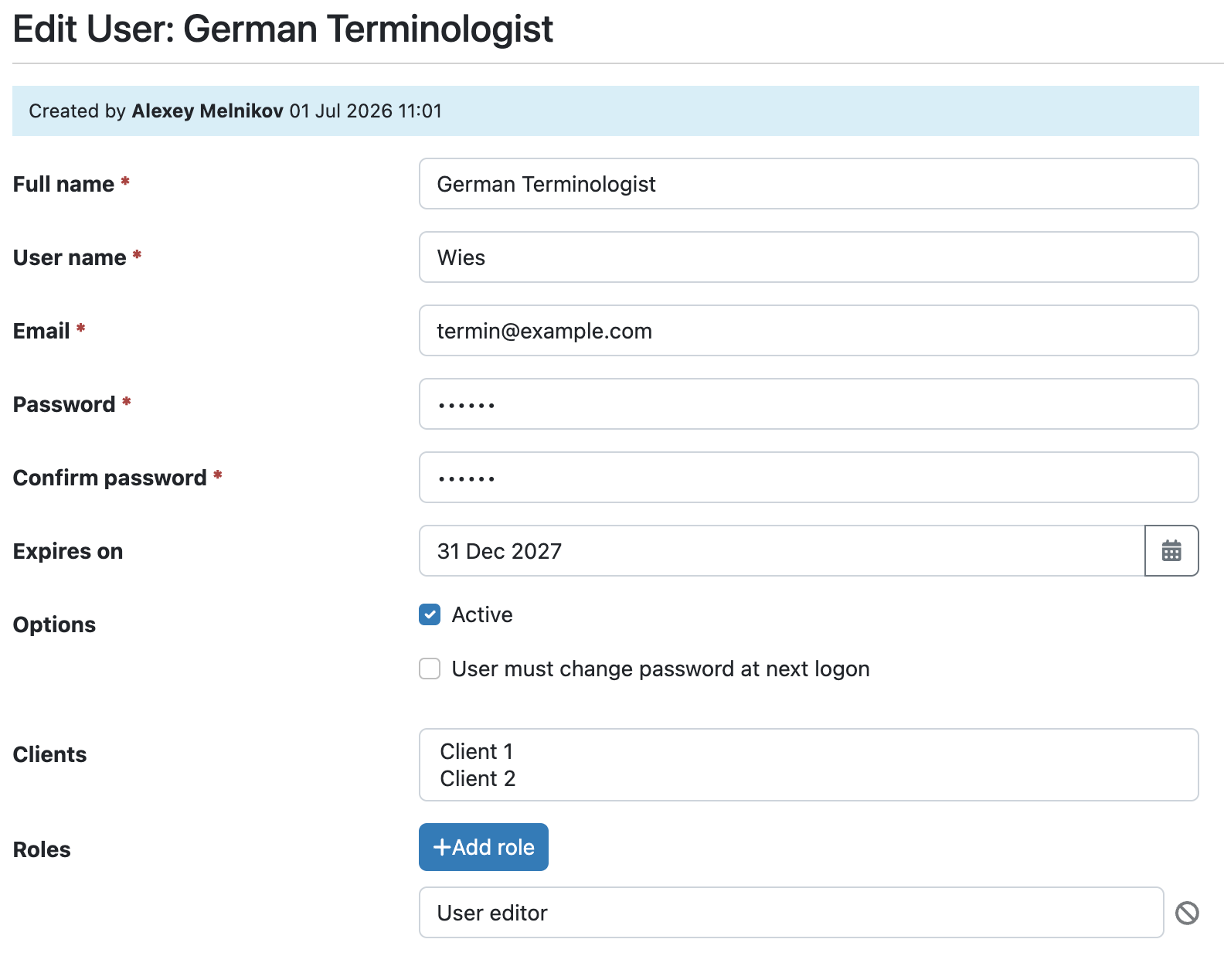
Click the user’s name. A dialog box similar to the one below will appear:
-
Make changes in the user data.
If you want to set an automatic expiration date for the user account, enter the date in ISO format (or select it from the calendar). At the selected date, the user will be deactivated.
Deselect the Active checkbox if you want to temporarily deactivate the user.
Click Add role to add a role to the user in the User Roles dropdown. As an example, select User editor for the user to be able to edit other users' info and place these other users in groups.
Here, a "normal" user can also be given the Administrator role for a certain dictionary: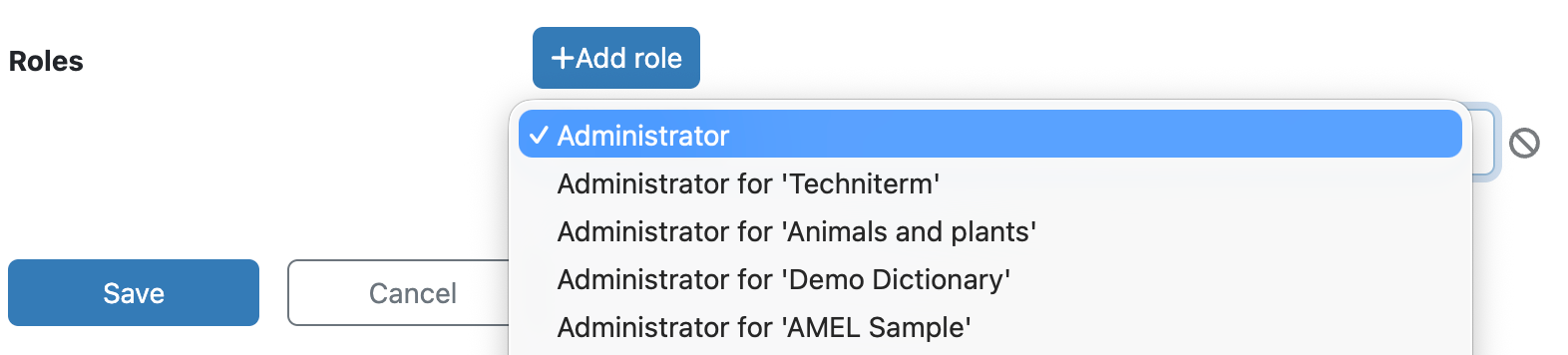
This means the user is given the rights to
-
edit the dictionary’s definition add, edit and delete sections of the dictionary
-
add, edit and delete views for the dictionary
-
work with the history of the dictionary (including restore to an earlier state)
-
import to and export from the dictionary.
-
-
Click Save to update User
If the multiple-client user function is enabled in your installation, and you are logged in as a
system administrator, you can also select more clients that the user should be able to access:

Select the client(s) that the user should be able to access using same login. In current versions users with access to multiple clients becoming automatically system administrators.
Groups
The Groups page shows all User Groups in the TermWeb client.
TermWeb currently supports four types of User groups:
-
All users
-
Guests
-
Language Groups
-
API group
-
Mormal groups
Group membership is specified under the Group Members menu item.
Permissions for User groups is set in Permission Schemes, defining a set of rights for the user groups and then assigning this permission scheme to the desired dictionary or section.
Default User Groups
On creation, a TermWeb client always contains a All users and Guests User group. The "All users" group automatically contains all named users for the purposes of permissions and notifications. The "Guests" User group can be used to apply permissions for the Guest users. Renaming the "Guests" User group will rename the group for the purposes of Statistics and Permission Schemes.
Neither the "All users" or "Guests" group can be deleted.
API group
Servers with the api.autocreate.users setting enabled via termweb.properties, will have users who are automatically created via API added to a API enabled User group. If the User group doesn’t exist yet, it will be created when the first user is created. The User Group’s name can be configured via the api.default.user.group in termweb.properties. By default this group is called "API".
Language groups
Language groups are created by editing a dictionary on the Dictionaries and editing a language. An empty checkbox should appear to allow the creation of the specified language group unless it already exists. Language groups can be assigned to receive notifications for the purposes of Workflows.
(See also the section on using language groups)
Add a group
-
Click Groups.
-
Click New Group.
-
Indicate the name of the user group, description, the desired automatic logout after inactivity period Session timeout (if differing from the default, which is normally 30 minutes), and any view or filter that is to be applicable for the group.
Filter and view can be set individually for each dictionary.
For TermWeb installations with the API add-on product installed, you can choose if you want the users within the group to be able to access TermWeb via the API by using the Allow API access checkbox.
If you want the group members to change their passwords at regular intervals, i.e. you want to set a maximum password age, you can also specify a Change password interval here.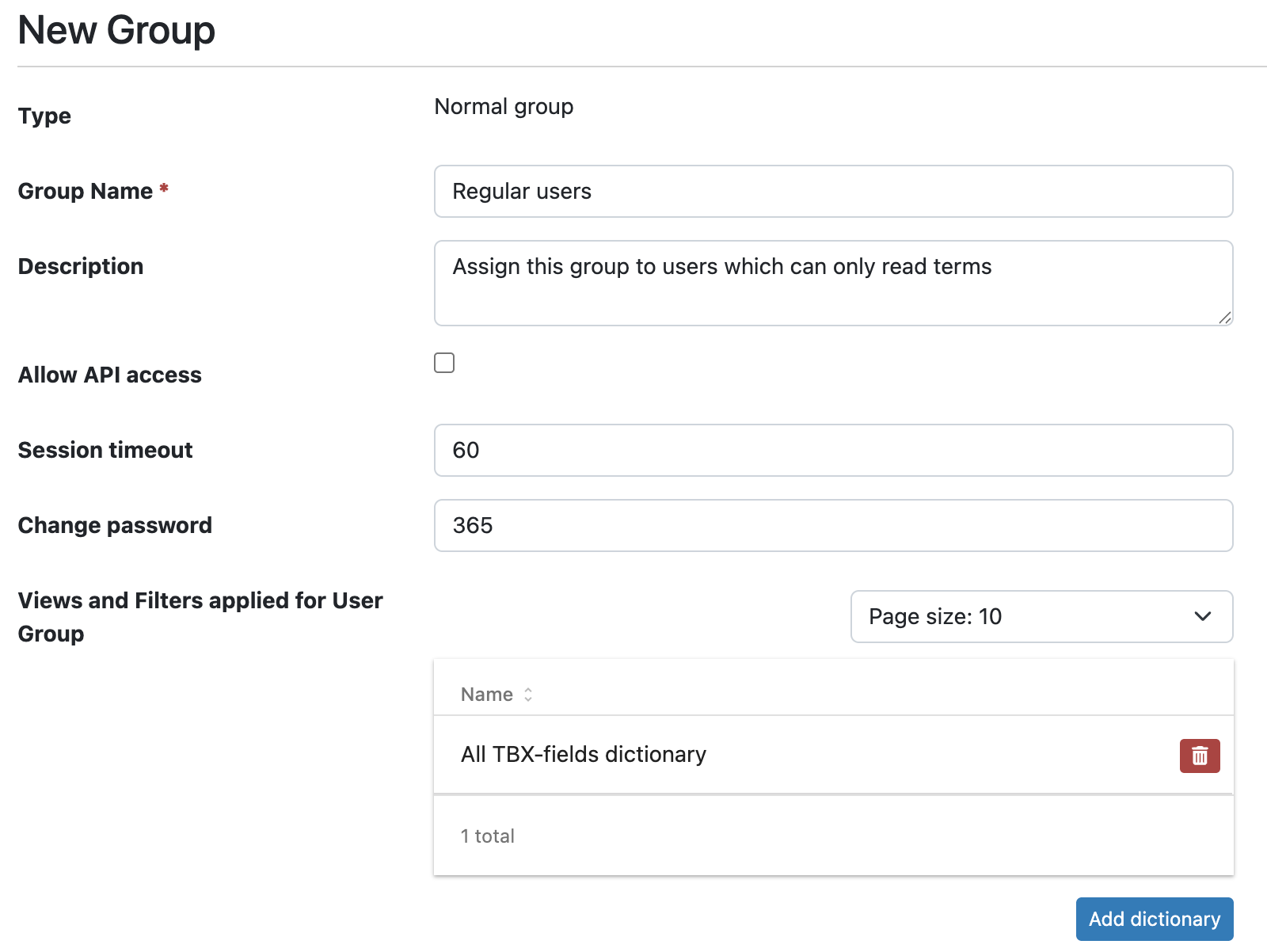 If a user is a member of several groups, the lowest value among the groups is applied for the
user.
If a user is a member of several groups, the lowest value among the groups is applied for the
user.
Views and Filters are defined under Views and Filter applied for User Group.
First you need to add Dictionary for which you want to specify View or Filter. Then under list of dictionaries you may find expandable panel with added Dictionary name, where you specify required property.
By default, no views or filters are applied. -
Click Save Group.
Change information about group
-
Click Groups.
-
Click the user group’s name.
-
Change the name, description, session timeout, and, if desired, password renewal interval and any filter and view (or views) (per dictionary) that are applicable to the group. An example:
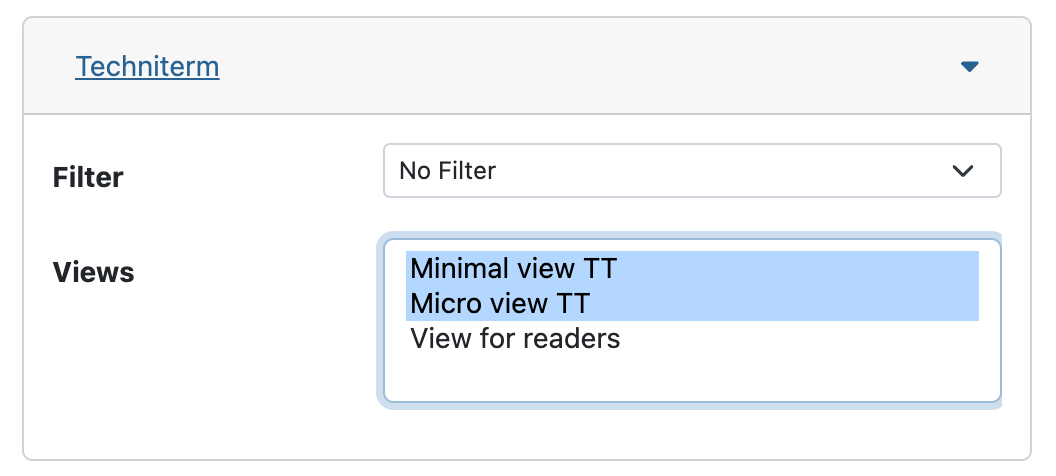
Here, no initial filter, but the view "Minimal view TT" is selected for the current group and the "TechniTerm" dictionary. To deselect a filter, select "No filter".
To deselect one or more views, Ctrl-click the currently selected view or views. If you want more than one view to be selectable by the users in the group, select these views by Ctrl-clicking. -
Click Save Group.
Group members
The Group members page indicates which user is a member of a particular group and to which groups a particular user belongs.
Go to Administration → User management → Group members.
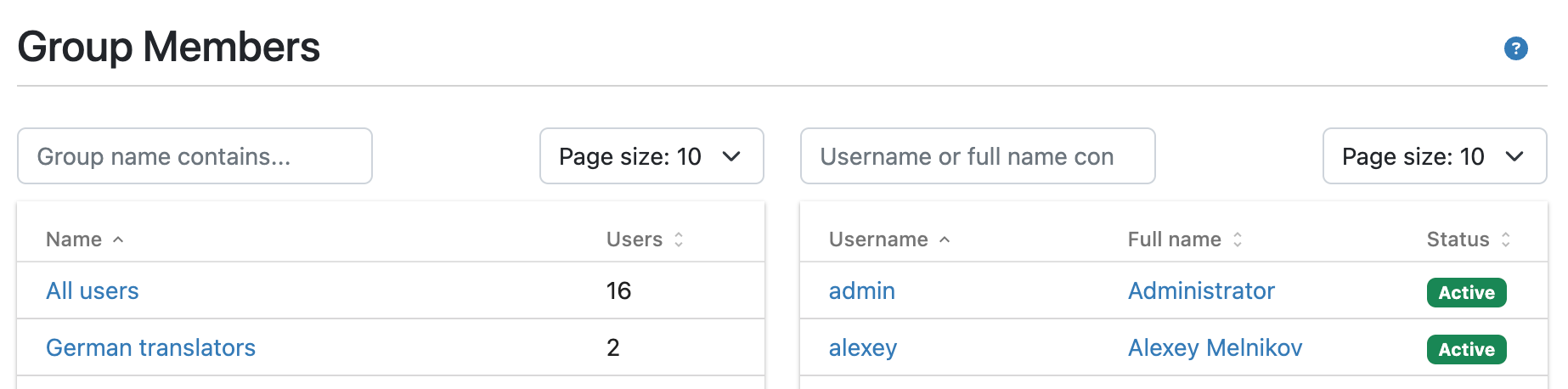
Columns can be sorted (ascending or descending) on the basis of the group name, number of users, usernames or status by clicking on the relevant column heading.
You can either click a group name to find out which users are members of the group or click on
a username to find out and change the groups to which a user belongs. You add users and
groups by selecting the name in select, or delete by clicking x near user username, and then confirming by
clicking Save.
See Permission schemes how to configure access rights for user groups.
Guest Account
Note: This function requires Guest account be enabled in your TermWeb License.
Activate/deactivate and change information about guest users
-
Go to Administration → User management
-
Click Guest Account and then Edit button.
-
Activate the Guest account by ticking the box Enable guest account.
-
If the guest user is to log in the usual way: Fill in the username and password and select Normal login method.
-
If the guest user is to log in automatically when they visit the TermWeb server: Select Automatic (Always) or Automatic (when client is specified in URL).
-
-
Click Save.
Everyone who visits the website will now be able either to log in:
-
with the specified username and password or
-
automatically (to only one predefined client of many) or
-
automatically to a client when that client name is specified in the TermWeb URL (e.g. https://example.termweb.net/client/clientname, where "clientname" is the client login name).
-
automatically via SSO.
| Several users can use the guest account at the same time, if this function is enabled. |
What guest users can see is set under Permission Schemes and with filter and views per dictionary for the user group Guests.
Guest users cannot change term data; they can only search for terms, use pre-defined filters and create temporary filters.
If you want, you can easily deactivate the guest account by clicking Guest Account, start editing, deselecting Enable guest account and clicking Save.