Welcome page
The Welcome page is the background page for the SearchView which is shown to users when they log in for the first time or close all open Concept windows.
Administrators are free to customize the Welcome page in any possible way in provided text editor.
The text editor currently supports font sizes, stylization for text, external links, attaching images or videos stored in file repository or from external approved sources. Youtube videos stored on the "youtube.com" domain are supported for imbedding. If you wish for additional domains to be supported by your TermWeb server, please contact TermWeb Support.
Feedback page
The Feedback form enables a small Feedback icon on the SearchView menu which allows users to send feedback to specified recipients.
Feedback form
To enable the Feedback form, left-click the Edit button and then the Feedback page enabled checkbox.
The feedback form can be customized according to the settings provided below. Changes to the Feedback form will show up in the preview to the right.
Send feedback
To send a message to a Recipient:
(To save a comment with a specific term or term record, please use the Add comment function.)
-
Click on the mail symbol .
-
Select the name of the addressee from the dropdown in the To field.
-
Your name and email address should already be filled in (if registered by the administrator).
Otherwise, fill in these together with the subject and your message.
You can also attach a file with additional information if this function enabled.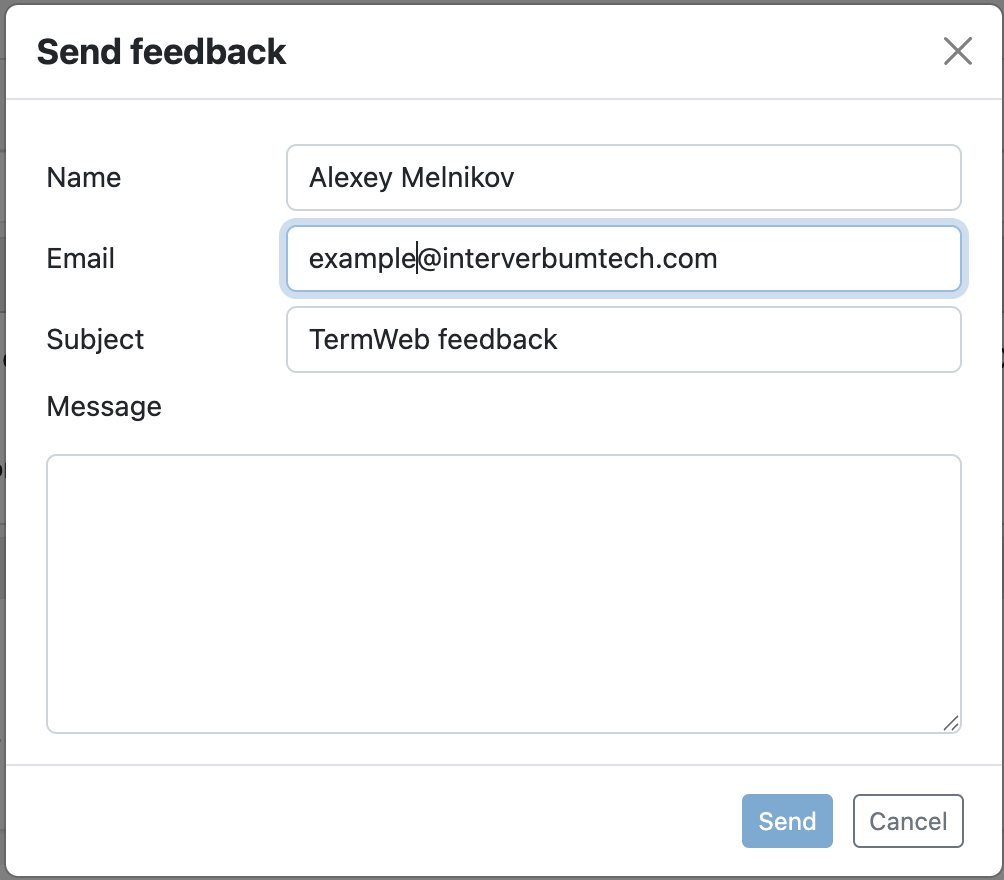
-
Click Send. Confirmation that the message has been sent appears in the result pane.
Error page
Message for error page
Go to Administration → Customize → Error page
-
Enter the desired message in the message field.
-
If you want to reset made changes click on Reset.
If you want to change the message to the standard (English) text, please click Default. -
Click Publish when ready.
-
If desired to test how the message would look, use this link or click Preview link near other buttons. You should publish message first and the reload page to see the result.