Views
Views allow Administrators to hide or show specific fields for assigned User Groups. To create and assign a View:
-
Go to the Administration → Access control → Views
-
Click Add view…
-
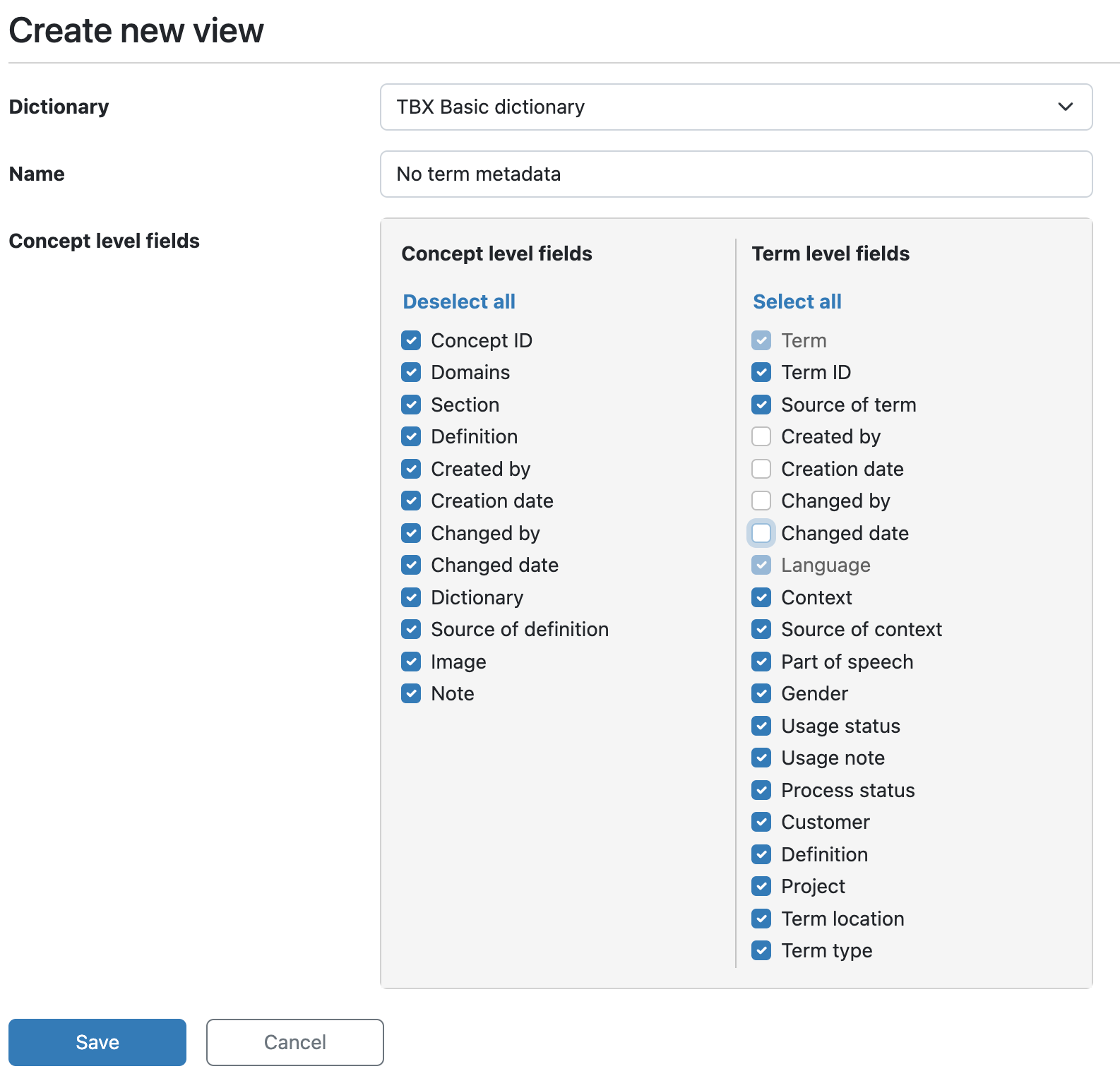
Specify which Dictionary to assign the View to via the dropdown list.
-
Provide a descriptive name.
-
Select which fields that are to be shown with the applied View.
-
Click Save
-
Go to Administration → User management → Groups
-
Click the group�s name highlighted in blue. The Edit Group: page should appear.
-
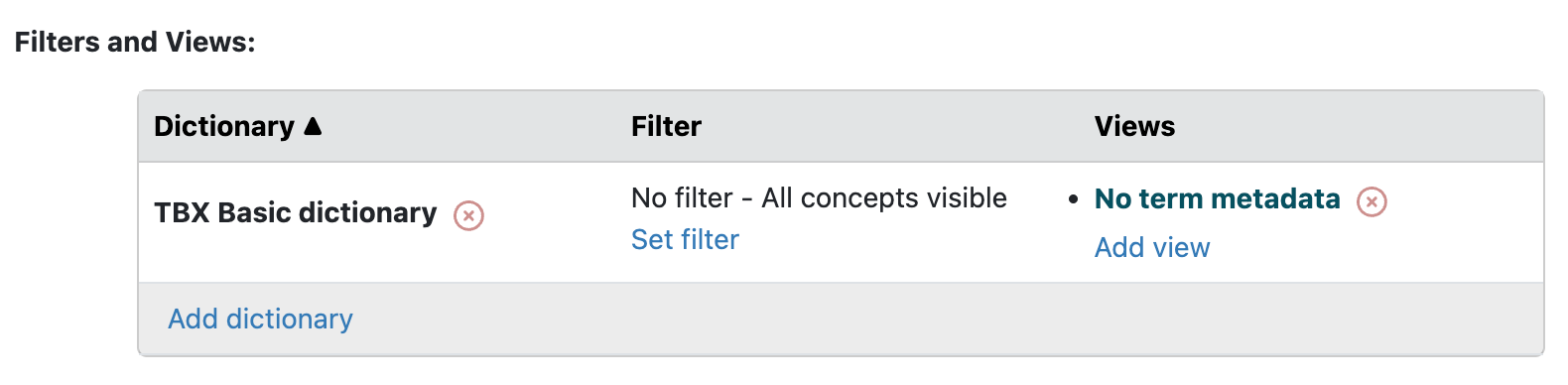
Under Filters and Views, select the Dictionary which will be used with newly created View, and add view on next step.
-
Click Save to apply selected View for Group.
The users in the group will then not be able to see the deselected fields in either view or edit mode (assuming that the group has some form of write access to a part of the relevant dictionary).
| If a View is assigned to any User group or Section, it cannot be deleted from the list. |