Workspaces
Introduction to the Workspaces tool
With the Workspaces function in TermWeb you can define and automate certain project-related tasks. The main difference between Workflows and Workspaces is the ability for you to filter on which Concepts you affect by a Workflow.
A workspace may, as an example, be a batch of new term records to be worked on. You should define the workspace by a filter, e.g. a "batch number" field value, define a workflow for certain tasks, that can send a customizable email to a User or a User group, when the workflow conditions have been met and the task has been performed. The email can be sent at regular intervals, once the task has been performed a selected number of times, in the same way as for workflow emails initiated from Administration → Automation → Workflows.
Creating new workspace
-
Click New workspace.
-
Select the dictionary for which the workspace is to apply.
-
Fill in the desired data on the tabs displayed:
-
The General tab:
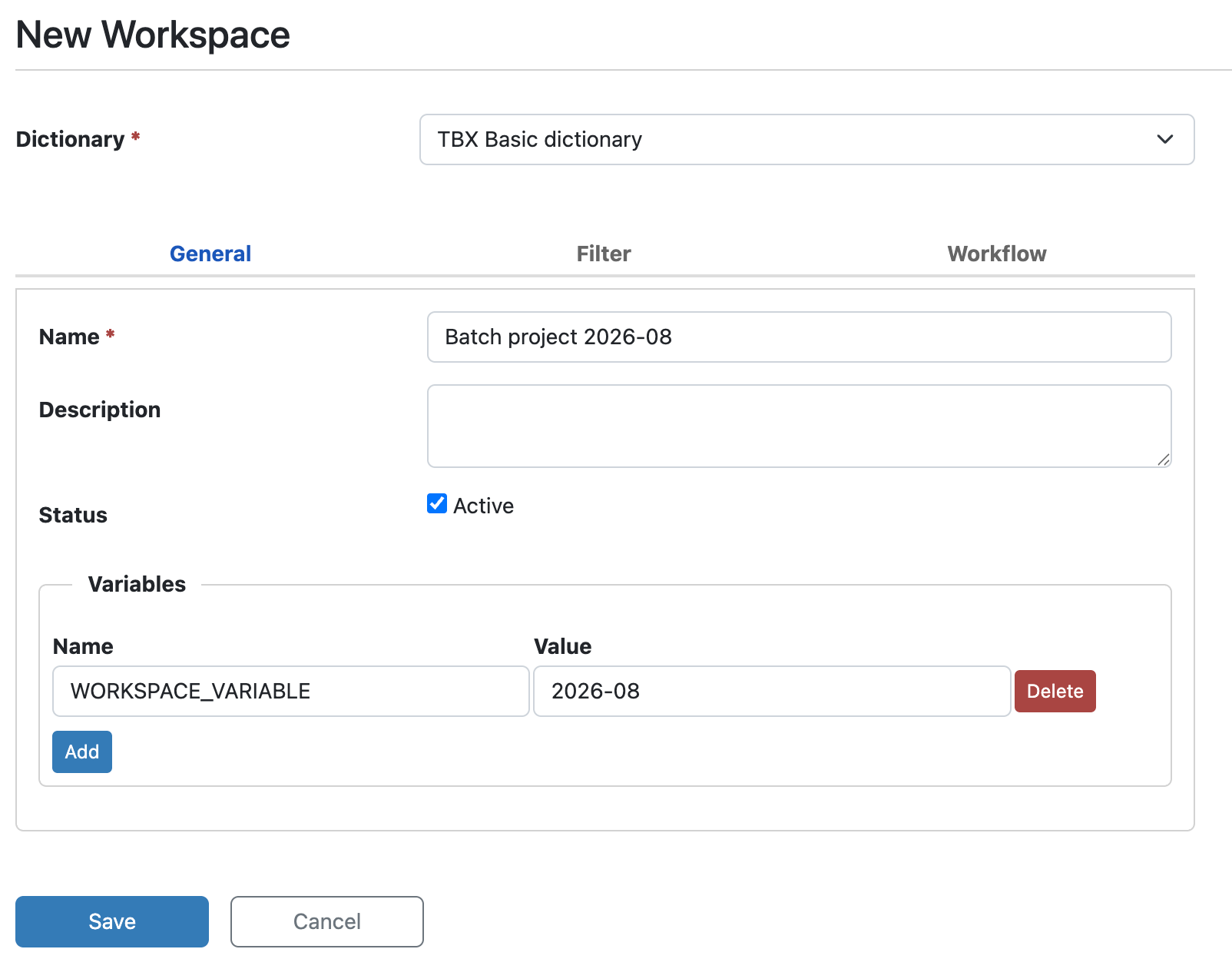 Define any variables you might need for emails.
Click Add and enter (short variable) name and (long) value.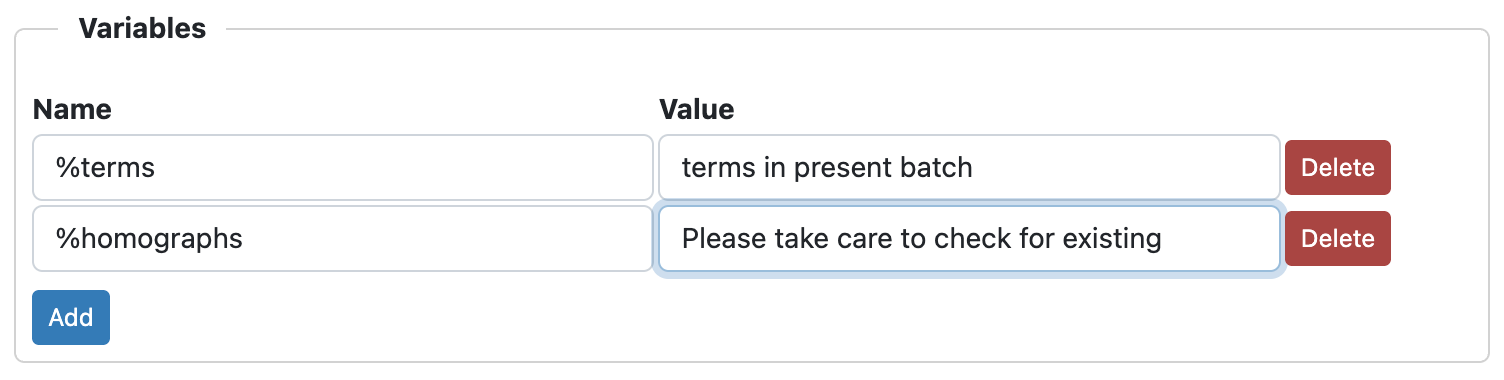
-
The Filter tab:
Click Edit Filter and create a filter for the term records to be included in the workspace.
An example: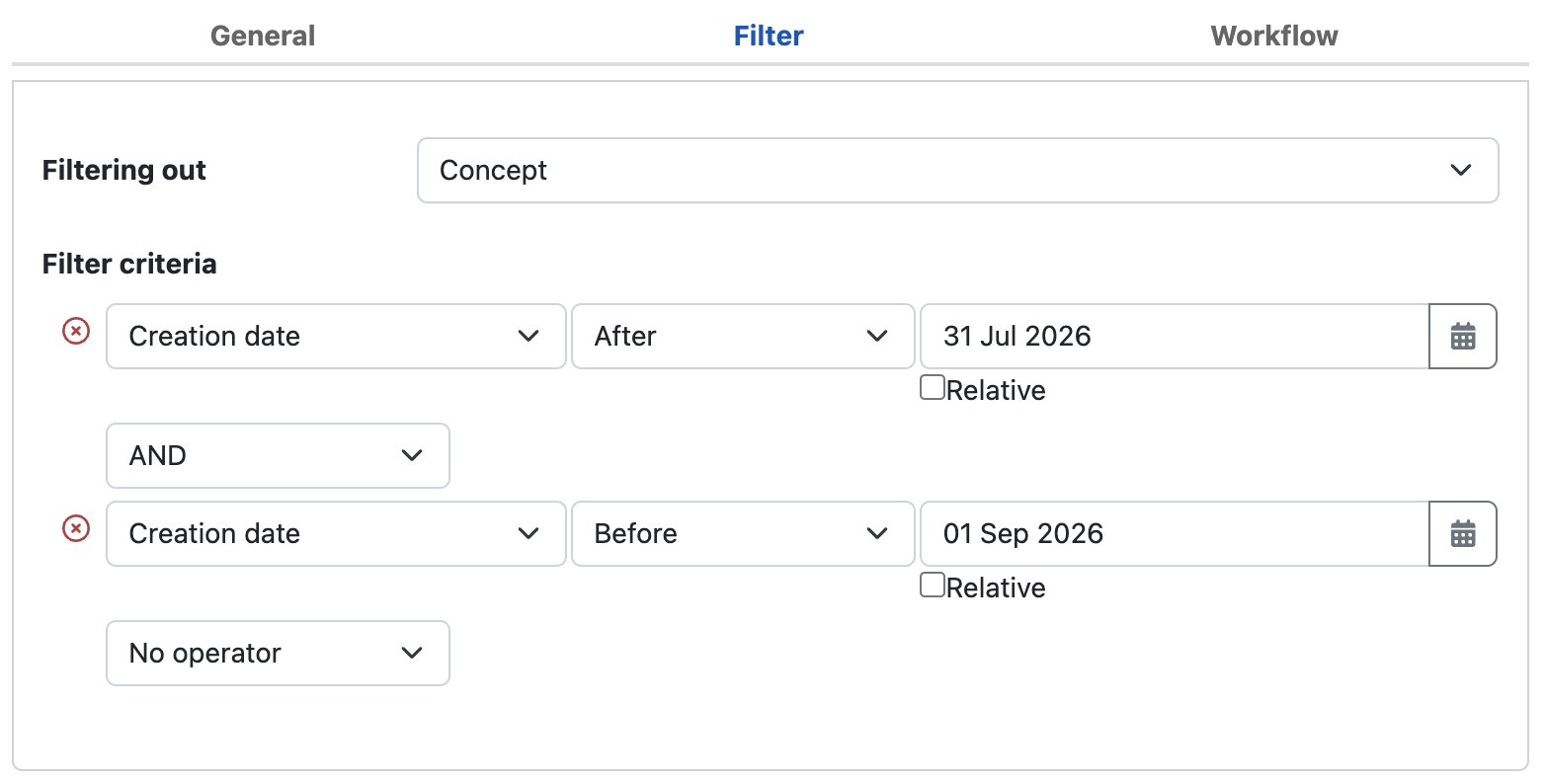
-
The Workflow tab:
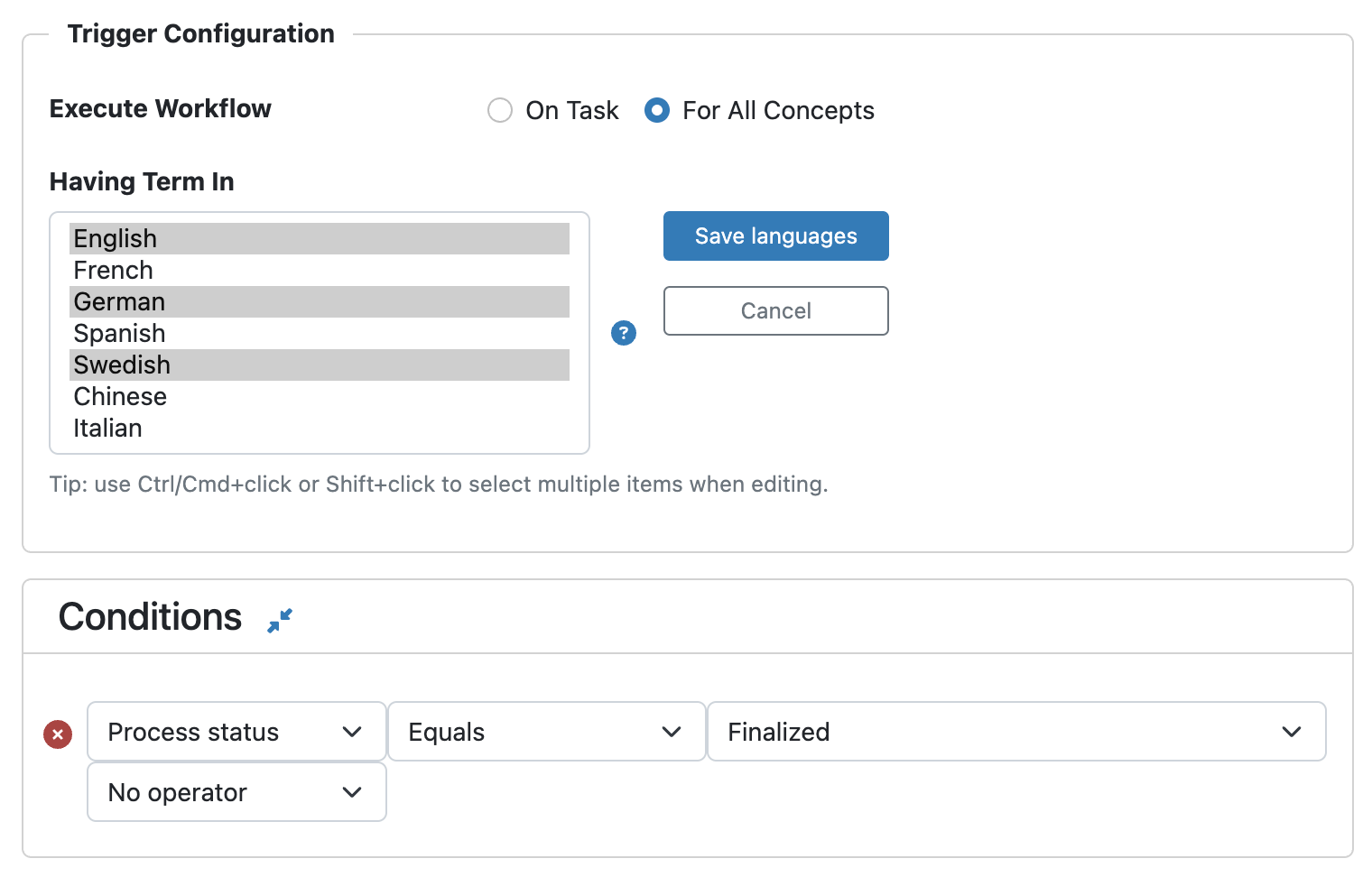
Fill in the desired name of the workflow, select the task (out of the available tasks) to initiate the workflow and the condition(s) under which the workflow is to be initiated.
An example: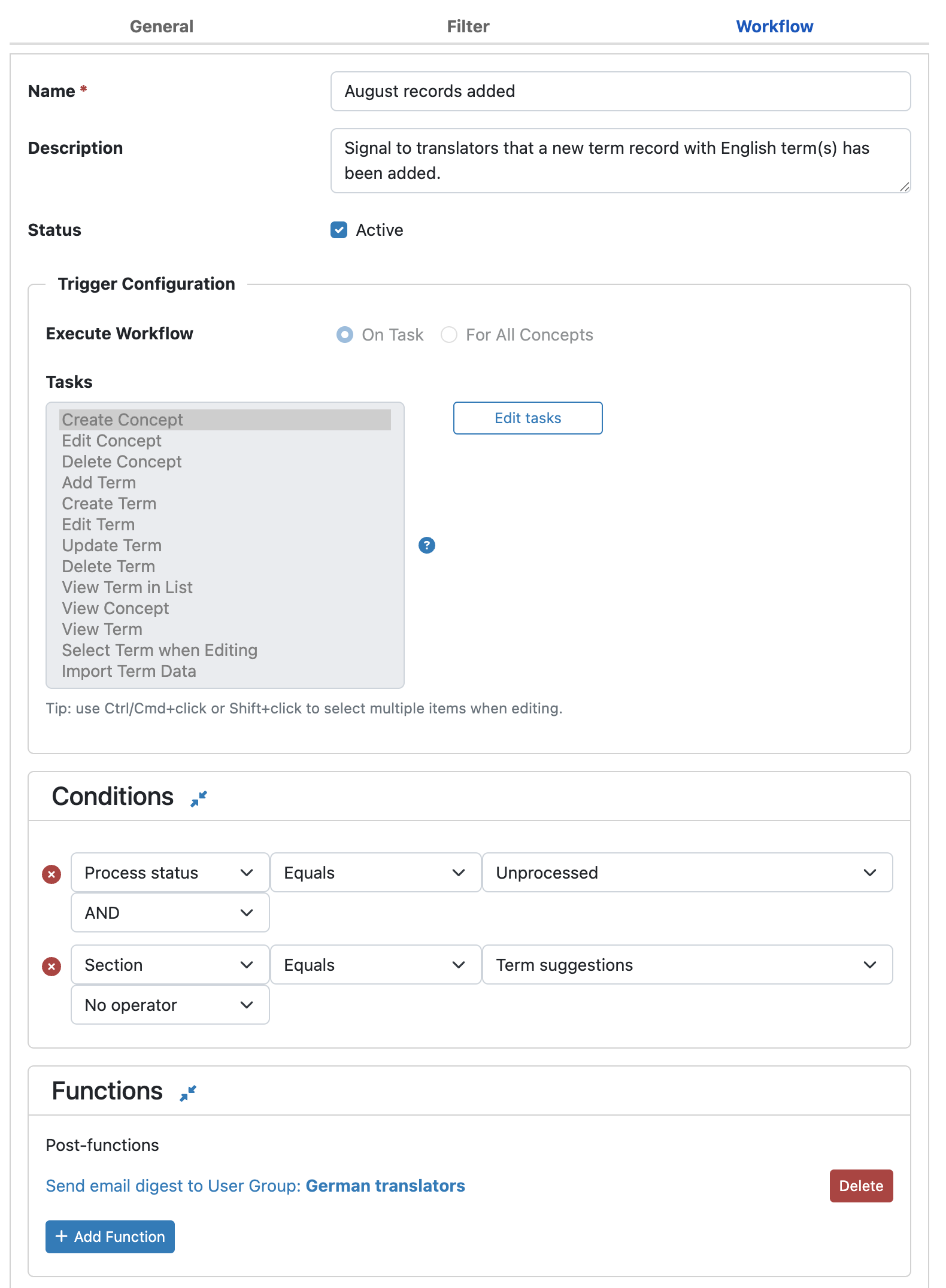
An example where the conditions for a concept are completed by having terms in all, or at least a few, of the required languages:
 Click Add Function.
Fill in the email or reminder recipients and other conditions (see example below).The For All Concepts workflow can only use the Send email and Send reminder functions. 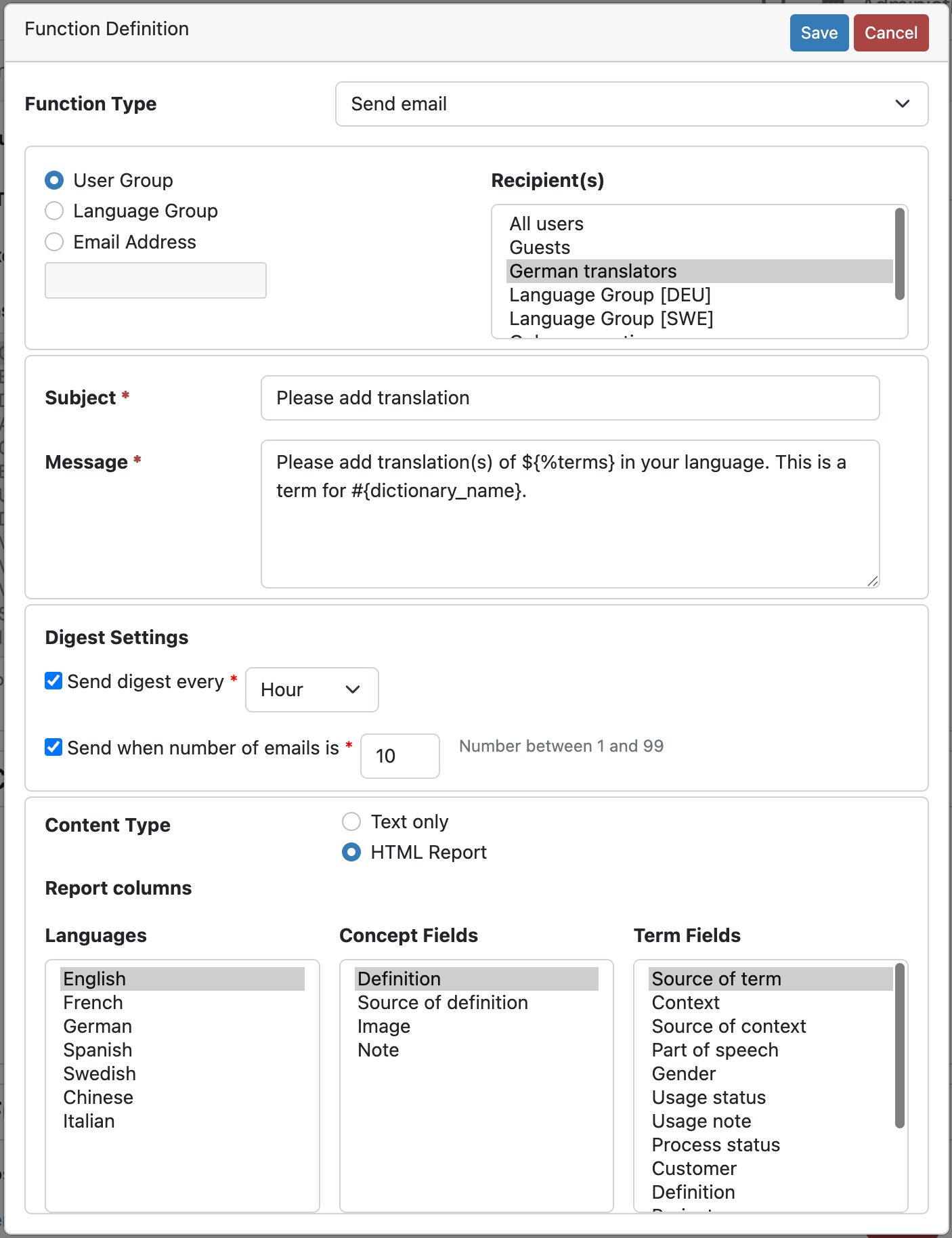 In the HTML Report you can define field names as part of an HTML table.
Additionally, if you want to make use of an earlier defined variable in the email text, right-click to insert the desired variable: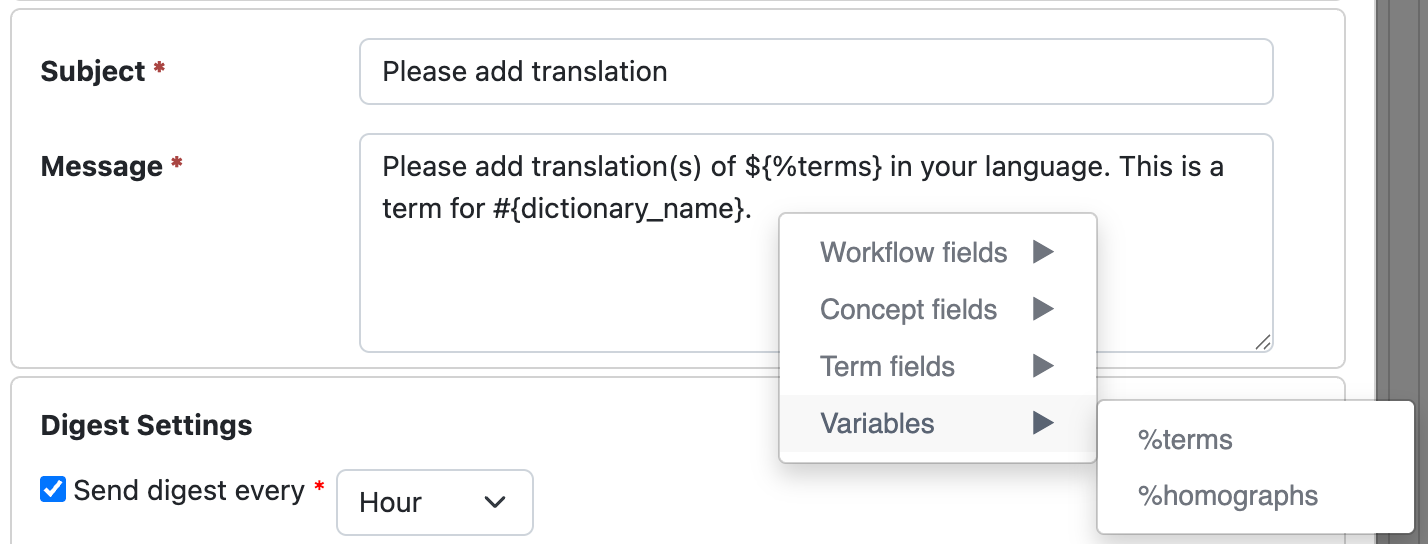
-
-
Click Save on top of dialog to save the function. You may then add another function, e.g. a reminder email.
-
Click Done to save the workflow.
-
Click Save to save the workspace.