Search settings
By using the Search settings features, you can search in multiple fields at the same time or for terms without knowing the exact spelling.
Advanced search options
The Search settings window is displayed by pressing the Open Search settings button, shown as a square button with three horizontal lines, immediately right of the Search bar.

Select the checkbox next to the search feature you wish to use, select the criteria you wish to use and click the Apply button to submit the search criteria on the terms in the term list. If you click on the Cancel button, any changes to the settings will be lost.
When any of the advanced search options are enabled, the Search settings button will appear with an asterisk in the top-right corner.
Domain search (optional)
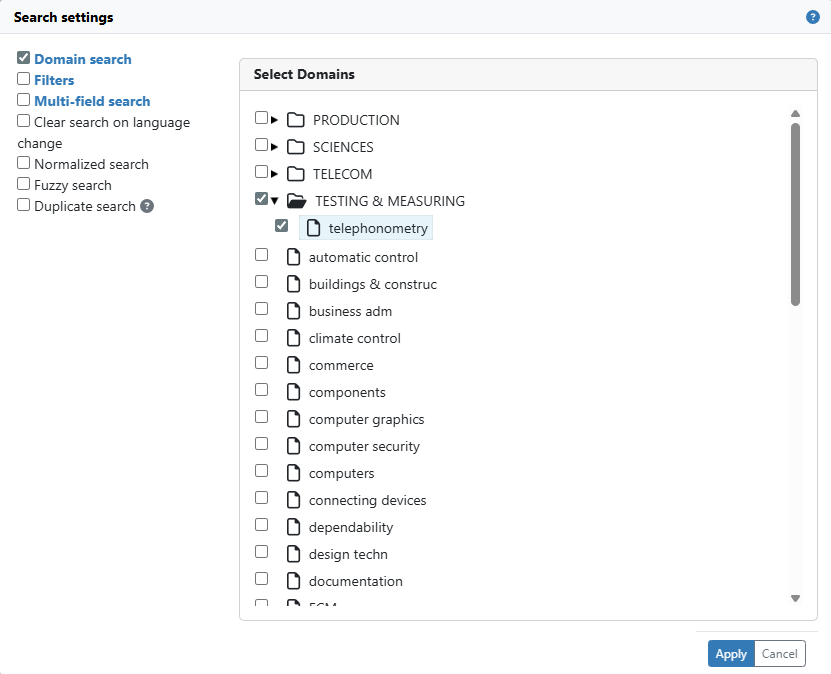
The Domain search feature will only appear if the selected dictionary has the Domains feature enabled. To enable this feature, an Administrator need to add at least one domain to the dictionary via the Terminology > Domains page.
Filters
The Filters menu shows all available filters to the user, whether they are created by the user themself or shared to a User group the user belongs to. The menu will also show the number of Concepts that fulfill the filter criteria.
Multi-field search
The Multi-field search option will allow the user to search for character strings in specific fields in addition to the Term name. Click Apply after selecting which fields to search, then use the normal Search bar for your searches.
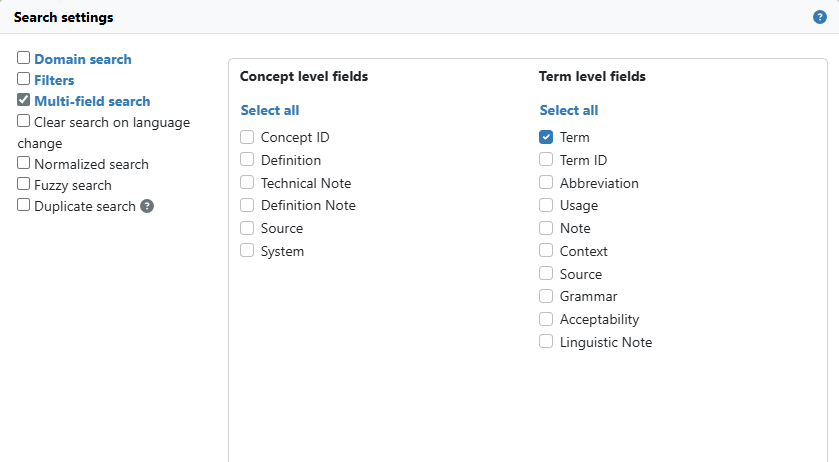
If you click on Select all, all checkboxes listed immediately below will be enabled.
All terms that matches the search expression in any of the selected fields will be displayed in the term list. The matches depend to some extent of the type of fields selected. For text fields, a search is made for all entries that contain the given search expression. If the field is numeric, e.g., the Concept ID field, an exact match is attempted. If the field is a picklist, the search text must match one of the defined values in the picklist exactly.
All matches are case-insensitive.
If you select term level fields, this will return all terms in the selected source language for every concept that contains at least one term in the current source language and has a field that matches the search expression.
legal with English as source
language. The dictionary contains a concept with two English
terms, legal rule and rule of law as synonyms.
If multi-field search is enabled and the Term field is selected,
TermWeb will find and match legal rule and include all
English terms in this concept in the result, i.e., both legal
rule and rule of law.
When using multi-field search, it is not possible to use
wildcards. Searching for legal* will try to match the
literal value legal* with the values in the fields.
| It is not possible to use Fuzzy search and Multi-field search at the same time. The Fuzzy search checkbox is therefore disabled if Multi-field search is enabled and vice versa. |
Fuzzy search
Check the Enable fuzzy search checkbox to enable fuzzy search. You will then be able to search for terms even if you do not remember the exact spelling.
plattform.With Fuzzy search enabled, the terms that approximately match the search text will be shown, e.g. piattaforma.
Clear search on language change
Select this checkbox if you do not want to keep the search string when you change Source language. If you want to search for the same string after having changed Source language, please deselect this checkbox.
Enable normalized search (single-byte and double-byte characters)
This option applies to wildcard searching only. If you select this option, characters with the same function but stored differently, as single-byte or double-byte characters, will be considered equal during filtering and term list sorting.
If the option is selected, the normalized value will be used in filter criteria and thus filters can return results for both single-byte and double-byte characters. Also, normalized values are used when calculating the term list order so that both single-byte and double-byte characters are considered equally during term indexing.
For example: converts compatibility characters into standard equivalents:
-
full-width characters → standard width (common in East Asian text):
A→A,123→123,abc→abc,!@#→!@# -
ligatures → separate letters:
ff→ff,fi→fi,fl→fl -
superscripts / subscripts → normal digits:
x²→x2,10³→103,H₂O→H2O -
Roman numerals → standard letters:
Ⅰ→I,Ⅱ→II,Ⅳ→IV,Ⅻ→XII -
symbols and units → plain equivalents:
℉→°F,℃→°C,№→No,K→K,Å(Angstrom Sign) →Å(Latin Capital Letter a with Ring Above. Latin-1 Supplement) -
styled / enclosed characters → plain text:
①→1,Ⓐ→A,ⓐ→a
Combines characters into canonical forms, for example:
-
e + ´→é -
a + ̊→å -
o + ̈→ö -
n + ̃→ñ -
c + ̧→ç
What normalization does with German letters:
-
ä→ä(unchanged) -
ö→ö(unchanged) -
ü→ü(unchanged) -
ß→ß(unchanged)
These are not ligatures in Unicode terms, so normalization leaves them as-is.