Comments and notifications
You can comment on all concepts and terms to which you have at least read access. The comments can be read by anyone with read access to a Concept. If you want to view (or add) a comment regarding a concept (the whole terminological entry), click the bubble to the right on the Concept ID line.
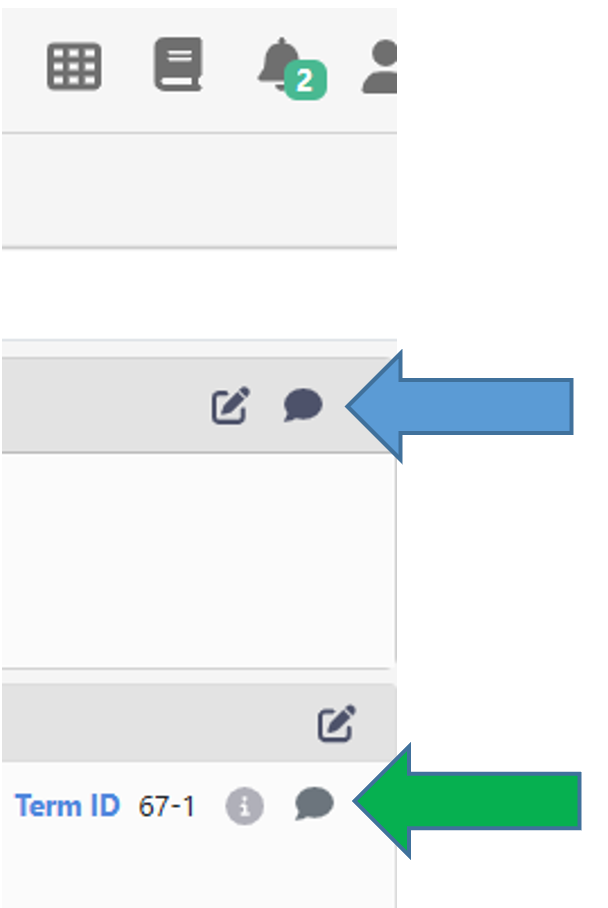
If you want to view (or add) a comment on a specific term, click the term and then click the bubble to the right of the Term ID info.
| If one or more comments already are made to the concept or term, a number, e.g., will be displayed by the comment bubble. |
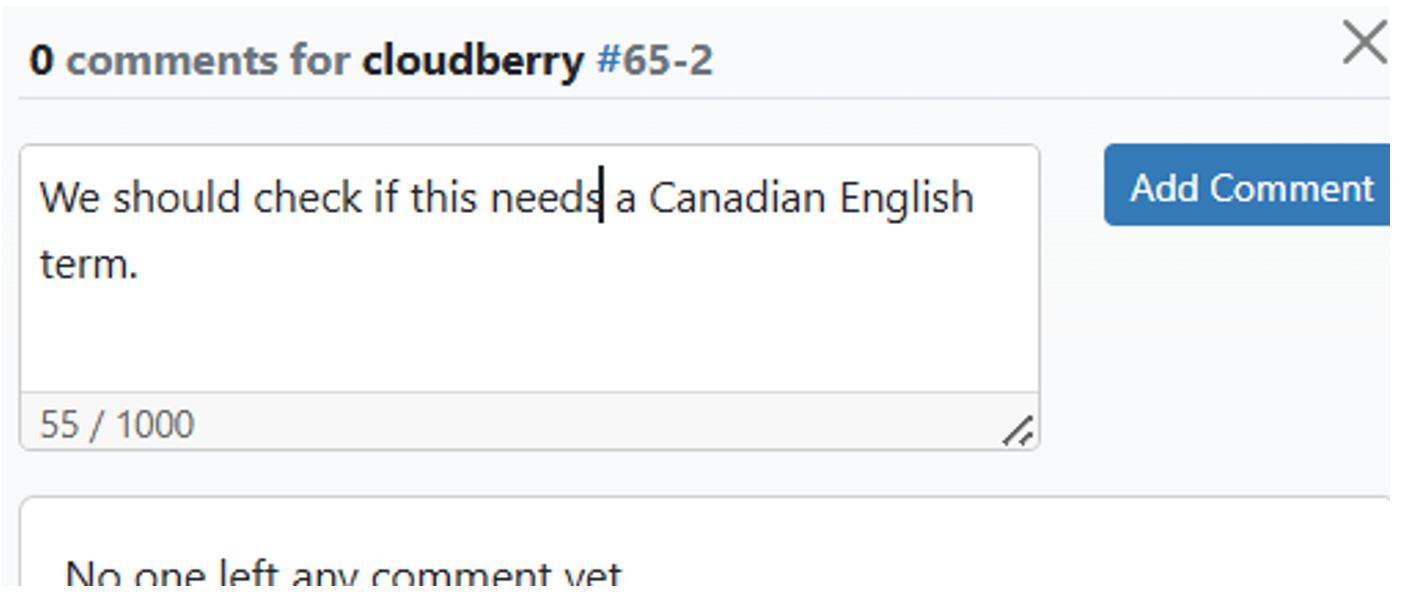
Then enter your comment and click Add comment:
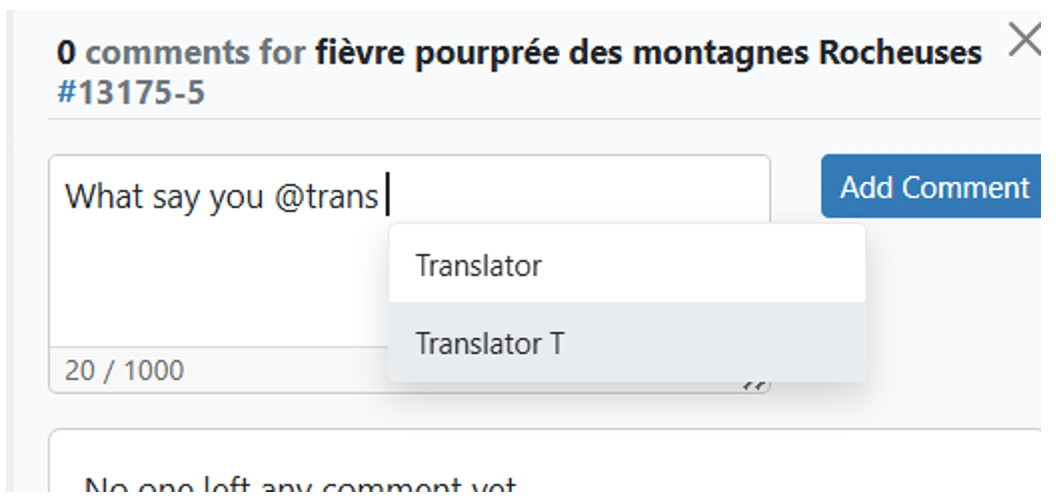
If you want to mention another TermWeb user in a comment, just type @, and you can choose from a
list of users that will be displayed.
Then enter your comment and click Add Comment.
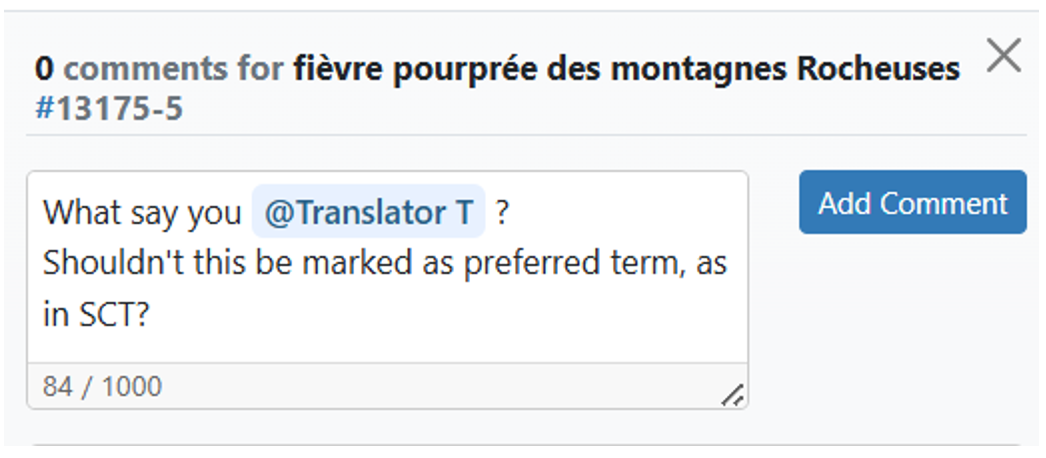
If the user has Notify me about mentions from all dictionaries enabled, he or she will get an email notification about the mention.
As a receiver, you can like and reply to the comment.
If you issued the comment, you can edit and delete the comment.
To close the Comment pane, just click ×
Notification settings
You can decide if you want notifications of comments. Click your user symbol 👤 in right top corner.
Select Profile & settings.
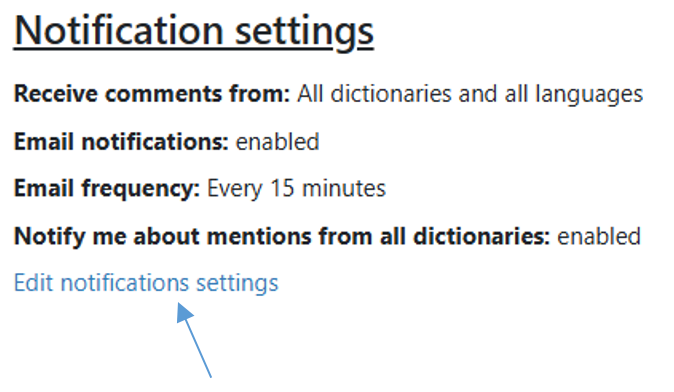
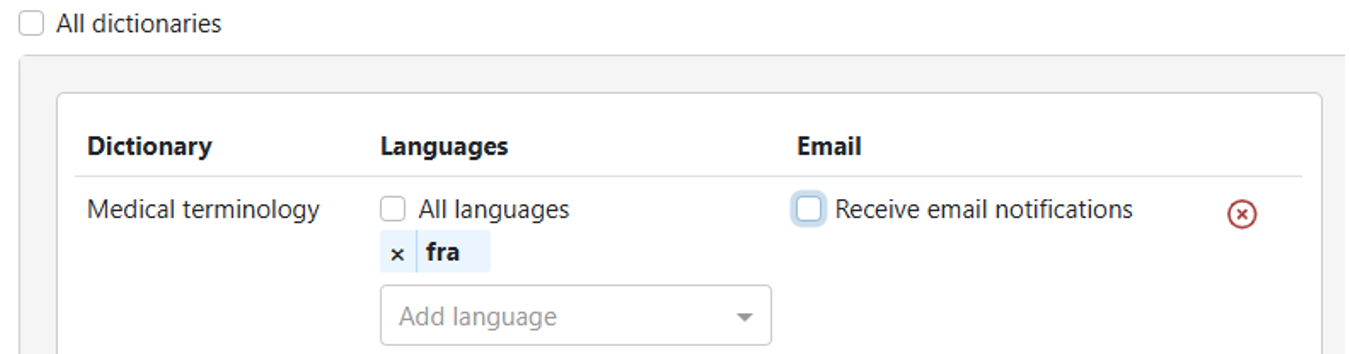
Click Edit notification settings. The following dialog appears:
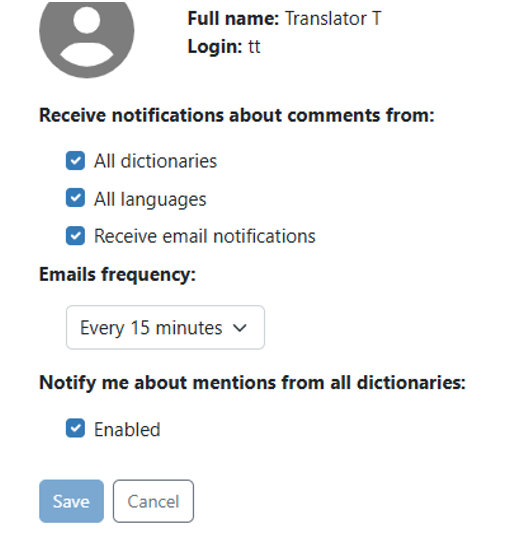
If you just want notifications of comments to concepts in a specific dictionary, deselect All dictionaries.
Then, select the dictionary or dictionaries, the comments to concepts or terms of which you want to be notified.
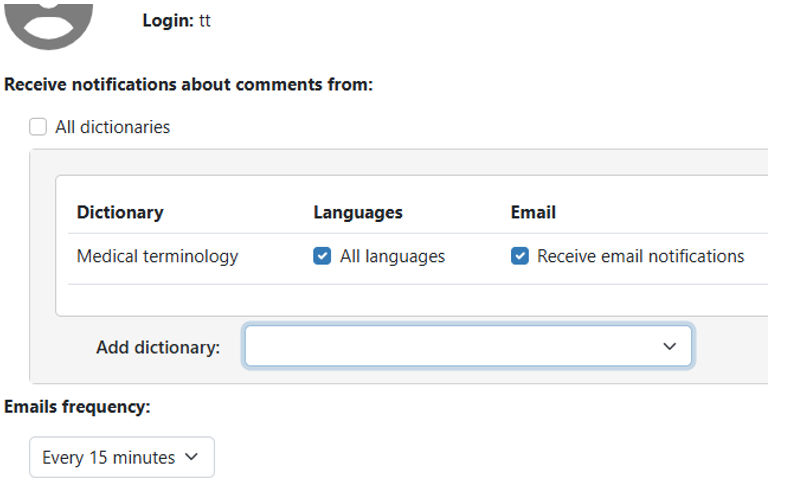
If you just want to be notified of comments to terms in a specific language or specific languages,
deselect All languages and add the desired language(s).
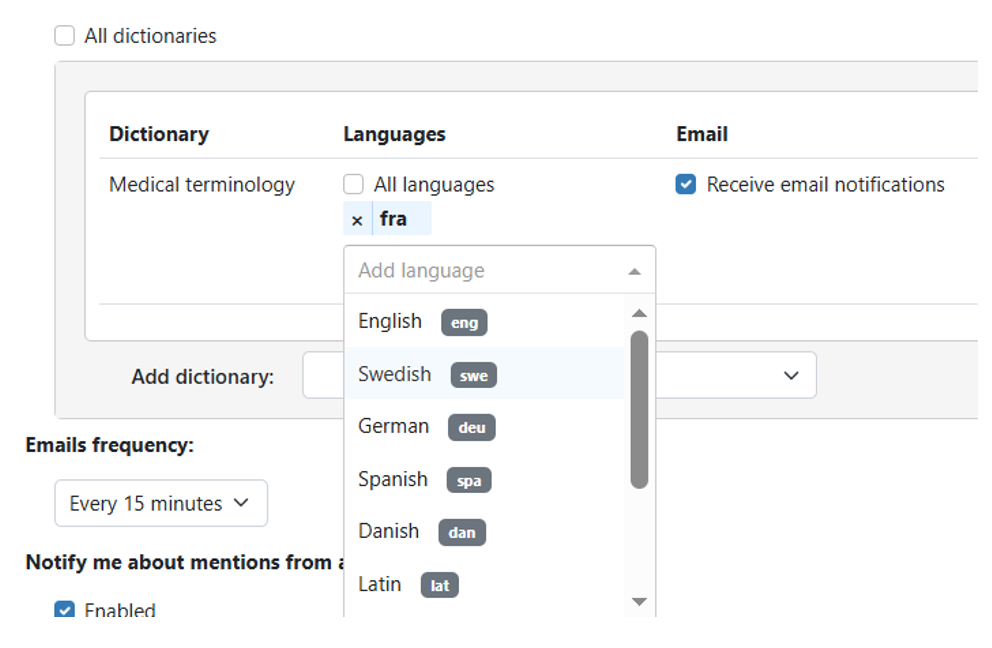
You can also decide how often to receive notification emails in the Emails frequency droplist.
If you do not want to receive any email notification of concept or term comments, please deselect
the Receive email notifications checkbox.
When you are ready, click Save.